Platform OverviewMulti-Site & Multi-BrandShared Operating Hours
Set your site hours once. The whole building follows.
One place to run your sites, brands, and building schedules without juggling disconnected systems.
Instead of updating opening hours and public holidays separately across doors, signage, and background music, Facility & System Configuration keeps each location's brand, verified address, auto-detected time zone, and Staffed, Unstaffed/Extended, and Holiday Hours in one place so every module at that site stays in step automatically.
- Staffed, Extended & Holiday Hours
- Auto-detected local time zone
- Multi-site & multi-brand ready
- Used-by impact preview
- In-app contextual help
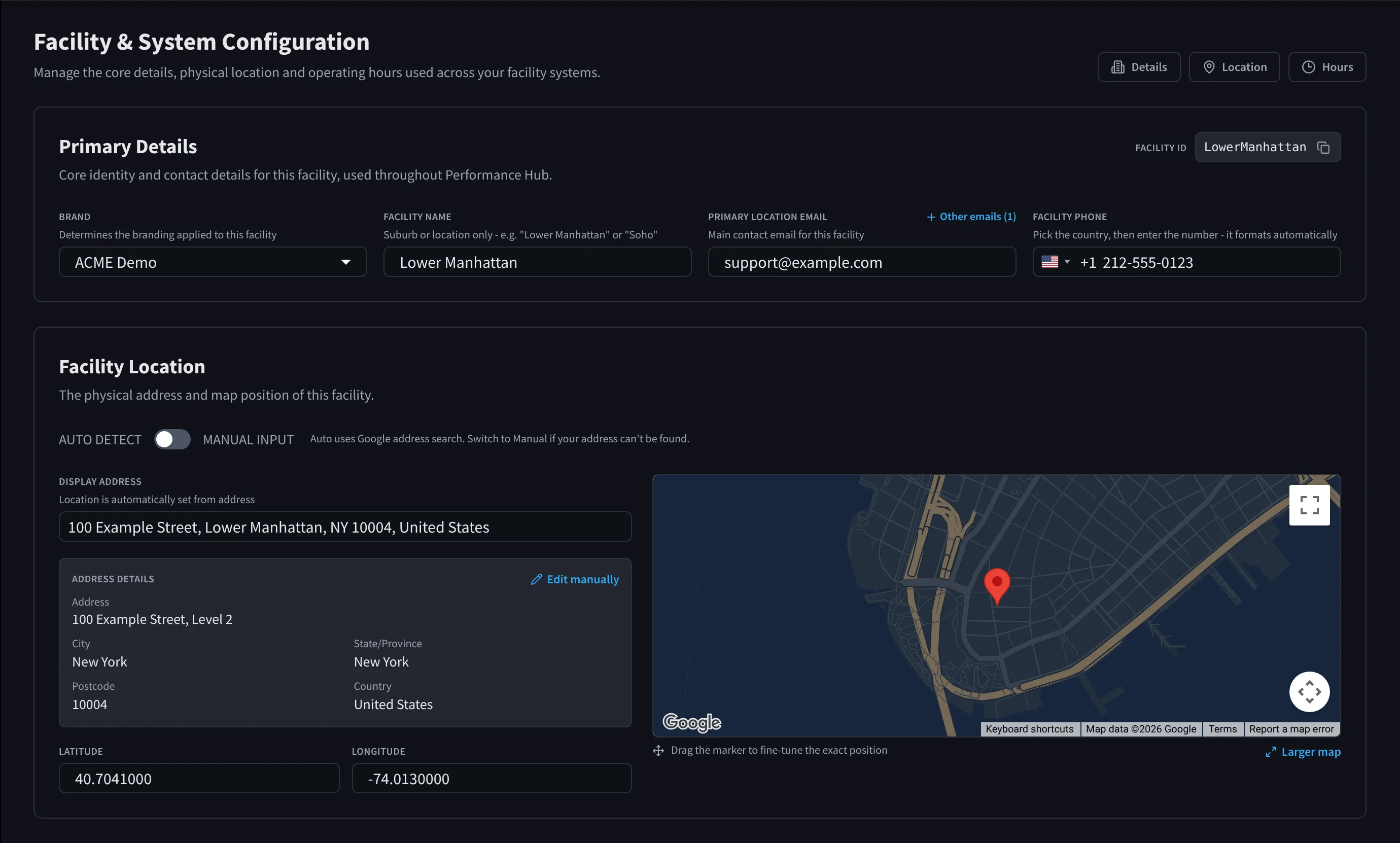
Settings · Facility & System Configuration
Details · Location · HoursFacility Operating HoursStaffedUnstaffed / ExtendedHoliday Hours
Three schedules that run the building around the clock.
Every site has its own rhythm: weekday reception hours, early-morning or unstaffed access, and public holidays or training closures. Configure all three in the facility's local time zone, check the Weekly Overview chart before saving, and see every door, screen, and speaker that follows your schedule.
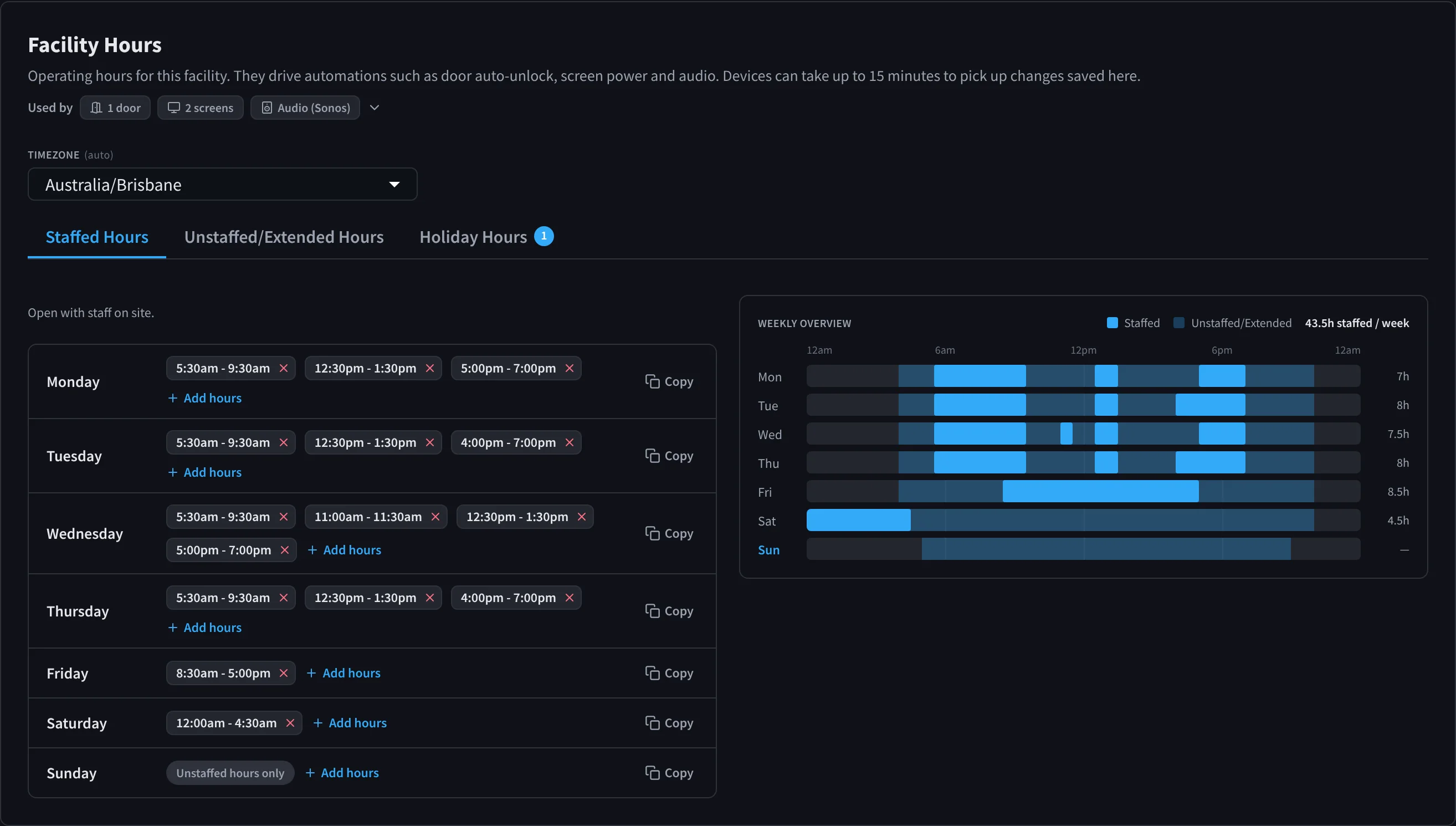
Facility Hours · Staffed Hours
Open with staff on siteDefine when your reception, counter, or floor is staffed each day.
Staffed Hours are the primary operating windows when your team is on site, such as an office reception, a medical clinic open morning and afternoon, or a hospitality venue running separate lunch and dinner services.
- Split shifts & one-click copy: Add multiple staffed windows on the same day for service breaks, and copy any day's hours across Weekdays, Weekend, All days, or selected days.
- Visual Weekly Overview: Review the weekly chart beside the day list showing Staffed Hours, Unstaffed/Extended Hours, and daily and weekly staffed-hour totals.
- Auto-detected local time zone: Time zone is set automatically from the facility's map coordinates so every schedule runs on the building's local clock.
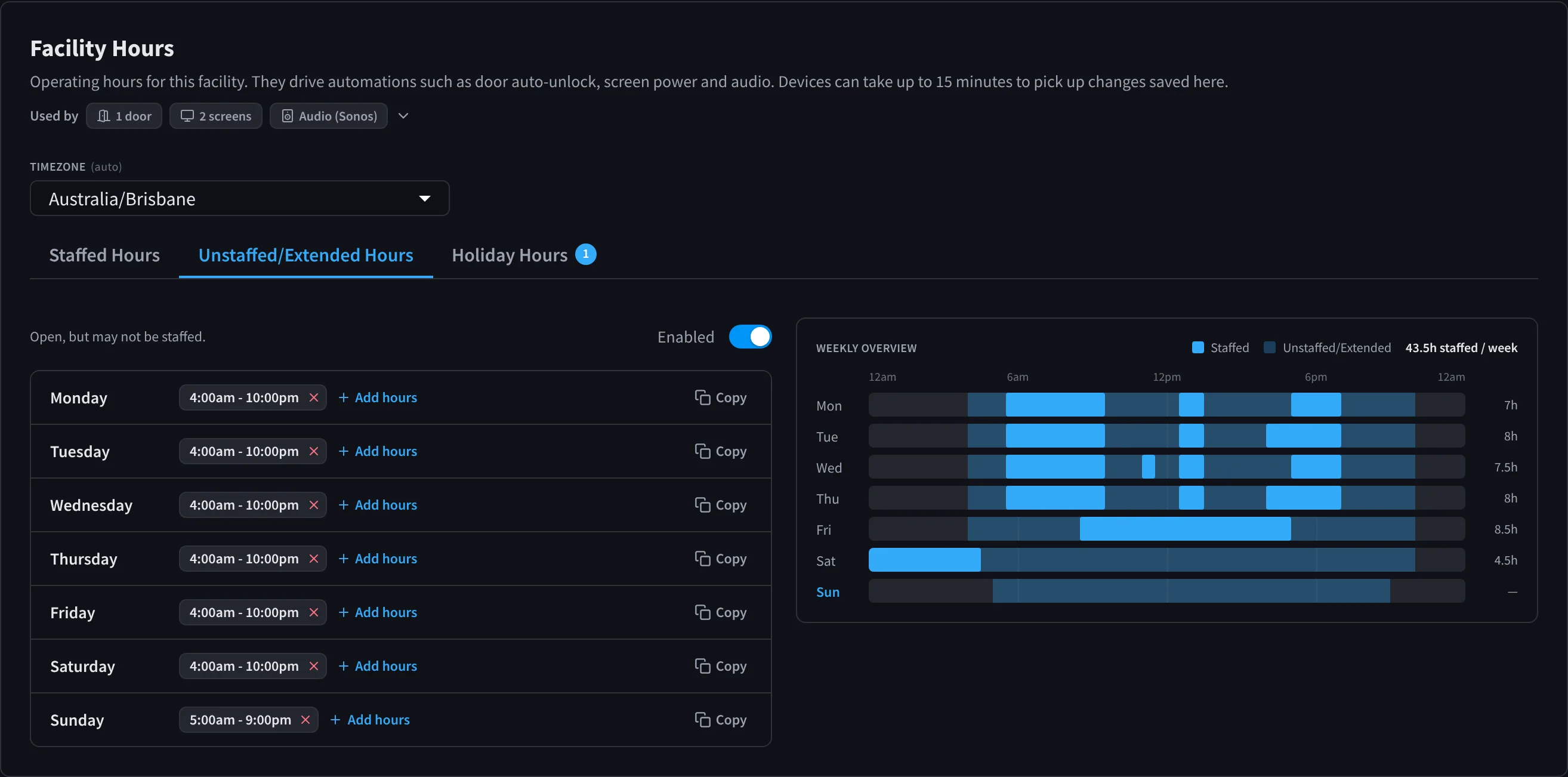
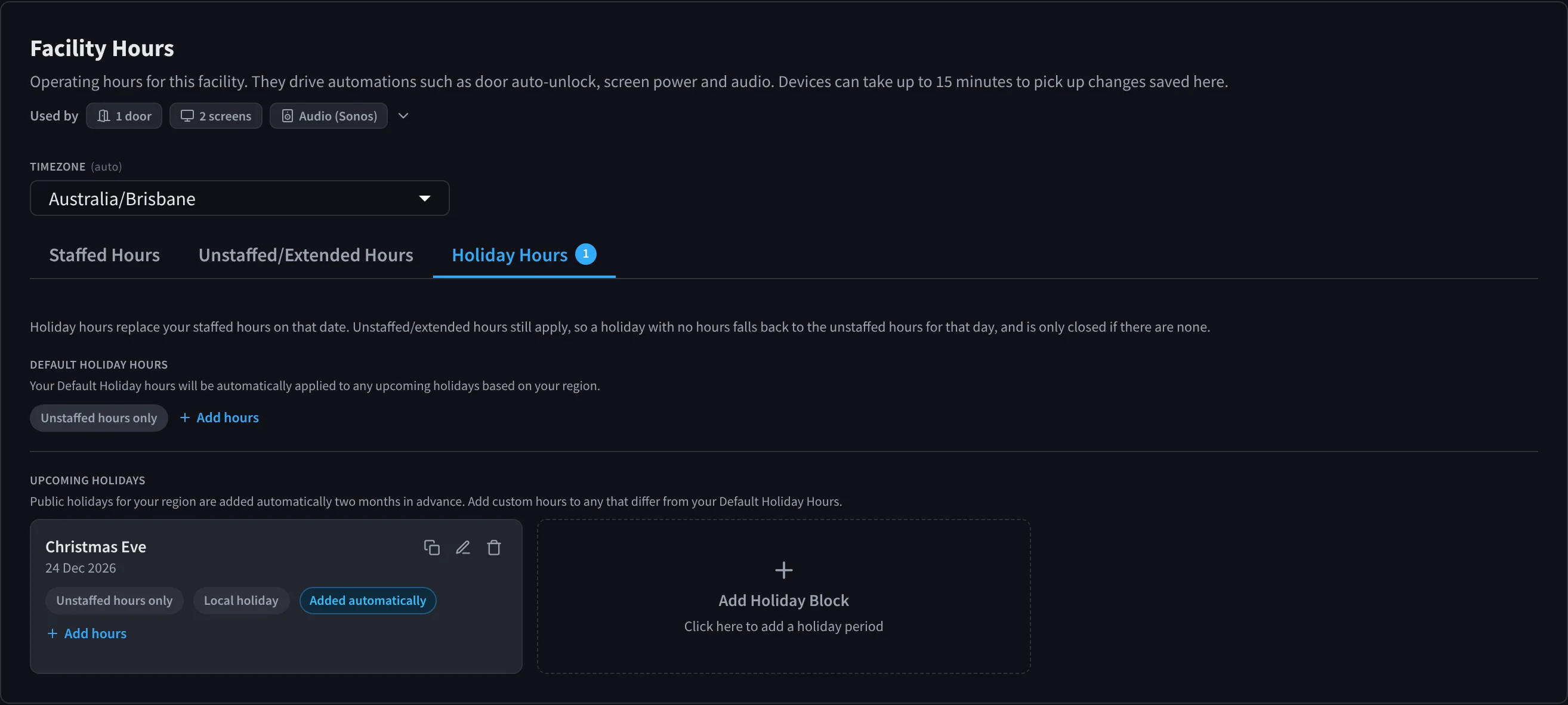
Connected Building ScheduleAutomatic Synchronisation
Change your hours once. Doors, screens, audio, and workflows follow.
When you shorten a clinic's Friday hours, extend a store's Thursday trading, or add a holiday closure, you save the change in one place. Connected devices pick up the updated schedule automatically without manual reprogramming across separate tools.
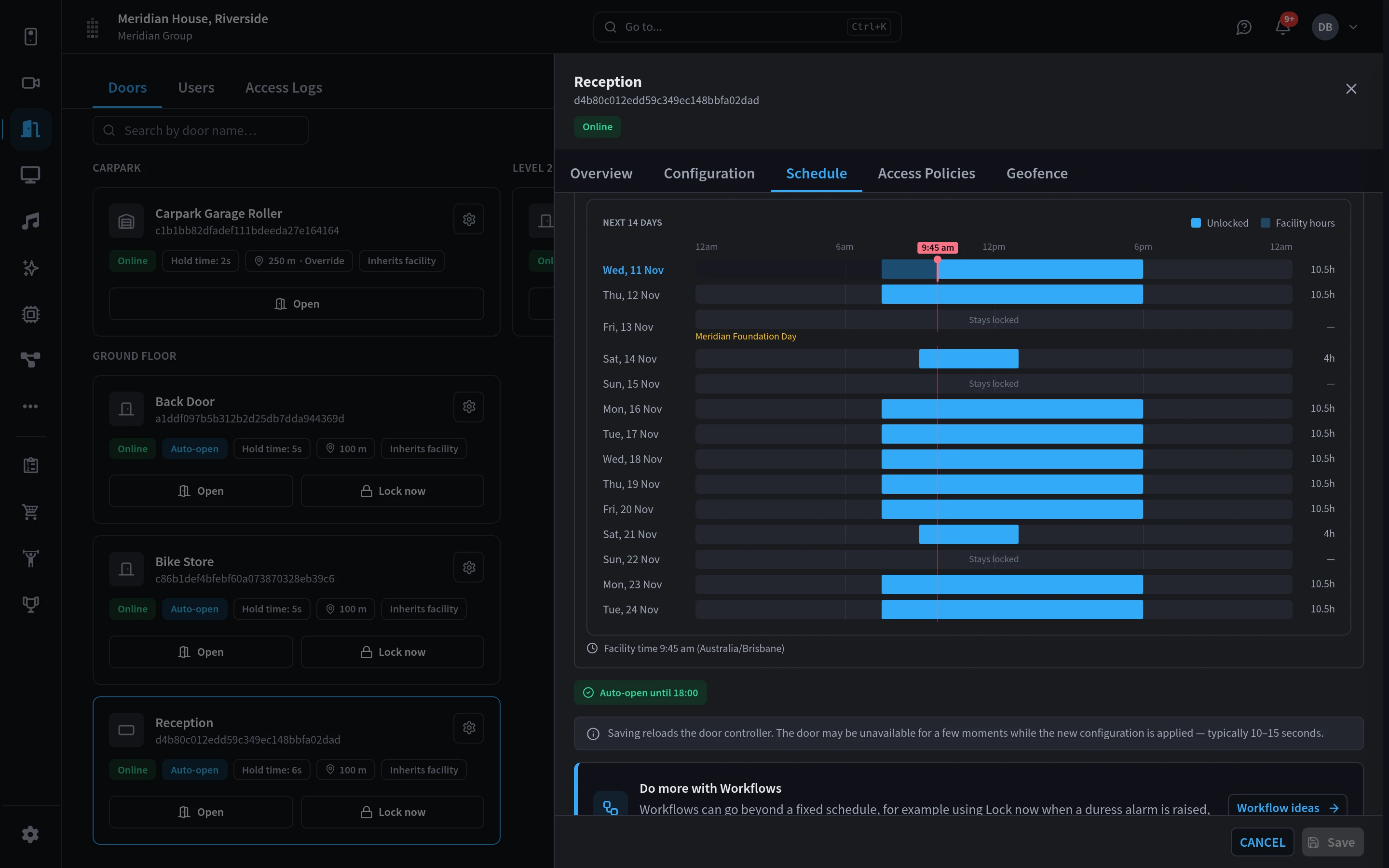
Doors & gates hold unlocked on schedule and lock at close.
Staffed & Holiday HoursEntrances configured for scheduled auto-unlock follow your facility's Staffed Hours and Holiday Hours directly on the controller hardware, locking promptly at closing time while mobile access policies govern after-hours entry.
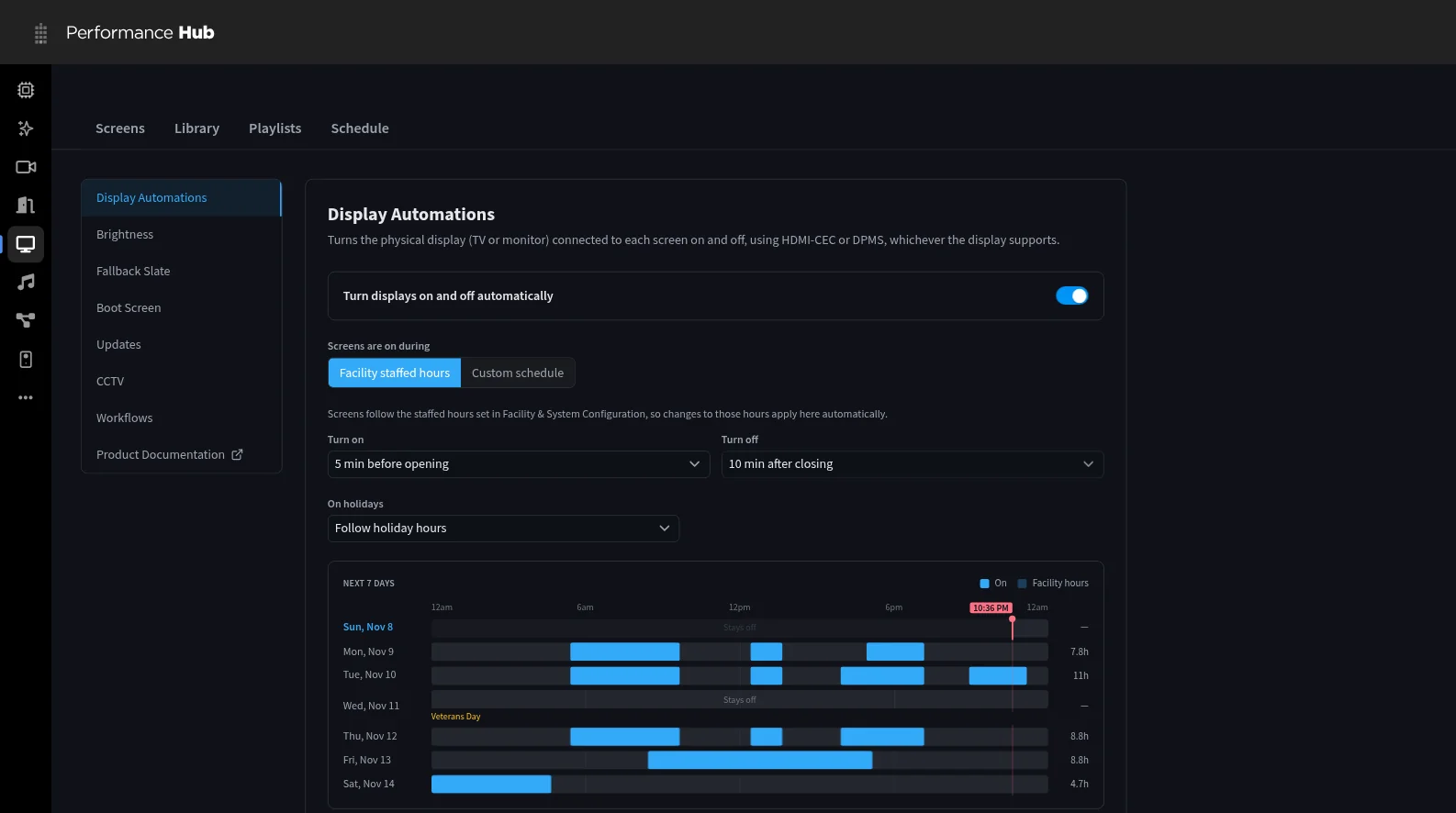
Displays wake before opening, dim at night, and sleep after close.
Staffed, Extended & Holiday HoursDisplay Automations turn TVs on before Staffed Hours begin and put them into low-power standby after closing, follow Holiday Hours on holidays, adjust daytime and night-time brightness, and wake on check-in during Unstaffed/Extended Hours.
Sonos audio starts, adjusts volume, and pauses with your hours.
Audio ControlStart background music before opening, stop after closing, switch between separate staffed and extended volume targets, and wake music automatically when someone checks in during unstaffed hours.
Workflows & Agent steps react to staffed, extended, and holiday states.
Workflows & AgentTrigger workflows automatically when your building opens, transitions to after-hours operation, or enters a holiday closure, and let a Workflow Agent step brief your facility Agent to follow up across email, screens, doors, or audio.
Multi-Site & Multi-Brand WorkspaceTailored MenusIn-App Help
One place to run many sites and brands, tailored to every team.
Whether you operate a single site or a group spanning multiple brands and regions, every location shares the same clean workspace while local staff see only the modules, apps, and guidance relevant to their role.
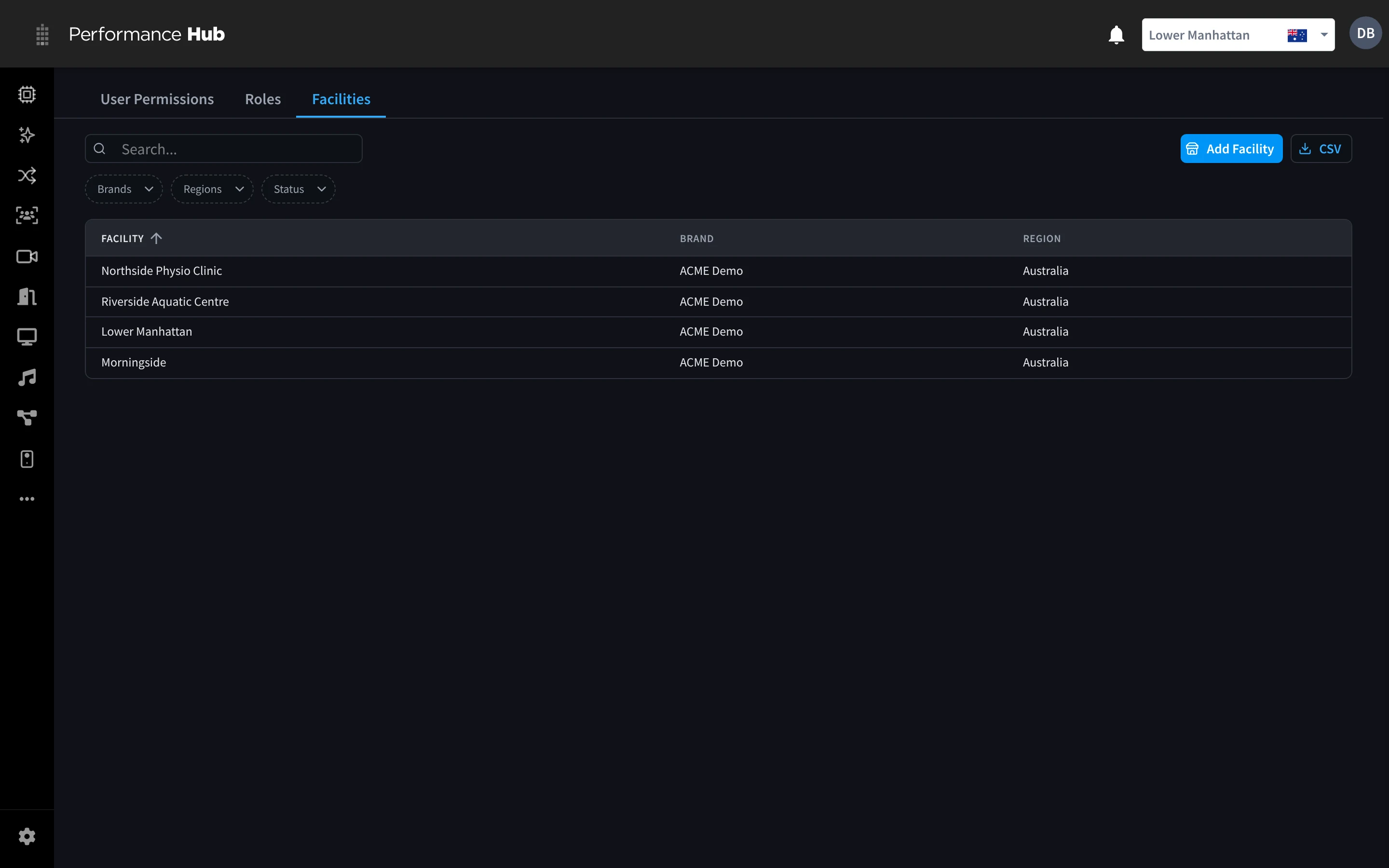
Facilities · Multi-Site & Multi-Brand Directory
Brands · Regions · SitesFacility Switcher & Primary Details.
Multi-Site & Multi-BrandRun many sites and multiple brands from one place. Switch between locations from the top bar while keeping your place on the current module, group locations by brand and region, and maintain each site's verified physical address, contact details, and local time zone centrally.
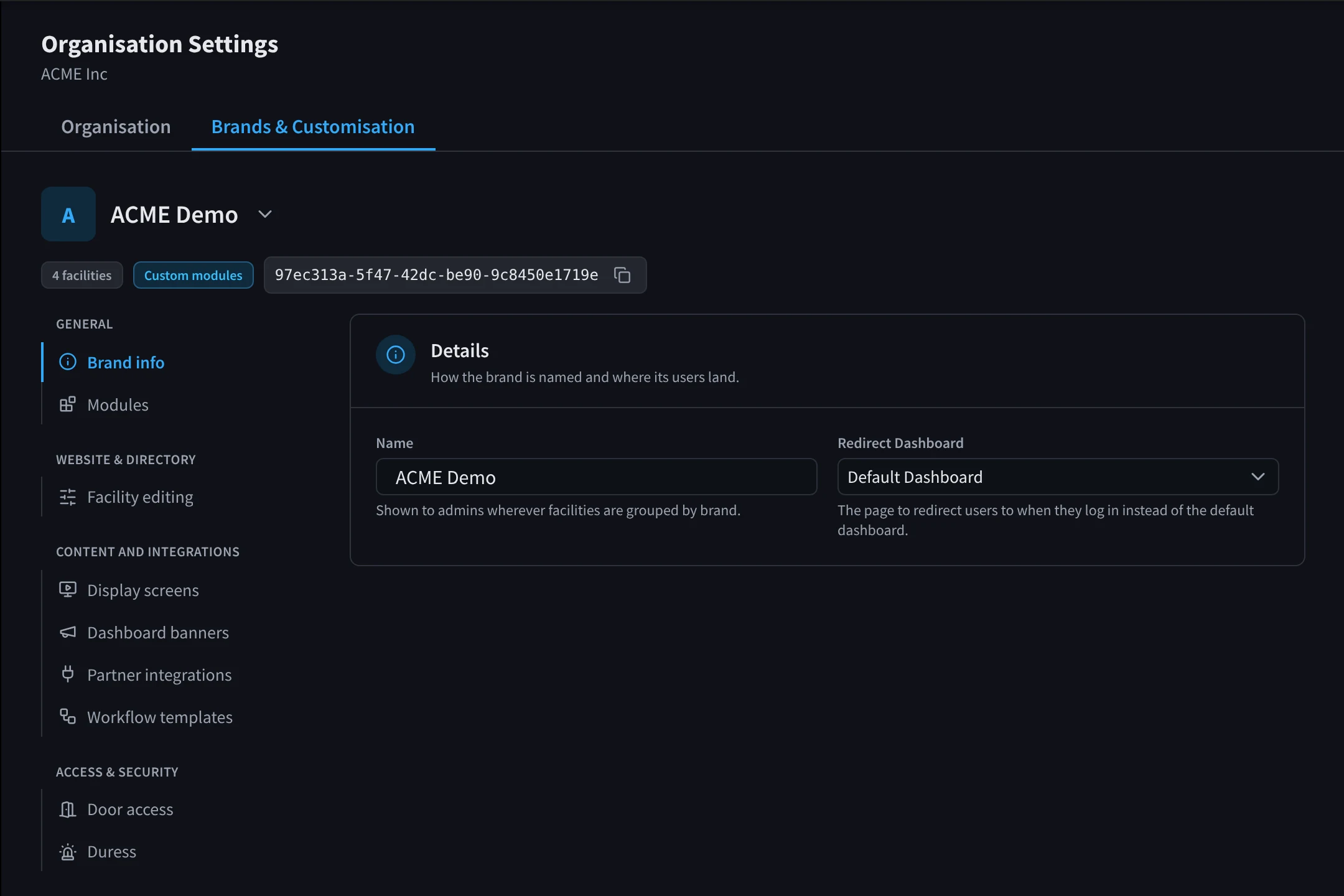
Organisation Settings · Brands & Customisation
Brand DefaultsBrand standards & shared identity.
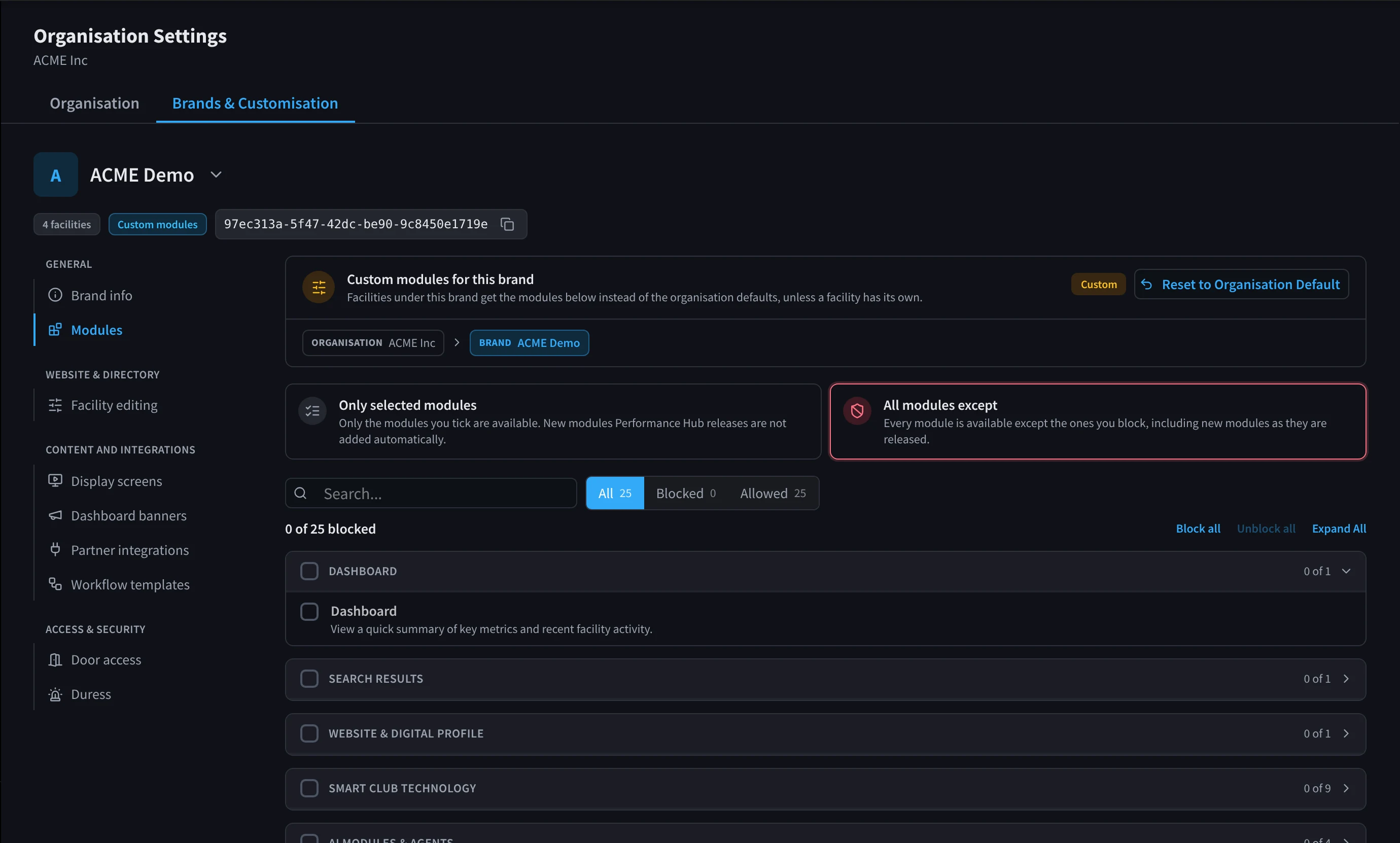
Brands & CustomisationGive each brand or operating division in your organisation its own identity, default landing dashboard, startup screens, door access rules, and workflow templates so opening a new location is fast and consistent.
Brands & Customisation · Module & Menu Governance
Brand & Site ScopedMenus & modules tailored to each site and role.
Focused NavigationKeep the workspace simple for front-of-house teams. Standardise which modules and live Published Apps appear for an entire brand, tailor the menu for a specific facility, or let individual managers pin the tools they use every day.
Workspace · Pinned In-App Documentation Assistant
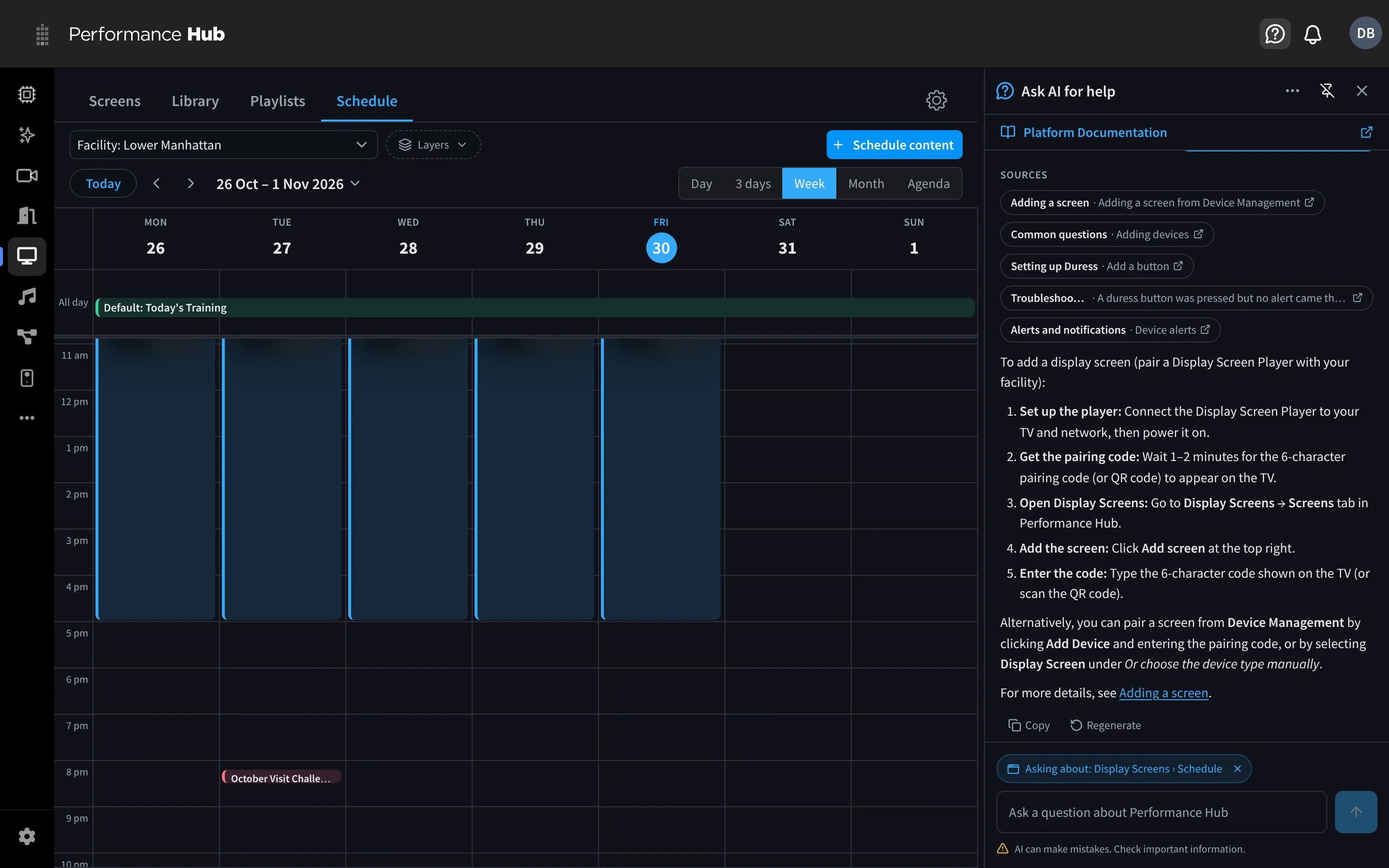
Page-Aware GuidanceBuilt-in contextual help on every screen.
In-App AssistantStaff can open Ask AI for help from the top bar to get step-by-step guidance without leaving the page they are working on. It understands the current screen, checks the facility's setup in read-only mode, cites documentation sources, and answers in your team's preferred language.
Core Platform GovernanceModular ArchitectureTen Physical Verticals
Turn on only the modules each site needs. Govern the whole group from one foundation.
Whether a location runs a single module or the full suite, the underlying platform handles multi-brand structure, billing, identity and Active Directory integrations, hardware management, developer APIs, and companion apps.
Multi-site & brand management
Organisations & BillingGroup facilities into Brands and Regions, standardise brand modules, side menus, and boot screens, sync public holidays nightly, and choose whether head office or each site pays.
Identity, roles, SSO & Audit Logs
IAM · Enterprise AD (POA)Assign role templates or custom roles scoped by facility, region, or organisation, connect Active Directory and enterprise directory integrations (Enterprise, POA), and inspect searchable Audit Logs.
Hardware & device management
Plug-and-Play FleetClaim pre-configured on-site appliances by QR or pairing code, monitor live status, uptime, and site internet speed, and run remote reboots, updates, and cross-facility transfers.
Developers, MCP & Partner API
Open ArchitectureDrive every platform module from your own AI tools over the Model Context Protocol (MCP), integrate operational systems via the Partner REST API, and manage facility integrations.
Companion apps
Desktop · Mobile · Watch · CarPlayDownload native Performance Hub Agent apps for macOS, Windows, Linux, and Mobile, and unlock doors and gates from Mobile, Watch, and CarPlay.
Engineered for Every Physical Industry
Same platform foundation across all ten physical verticals.
Common QuestionsPlatform & Operating Hours
Common questions.
Answers on how Staffed, Unstaffed/Extended, and Holiday Hours interact, how time zones and changes propagate to devices, and how multi-site management and in-app help work.
How do Staffed Hours, Unstaffed/Extended Hours, and Holiday Hours work together?
Staffed Hours are when your site is open with staff on duty. Unstaffed/Extended Hours are optional windows when the site is open without staff on the desk (for example, early-morning or after-hours access). Holiday Hours replace your Staffed Hours on public holidays and custom holiday blocks; if a holiday has no staffed hours set, the facility automatically falls back to that day's Unstaffed/Extended Hours, and is closed only if there are none.
Which building systems follow Facility Operating Hours, and how do changes apply?
Door auto-unlock schedules, Display Screens power and brightness schedules (plus after-hours Check-in power), Sonos Audio Control start/stop times and volume curves, and Workflow hours triggers all read from Facility Hours. The Used by chips at the top of Facility Hours list every feature using your schedule at that site, and connected devices pick up saved changes automatically.
How does Performance Hub set a facility's time zone?
When you enter or auto-detect a facility's physical address on the Facility Location map, Performance Hub automatically sets the matching local time zone from the location's coordinates (and you can also override it manually). Every schedule at that facility runs in its local time zone.
What is the difference between Ask AI for help and the Performance Hub Agent?
Ask AI for help is the built-in documentation assistant available to every signed-in user from the top bar: it knows the screen you are viewing, checks your facility's setup in read-only mode, and answers how-to questions with cited links from the docs. The Performance Hub Agent is your dedicated operational worker that can execute changes, run scheduled tasks, connect to external business apps, and build live Published Apps.