Help that reaches the right people.
One press on a wireless, wearable, or hard-wired duress button alerts your team, coordinates doors and cameras, and updates back-office screens on one platform.
Place wireless duress buttons under reception desks, give staff, customers, or visitors wearable duress buttons on a lanyard, or wire fixed panic buttons into your door controllers. Because Duress runs on the same login and platform as Door & Gate Access, CCTV / VSaaS, Display Screens, and your Agent, one press coordinates your people, your building, and your monitoring centre with no extra software or custom wiring.
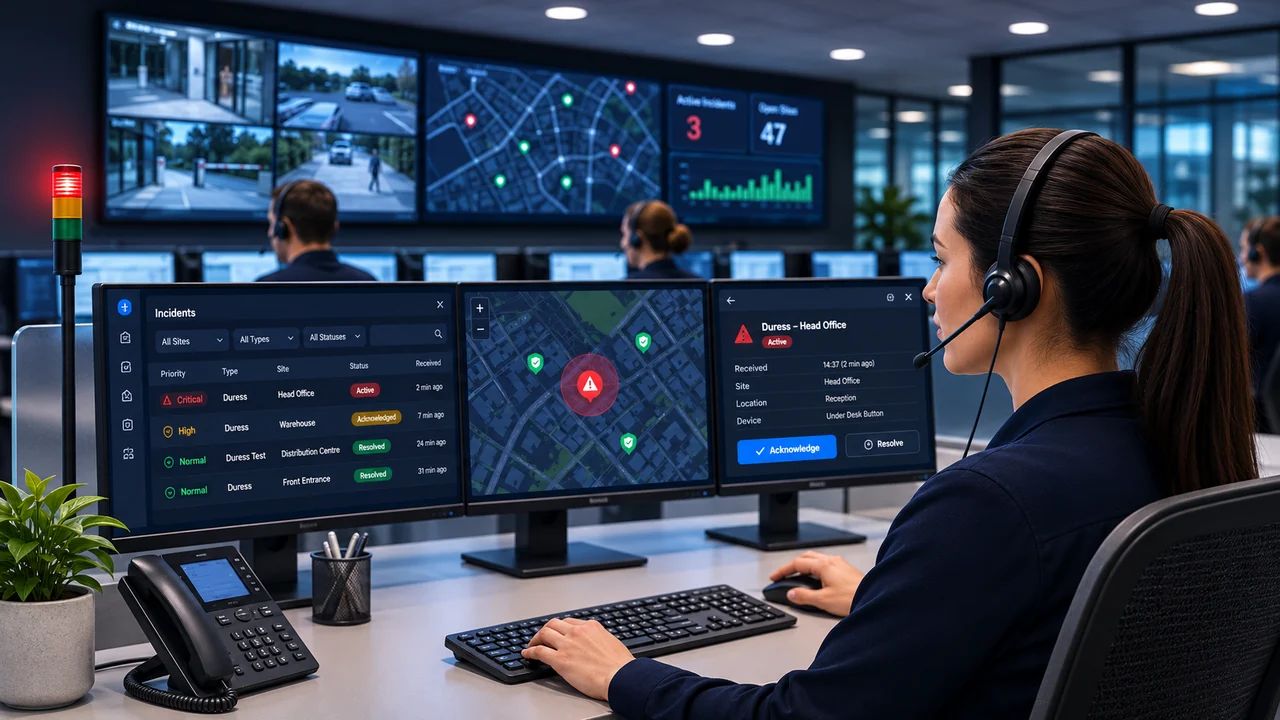
Reception Lobby · Zone 001
AcknowledgedAcknowledged by Marcus T.Entry door unlocked for responder
Wireless, wearable & hard-wired buttons: Deploy USB-C rechargeable wireless and wearable duress buttons picked up by Display Screen Players or IoT Gateways, alongside hard-wired duress buttons connected through your door controllers.
One-platform building response: Reach your team by Push, SMS, Voice call, Email, chat, and your own monitoring centre while automatically locking or unlocking doors, alerting private staff screens, and protecting CCTV clips.
Readiness you can prove: Schedule recurring walk tests and response drills across one site, a brand, or your entire organisation, and export audit-ready compliance reports to CSV and PDF.
Vertically Integrated Duress · Wireless, Wearable & Hard-Wired Buttons
Why teams replace standalone panic buttons with one platform.
Conventional panic buttons end at an isolated buzzer or a single-purpose box in the comms cupboard. Built into Performance Hub alongside your doors, cameras, Display Screens, and Agent, Duress turns a single button press into a coordinated response across every room and site you operate.
Standalone panic alarms
Disconnected hardware that stops at the button
- Separate pagers or single-purpose receivers that know nothing about your doors, cameras, or staff screens.
- Manual phone trees and static contact lists that go stale whenever staff or shift roles change.
- Paper test logbooks with no central visibility into battery health, receiver coverage, or overdue drills.
Performance Hub Duress
Connected to your people, doors, cameras, and screens
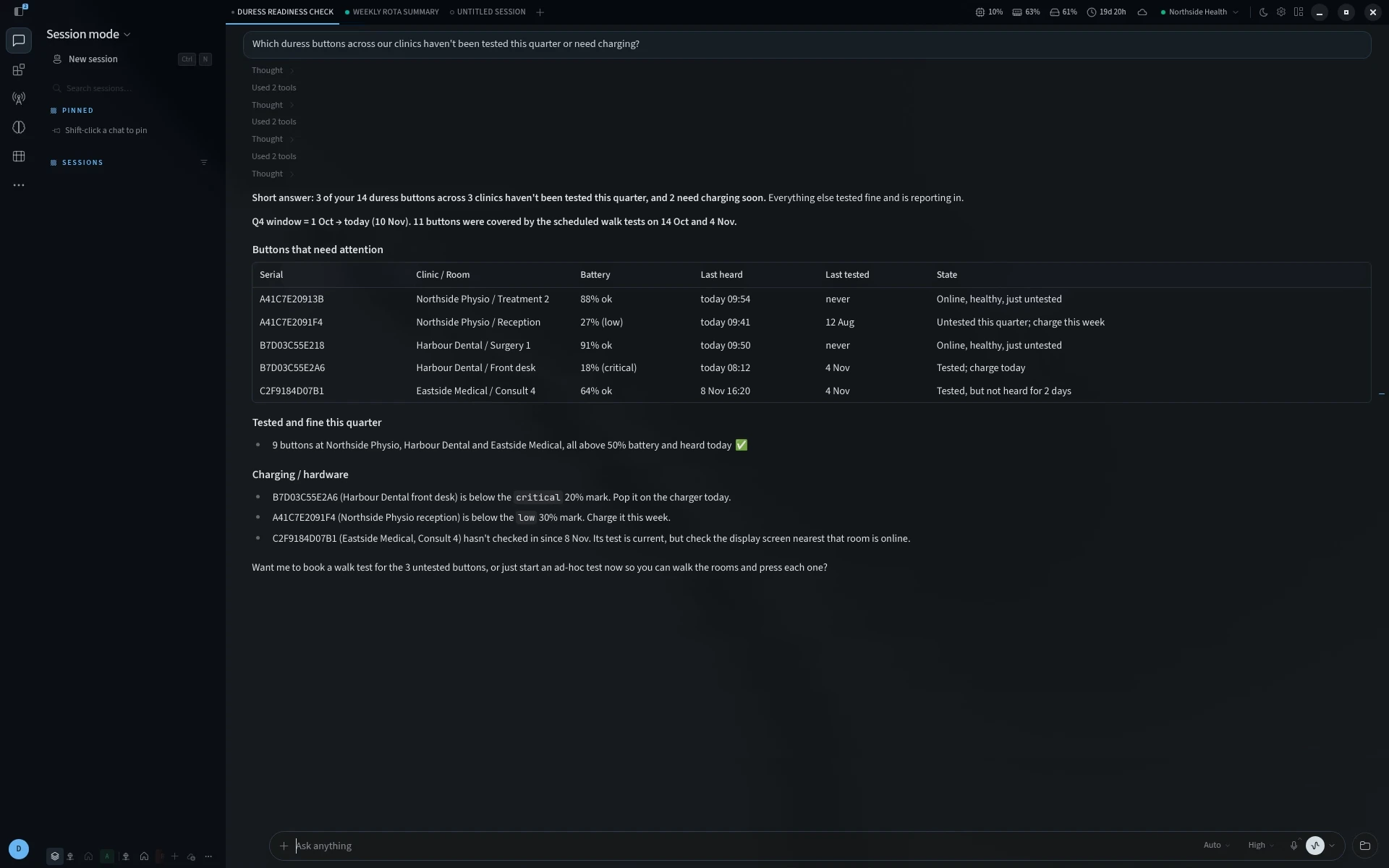
- Wireless, wearable, and hard-wired duress buttons relayed by Display Screen Players you already own, indoor and outdoor IoT Gateways, or Door & Gate Controllers.
- Native building actions that lock down doors, unlock responder entrances on acknowledgement, protect CCTV clips, and alert staff-only screens automatically.
- Live role-based response plans, an instant mobile responder page, your own monitoring centre, and organisation-wide readiness reporting.
Industries · Every Physical Site
Built for every counter, clinic, campus, and floor.
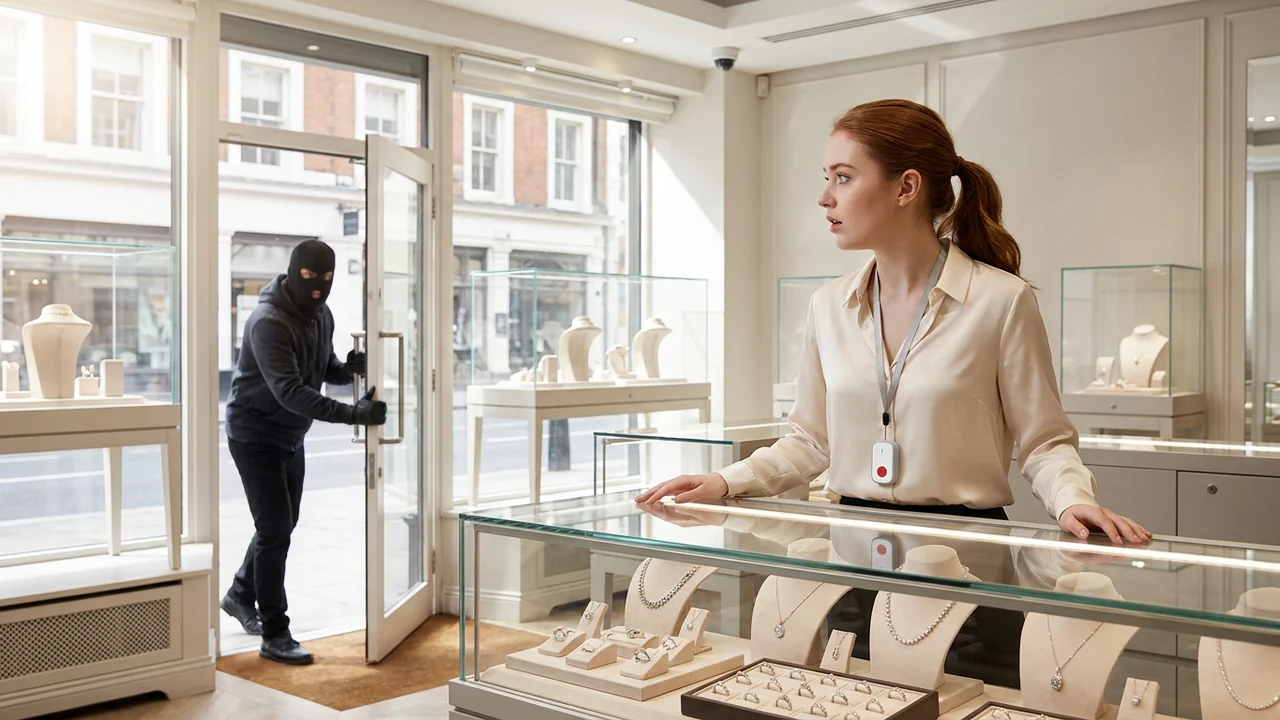
From gyms and clinics to classrooms, jewellery stores, hotels, and plant floors, wireless, wearable, and hard-wired duress buttons give staff, customers, and visitors an unmistakable way to summon help on site.
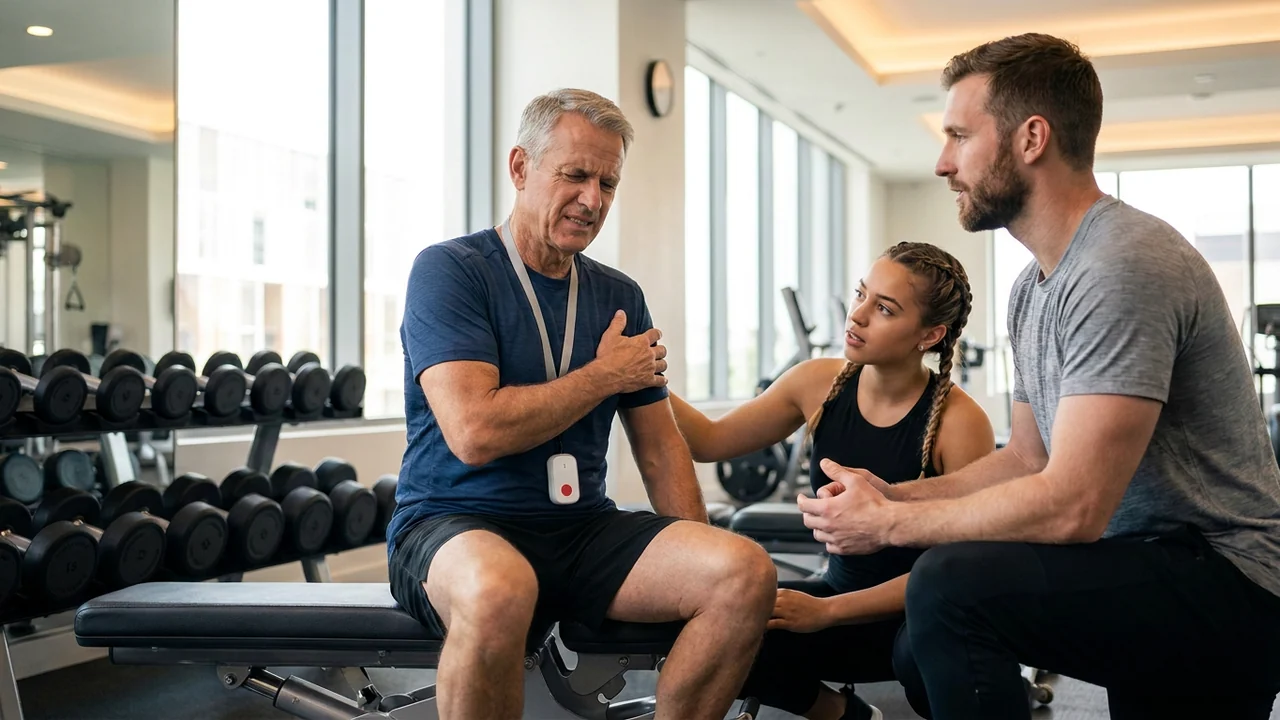
Help for members the moment they need it.
Members wear a duress button while they train. If a member feels chest pain mid-workout, one press alerts your monitoring centre and your team straight away, so help is beside them while paramedics are on the way.
- Wearable buttons for members: Give members a lanyard button to wear on the gym floor, in studios, and during unstaffed hours, so anyone who feels unwell can call for help without leaving the spot.
- Monitoring centre & on-site team alerted together: One press alerts your monitoring centre and any staff on site with the exact room and zone, so paramedics are called without delay.
- Doors unlocked & footage kept: Unlock the club entrance automatically for arriving paramedics and keep the surrounding camera footage for incident review.

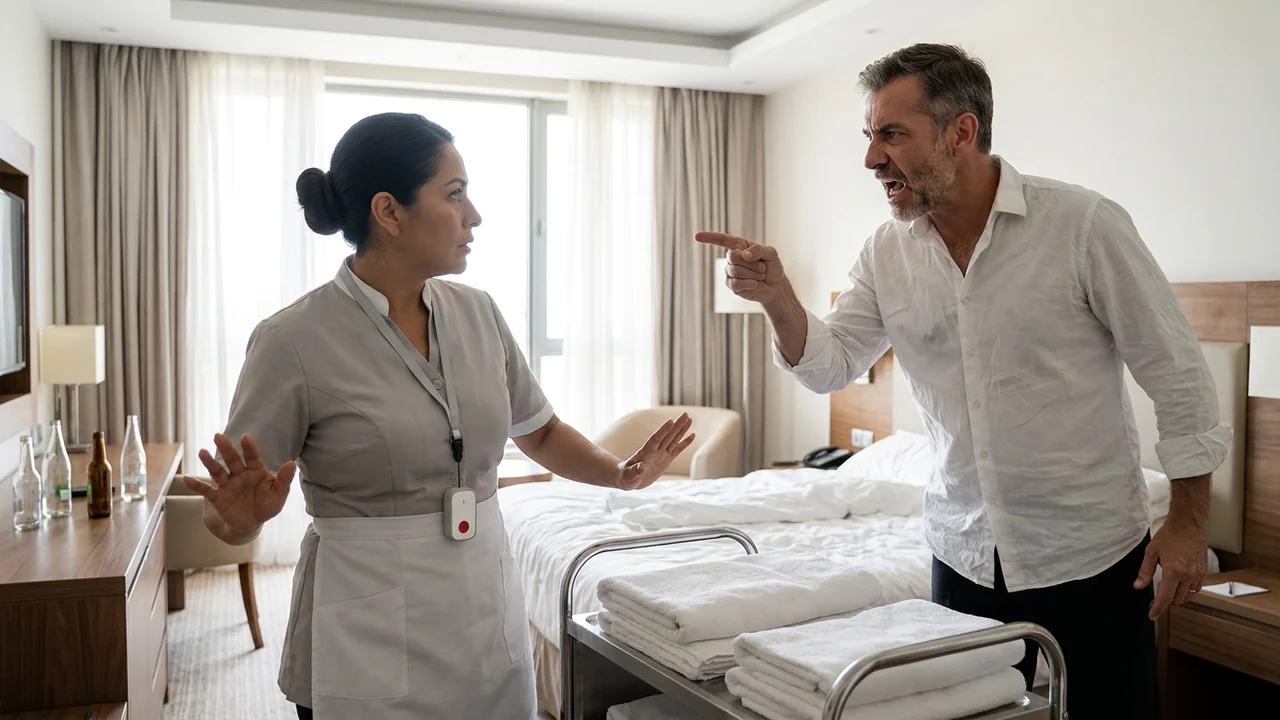


Incident Lifecycle · Press to Resolution
From a button press to a documented resolution.
When someone presses a wireless, wearable, or hard-wired duress button, every handoff is automatic. Performance Hub receives the press on site, notifies your response plan and triggers building actions, coordinates responders on a live mobile page, and preserves the complete timeline and video evidence.
Press & Relay
One press on a wireless, wearable, or hard-wired button.
A staff member, customer, or visitor presses a fixed button, a wearable lanyard button, or a hard-wired button connected to a door controller. On-site Display Screen Players, indoor or outdoor IoT Gateways, or Door & Gate Controllers pass the alarm straight to Performance Hub, and the active alarm card appears at the top of Duress Home.
- Overlapping site coverage: Multiple Display Screen Players and IoT Gateways across your building provide overlapping wireless coverage so a button press always gets through.
- Easy to stand down: Accidental presses are easy to stand down and are still recorded on the incident log.
- Cross-site visibility: Active alarms surface on Duress Home, play browser alarm notifications on monitoring computers, and appear in the app-wide banner for authorised staff across your other sites.
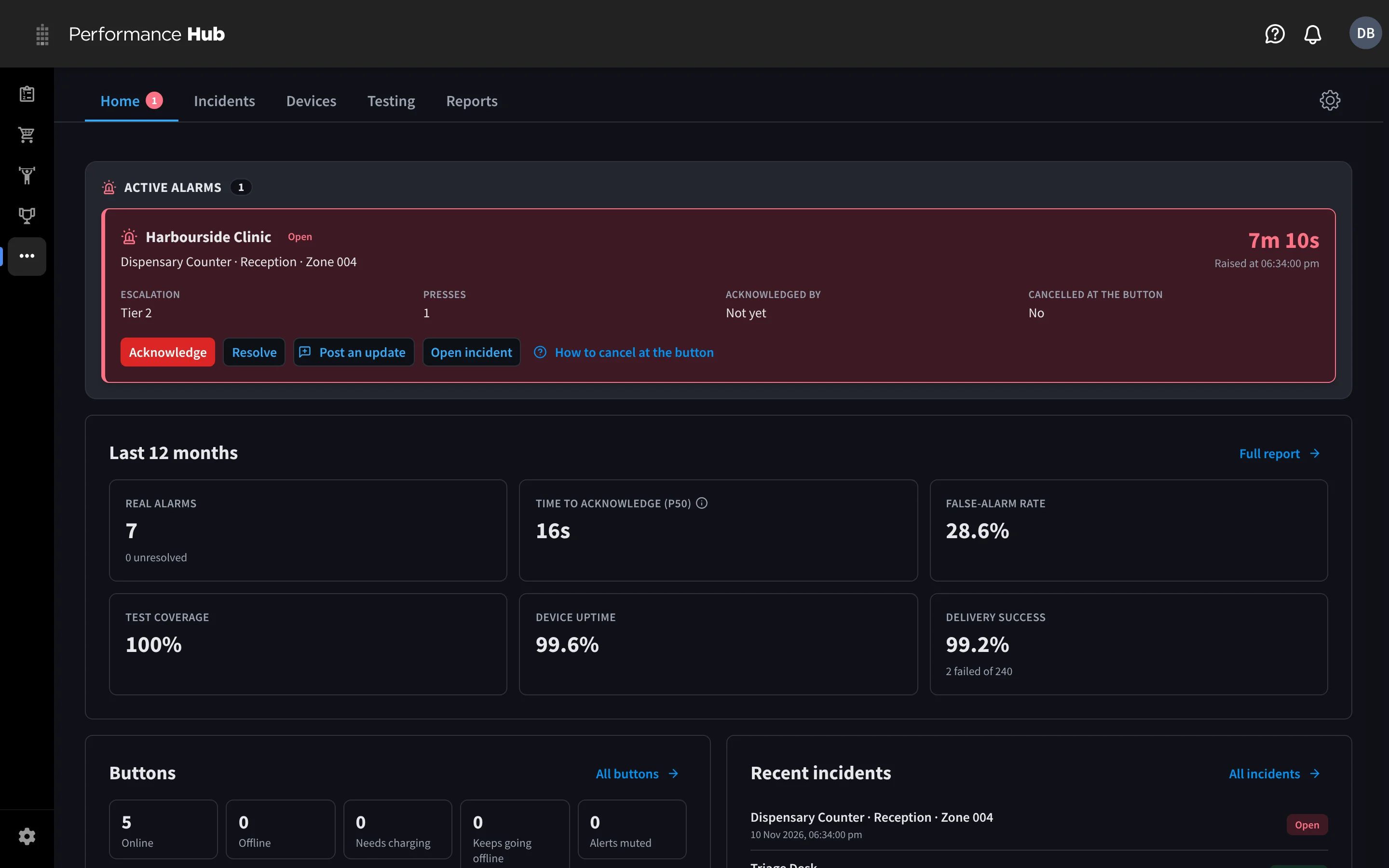
Active alarms surface at the top of Duress Home with direct Acknowledge, Resolve, and update controls alongside readiness metrics and button health. Escalate & Act
Role-based escalation and automatic building actions run together.
Performance Hub notifies your facility's response plan across Push notification, SMS, Voice call, and Email, dispatches to your alarm destinations (your monitoring centre, Slack, Microsoft Teams, Google Chat, PagerDuty, Opsgenie, or a Webhook), and runs your automated response actions across doors, cameras, and staff-only screens.
- Escalates until someone takes ownership: Alerts step through your response plan with optional reminders until a responder acknowledges that they are on the way.
- Role-based contacts: Target ready-made role templates or custom roles so alerts automatically follow whoever holds that role today.
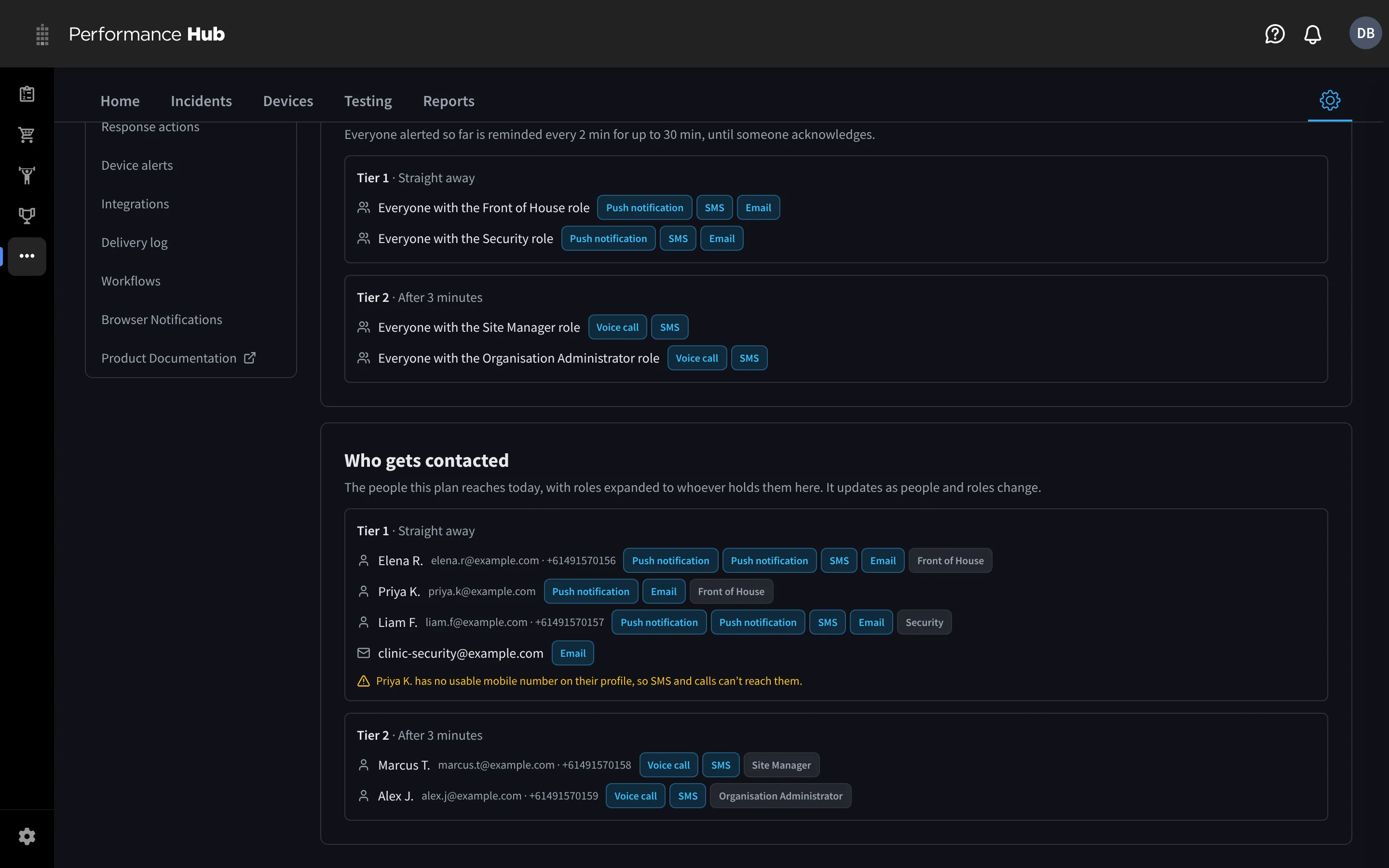
- Live contact gap warnings: Preview everyone your plan reaches today and catch missing mobile numbers or unstaffed roles before an emergency happens.
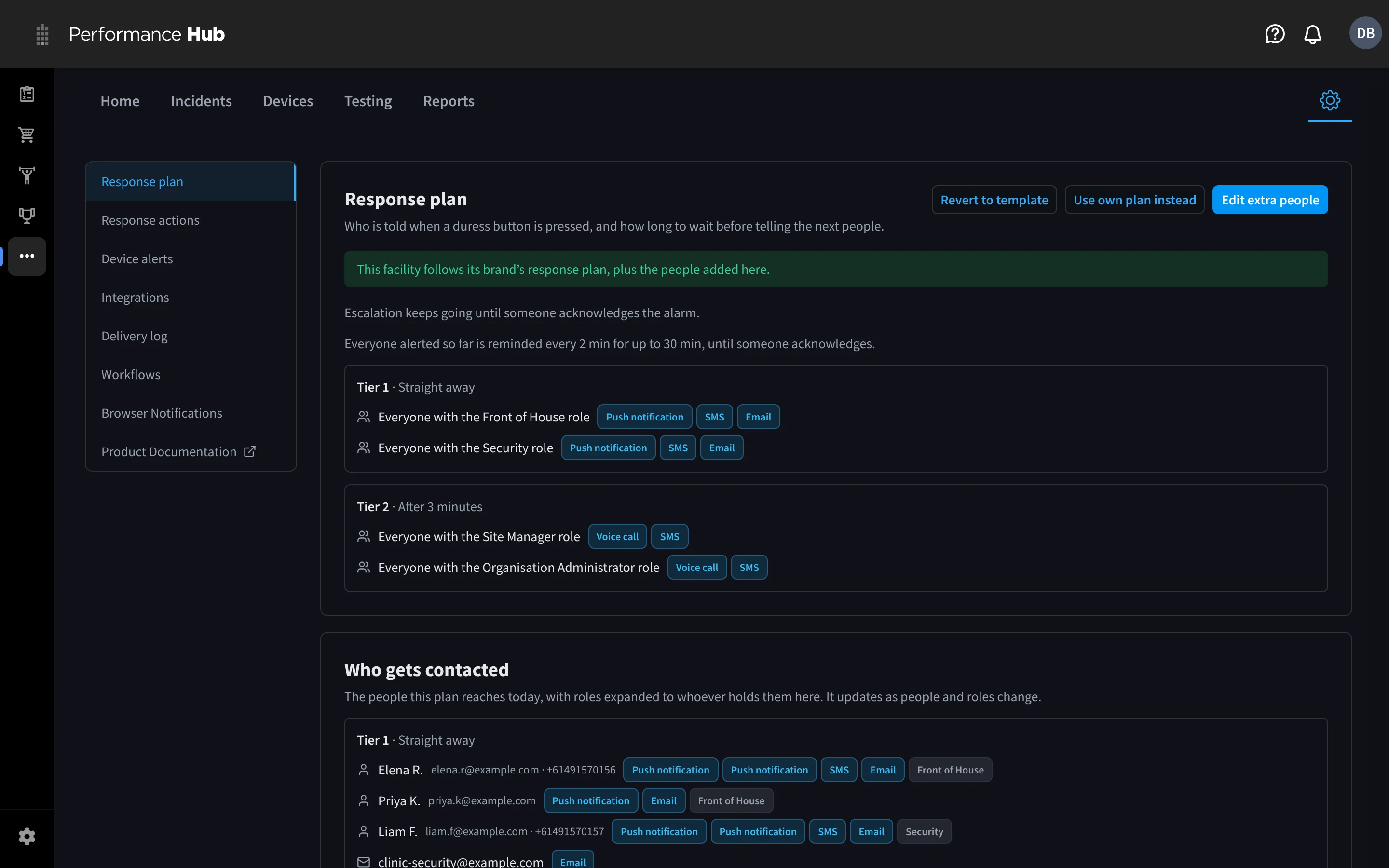
Configure escalation across roles, users, phone numbers, and emails, and preview who your plan reaches today. Acknowledge & Coordinate
One tap stops escalation and reassures the person who pressed.
The first responder to tap Acknowledge in Performance Hub or on their phone's incident page claims the response. Further escalation stops immediately, everyone alerted sees who is responding, the person who pressed gets confirmation that help is coming, and linked doors can unlock automatically so responders get straight in.
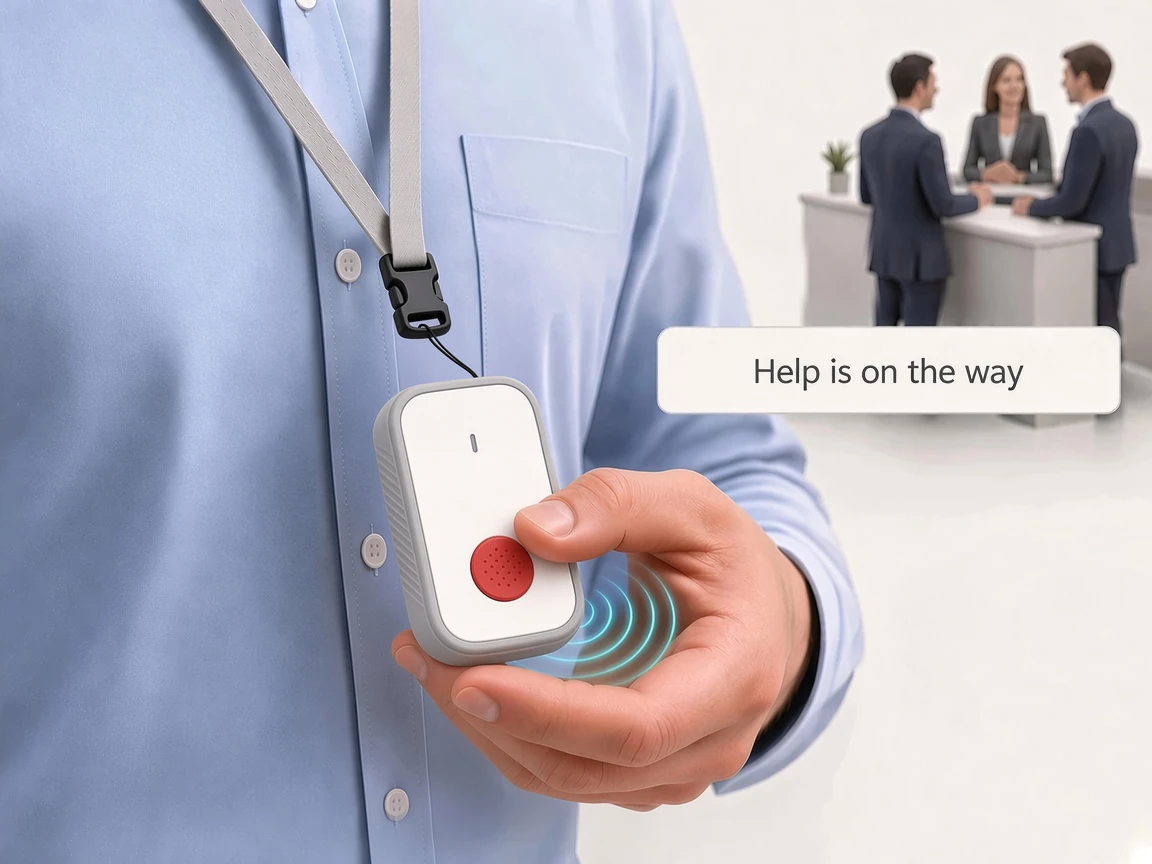
- Confirmation that help is coming: When a responder acknowledges the alarm, the person who pressed gets confirmation that help is on the way.
- Live responder updates: Share text updates, photos, files, or your location with everyone alerted on the alarm page and by SMS, or record private staff notes visible only inside Performance Hub.
- Direct door & camera access: Watch linked cameras live, open recent recordings, unlock doors, or lock down the facility straight from the incident panel or the responder's phone.
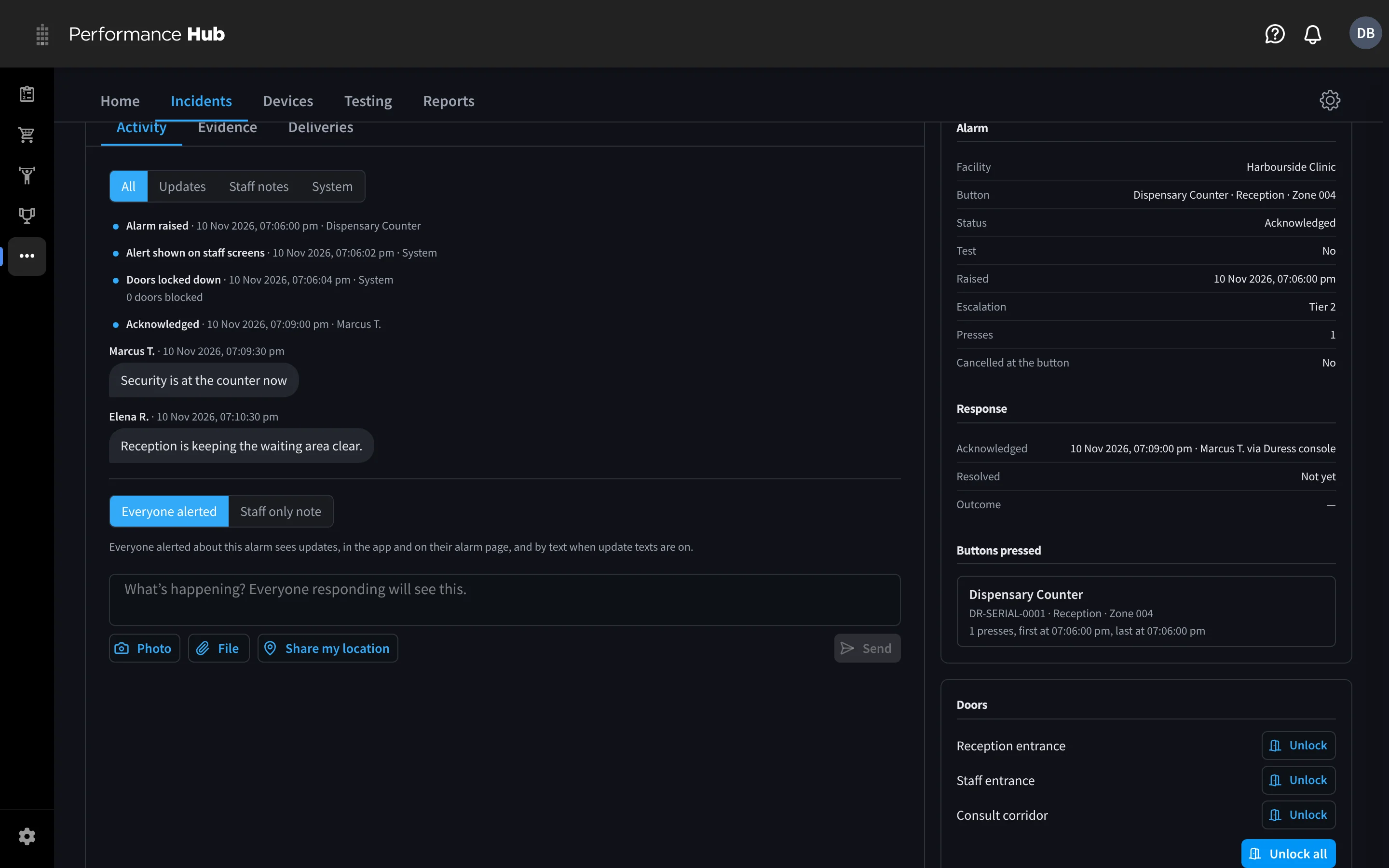
Coordinate on a live incident timeline with updates for everyone alerted, private staff notes, door controls, and linked camera footage. Resolve & Review
Close with a recorded outcome, retained CCTV clips, and an AI summary.
Once the situation is safe, a responder resolves the alarm with a structured outcome and note. Everyone alerted receives the all-clear, private staff screens clear automatically, and the incident is archived with its complete delivery log and retained video evidence.
- Protected CCTV evidence: Recordings from before the press until after resolution are locked against normal CCTV retention expiry until an authorised administrator releases them.
- Privacy-safe AI incident summary: Optionally draft a concise post-incident summary after resolution for a responder to review and save as a note, with personal names and contact details stripped automatically.
- Clean reporting separation: Real emergencies, false alarms, and drills are separated cleanly so your compliance reports reflect actual operational performance.
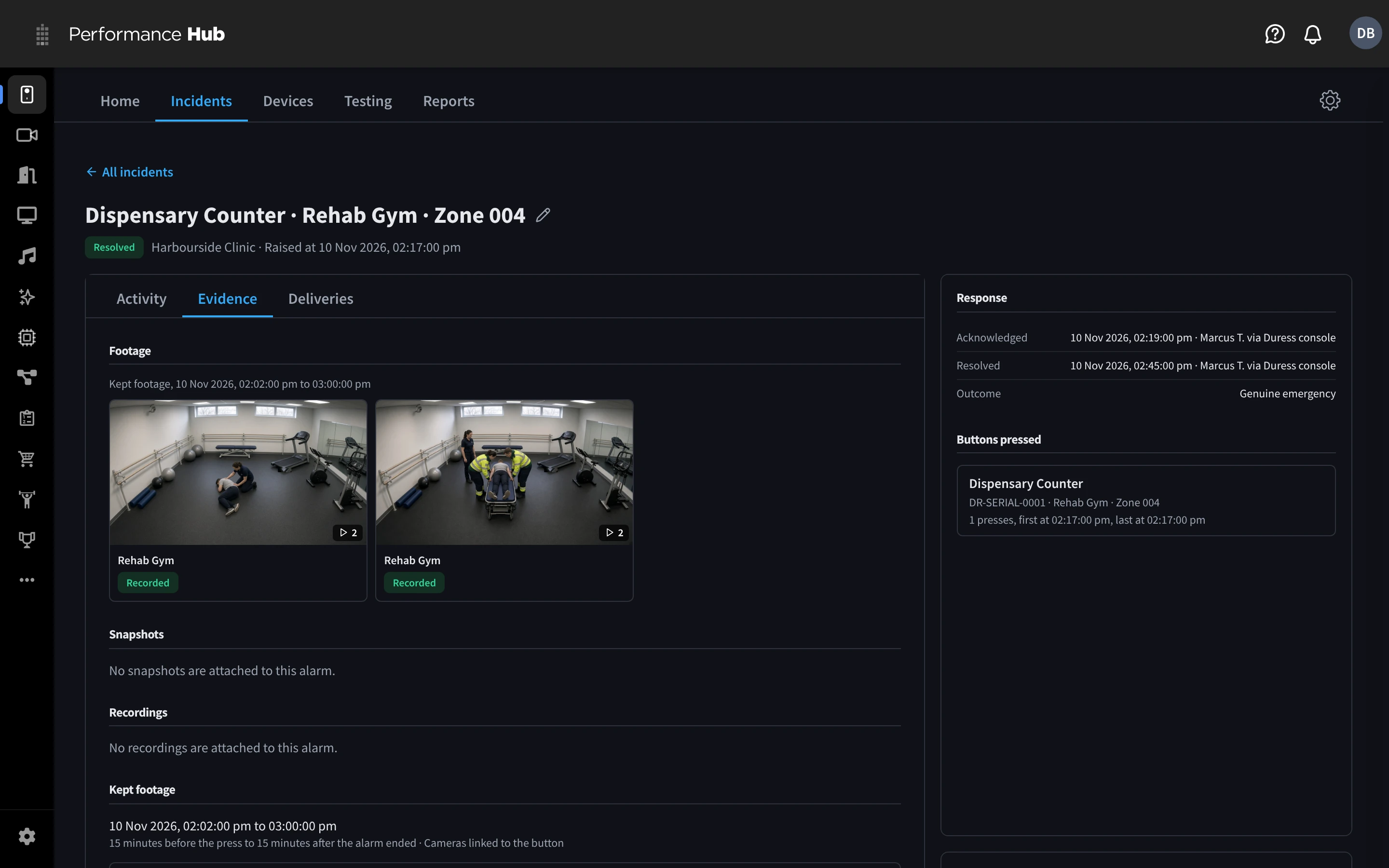
Every resolved incident preserves its timeline, retained CCTV clips, per-channel delivery receipts, and an optional AI-drafted summary for review.
Wearable & Fixed Placement · Audible or Discreet
Built for staff, customers, and visitors across your site.
Duress is not only for reception desks. Give roaming staff a wearable duress button on a lanyard, make wearable or wall-mounted buttons available to customers and visitors in after-hours or solo spaces, and set each button to be audible or discreet to suit the room.
Wearable lanyard buttons or fixed buttons for staff, customers & visitors
Issue wearable duress buttons on a lanyard for staff moving between consult rooms, classrooms, bars, or warehouse aisles, or provide wearable and wall-mounted wireless and hard-wired duress buttons for members training after hours, patients in rehab and treatment spaces, or visitors in unstaffed zones. Every button is named for its room or role so responders know where to go.
Audible or discreet to suit each room
Set each button to be audible or discreet to suit the room it sits in, from visible emergency call points in training floors, corridors, and loading docks to discreet operation at front counters and consultation rooms. Every press triggers the full response plan.
Reassurance when acknowledged & easy stand-down
When a responder acknowledges an alarm, the person who pressed gets confirmation that help is coming. Accidental presses are easy to stand down and are still recorded.
Private back-office screen alerts, never public displays
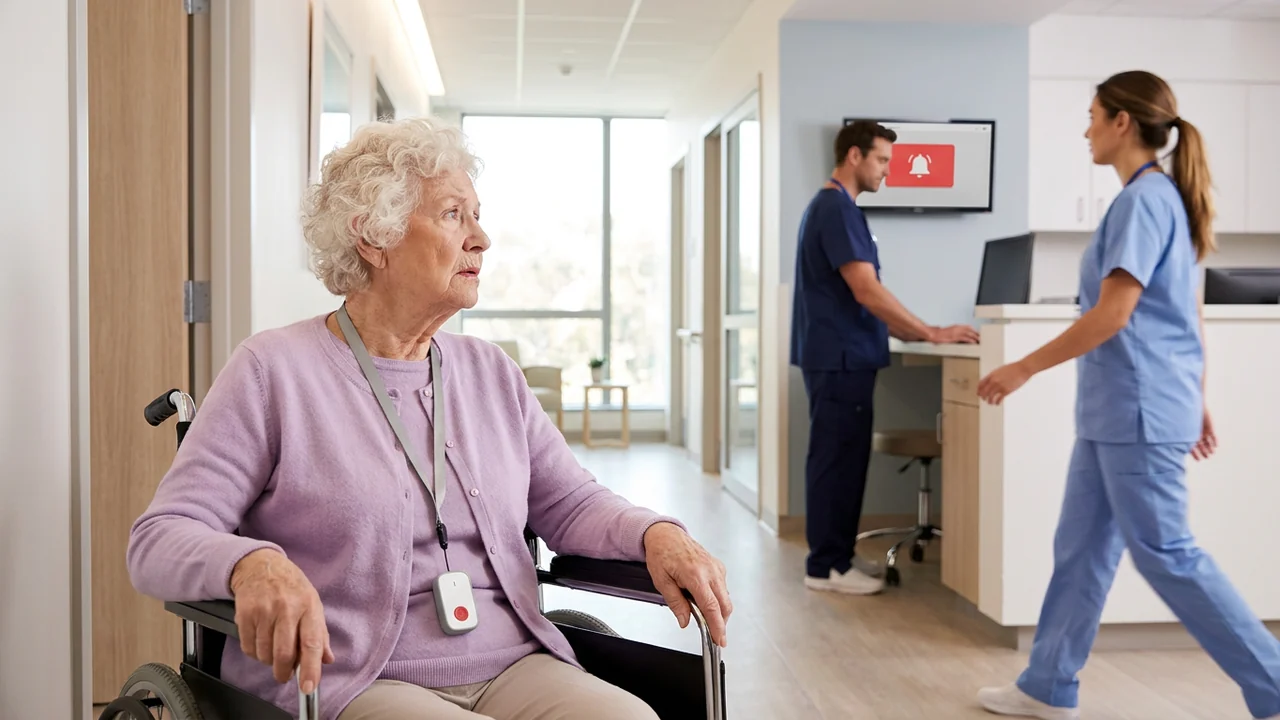
When a button is linked to Display Screens, pressing it shows a clear alert banner on linked back-office, nurse-station, or security monitors and clears automatically when the incident ends, while public waiting-room and lobby displays stay untouched.
Vertically Integrated Response · Doors · Cameras · Staff Screens · Safe Test Guardrails
One press coordinates your doors, cameras, and back-office screens.
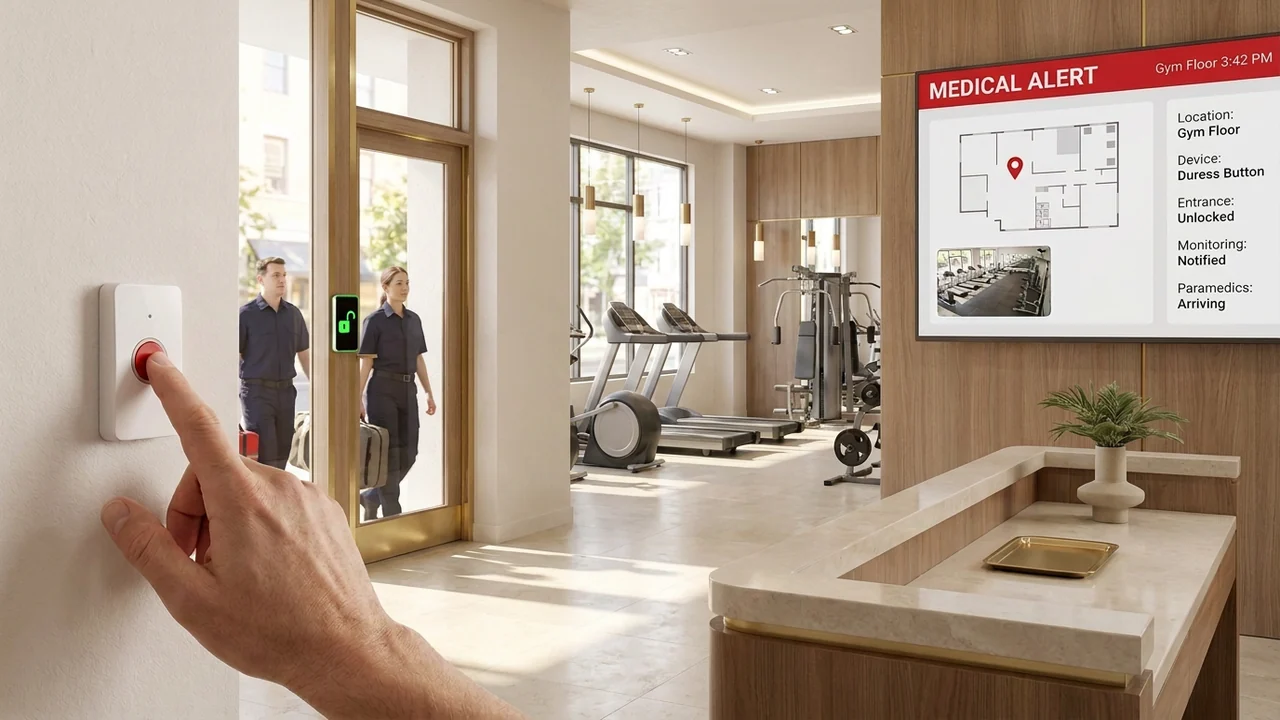
Because Duress shares the same platform and site setup as Door & Gate Access, CCTV / VSaaS, and Display Screens, you link each wireless, wearable, or hard-wired button to the exact doors, cameras, and staff monitors in its zone. When someone presses their button, doors lock down to keep a threat out or unlock automatically for arriving responders, while your monitoring centre receives live camera views and every detail of the event.
Automatic door, camera, screen & test guardrails
Configure what Performance Hub does automatically when an alarm is raised:
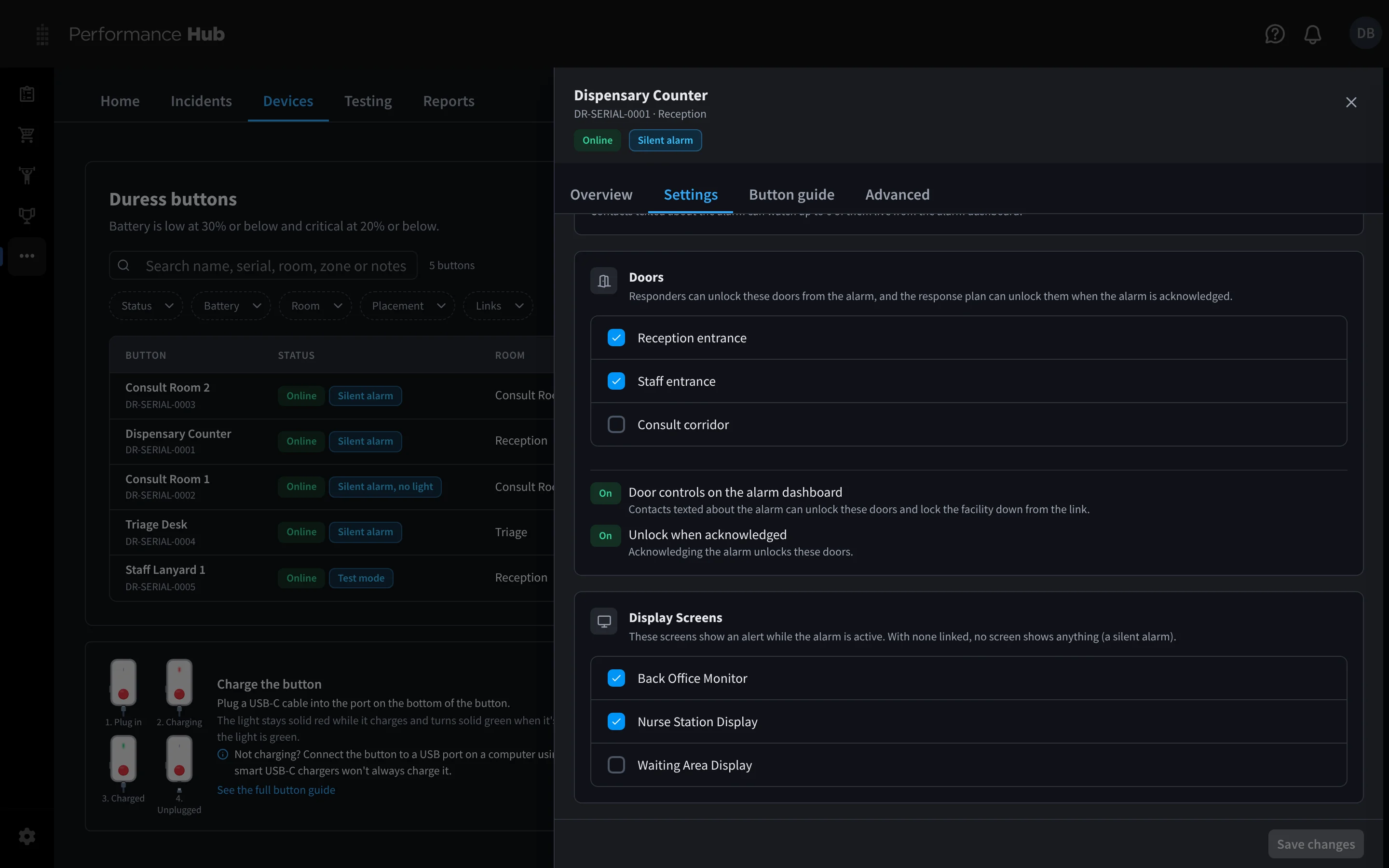
- Door lockdown & responder unlock: With Door & Gate Access at the facility, lock down building doors while an alarm is active (overriding scheduled unlocks) and automatically unlock the pressed button's doors when a responder acknowledges so help can enter.
- Private staff-screen alerts: Show high-visibility alert banners on linked back-office or security Display Screens during an incident, followed by an automatic all-clear banner upon resolution.
- Safe walk tests & drills: Run walk tests and response drills without alarming anyone or disrupting the building: test alarms never unlock doors, never lock down the facility, never alert Display Screens, and never retain CCTV footage.
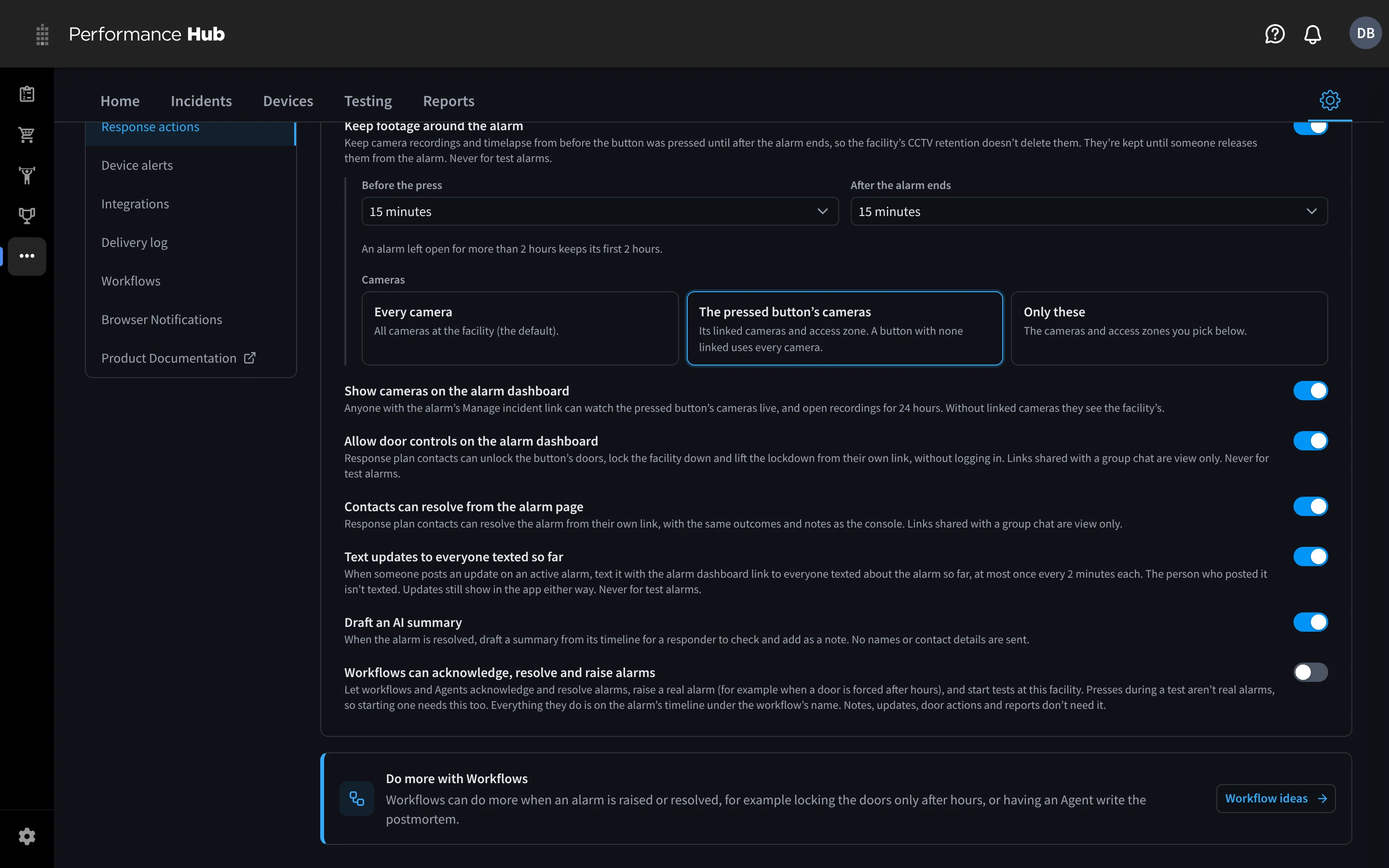
Per-button links to cameras, doors & private monitors
Every button has its own room profile so your response matches the physical layout of your building:
- Protected CCTV clips & live feeds: With CCTV / VSaaS, automatically protect recordings around the alarm window so clips never age out of retention until released, and stream linked cameras live to responders on the alarm page.
- Room-specific door & screen mapping: Link each button to the exact doors that serve its room and the private back-office or nurse-station monitors that watch over it, while public displays show nothing.
- Label, room, placement & monitoring zone: Assign a clear label, room name, fixed or wearable placement, and monitoring-centre zone number so responders and your monitoring provider know where to go.
Alarm Destinations · Your Monitoring Centre · Brand Templates · Delivery Log
Route alarms to your team, your chat tools, and your own monitoring centre.
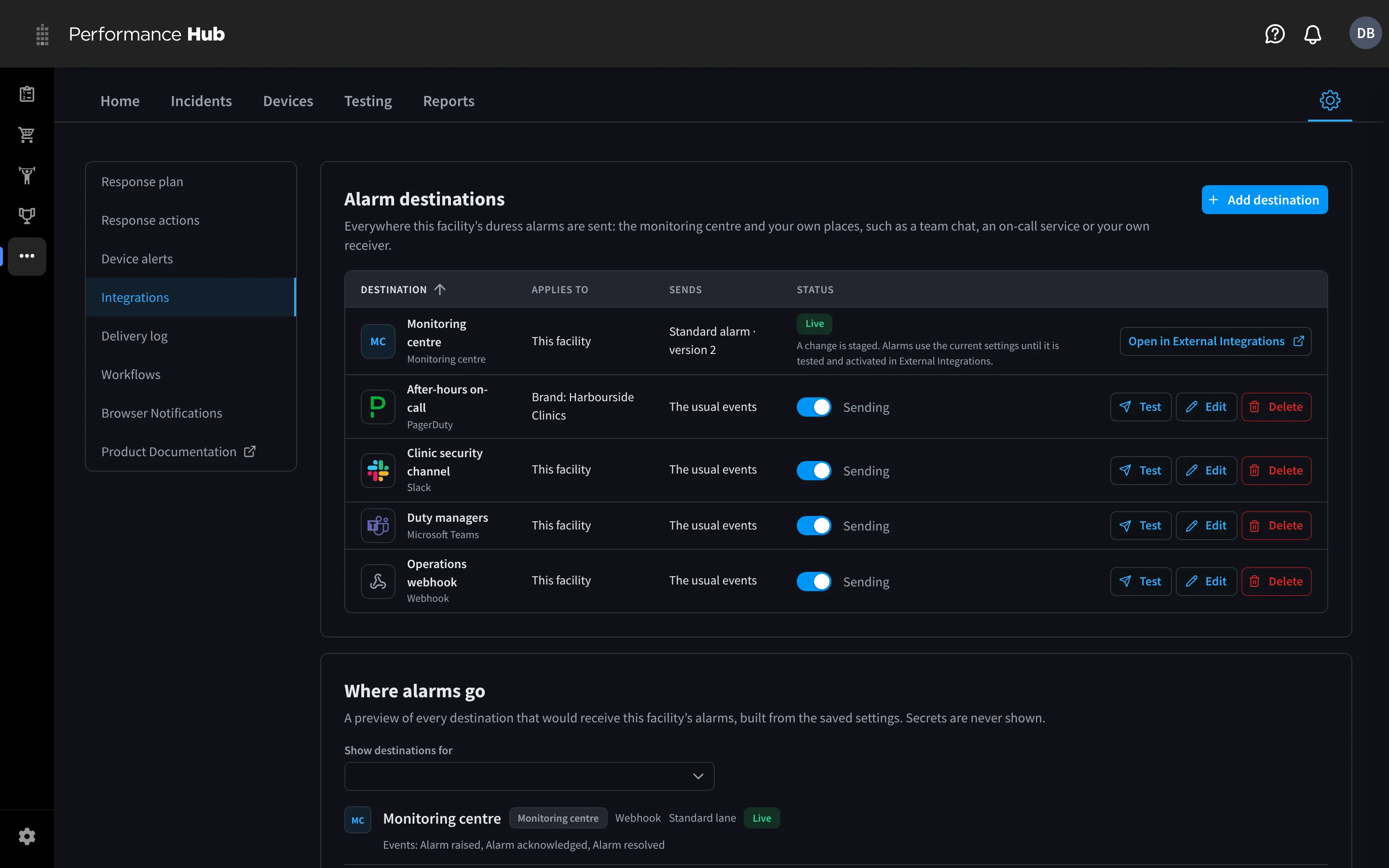
Connect the professional monitoring provider you already trust alongside Slack, Microsoft Teams, Google Chat, PagerDuty, Opsgenie, custom Webhooks, SMS, voice calls, and email. Set destinations once for your whole organisation or brand, or tailor them per site, with every delivery attempt logged and auditable.
Connect your own monitoring centre with staged, zero-downtime updates
Route duress alarms with per-button zone numbers to your facility's professional monitoring centre. New connections are verified with a test signal before going live, and any later change can be staged and tested before activation so live alarm routing is never interrupted.
Team chat, on-call paging & webhooks at any scope
Send alarms to Slack, Microsoft Teams, Google Chat, PagerDuty, Opsgenie, Webhooks, email, SMS, or voice calls at the Facility, Brand, or Organisation level, and verify any destination on demand.
Brand response plan templates with local flexibility
Define a standard response plan template and response actions at the Brand level. Each facility can follow the brand template as-is, add local on-site contacts on top of the template, or run its own dedicated plan.
Audited delivery log & instant failure alerts
Every alarm, test, and device notification is recorded in a searchable delivery log with its timestamp, channel, destination, and delivery status (exportable to CSV), with immediate alerts if a message ever fails to send.
Alarm Destinations · On-Call Services · Team Chat · Monitoring Centres
Send duress alarms to the channels and monitoring centres you already use.
Alongside Push, SMS, Voice call, and Email escalation, route duress alarms and device alerts straight into Slack, Microsoft Teams, Google Chat, PagerDuty, Opsgenie, custom Webhooks, your own professional monitoring centre, and your Agent over MCP.
 Slack
 Microsoft Teams
 Google Chat
 PagerDuty
 Opsgenie
 Push Notification
 SMS
 Voice Call
 Email
 Webhooks
 Your Monitoring Centre
 Hermes
 Model Context Protocol (MCP)
Phone-First Alarm Page · No Sign-In Required · Live Timeline, Doors & Cameras
Manage the incident from your phone with no sign-in required.
During an emergency, responders should never be slowed down by forgotten passwords or two-factor prompts. Every SMS, email, and chat alert carries a link to a live, phone-first alarm page. Designated response plan contacts act immediately from their personal link without signing in, while links posted to group chats or shared inboxes open in a safe view-only mode until someone logs in.
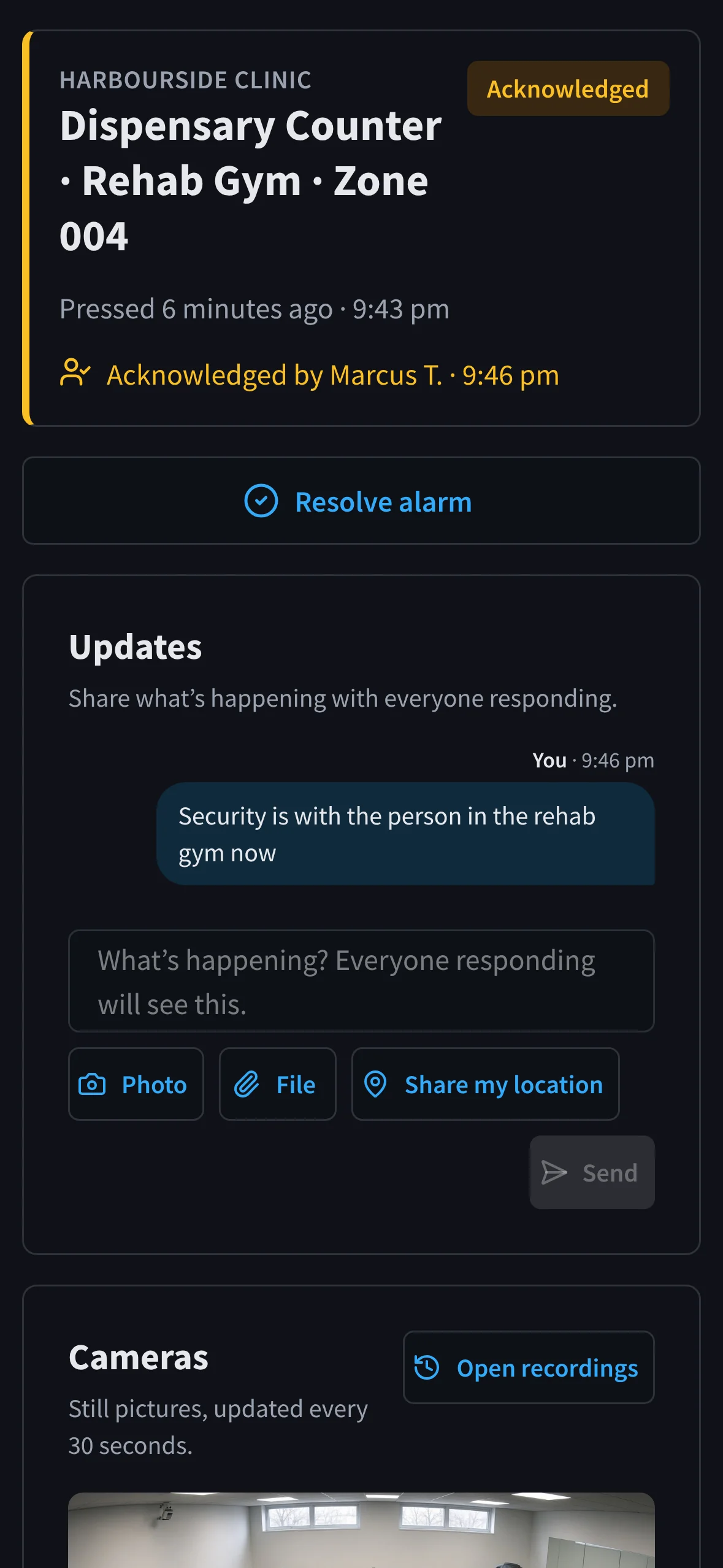
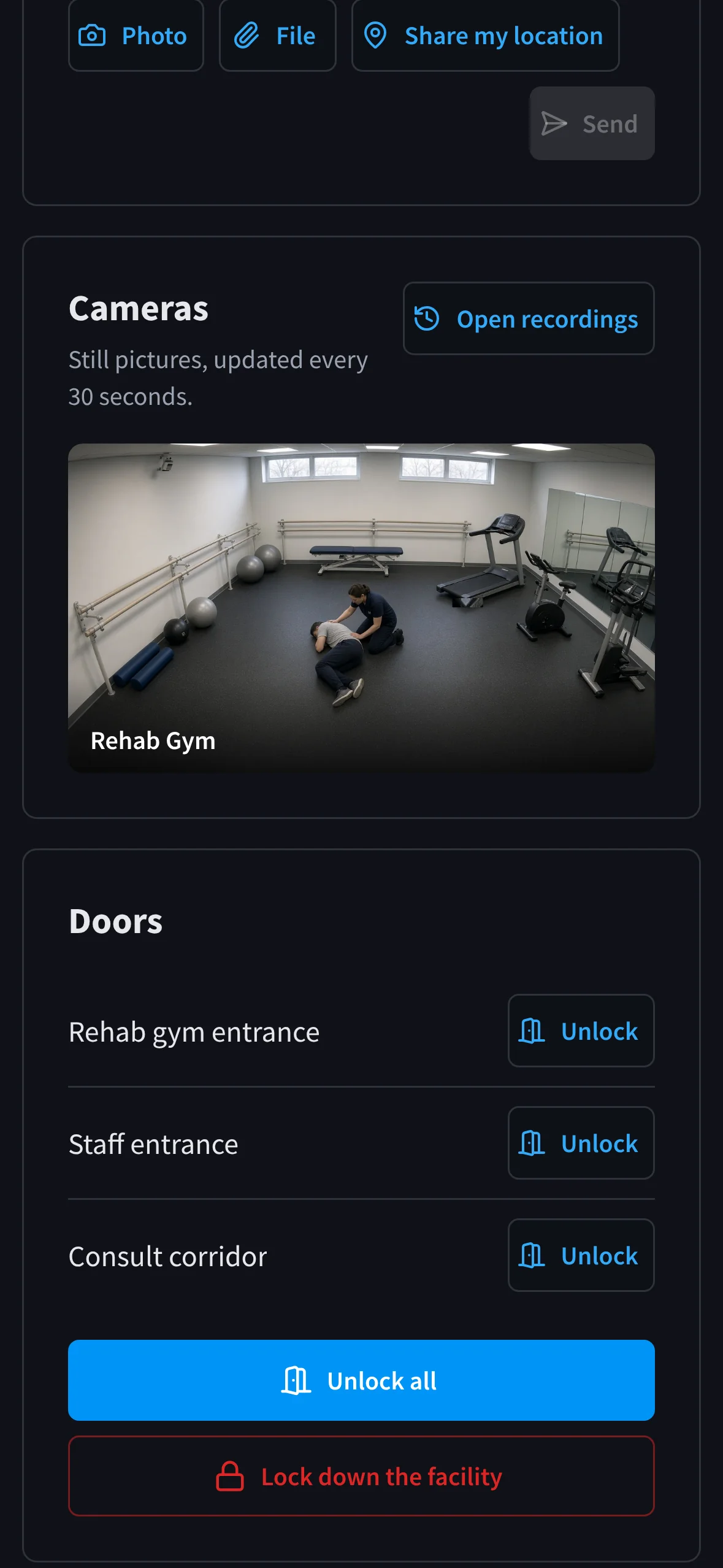
One-tap Acknowledge & Resolve on the move
Acknowledge the alarm in one tap so everyone alerted sees who is responding and escalation stops. When the situation is over, record the outcome and note to send the automatic all-clear.
Live updates with photos, files & location
Post real-time updates with attached photos, files, or your live location. Updates appear immediately on the alarm page and inside Performance Hub, and can be texted automatically to everyone already alerted.
Personal action links vs. view-only group links
Each response plan contact receives an individual link that identifies them and expires automatically after the incident ends. Links sent to a team chat or shared inbox are view only by default, or you can require a Performance Hub sign-in for every link.
Scheduled Walk Tests · Full Response Drills · Multi-Site Governance · Agent & MCP
Readiness you can schedule, measure, and prove across every site.
A duress button has to work the first time someone needs it. Run routine walk tests and timed full response drills, roll out recurring test schedules across every brand and facility, separate responder and administrator permissions, and ask your Agent for instant readiness checks across your organisation.
Walk tests, timed response drills & automated reminders
Run a walk test without alarming anyone to verify every button and receiver on site, or run a timed response drill to rehearse your escalation plan and measure acknowledgement time. Schedule recurring tests with automatic email reminders beforehand and full results sent afterwards.
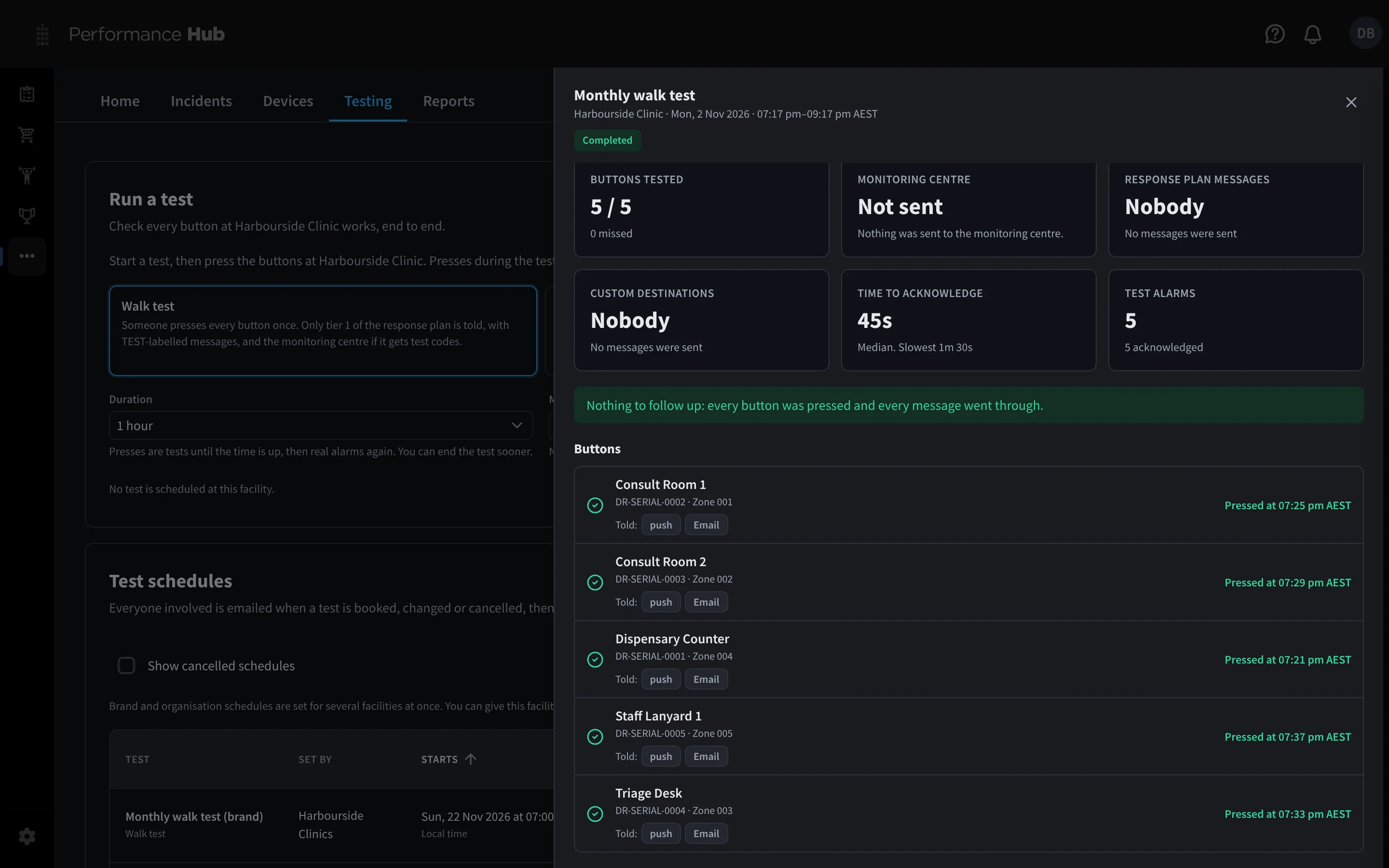
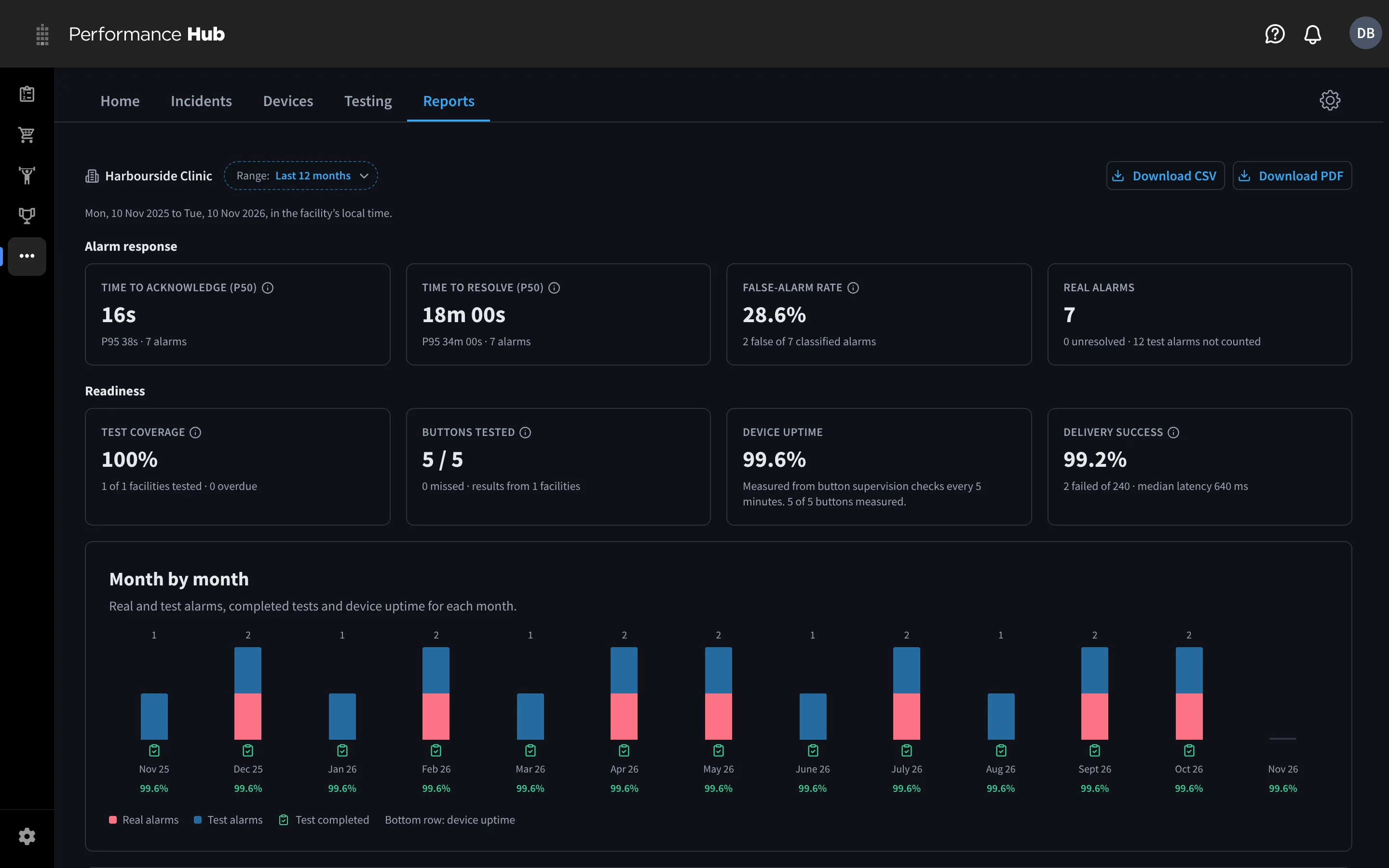
Readiness reports with CSV & PDF exports
Give auditors, insurers, and leadership clear operational evidence. Track time to acknowledge, time to resolve, false-alarm rate, real alarms, test coverage, device uptime, and delivery success month by month, alongside per-button health and test history, and export reports to CSV and PDF anytime.
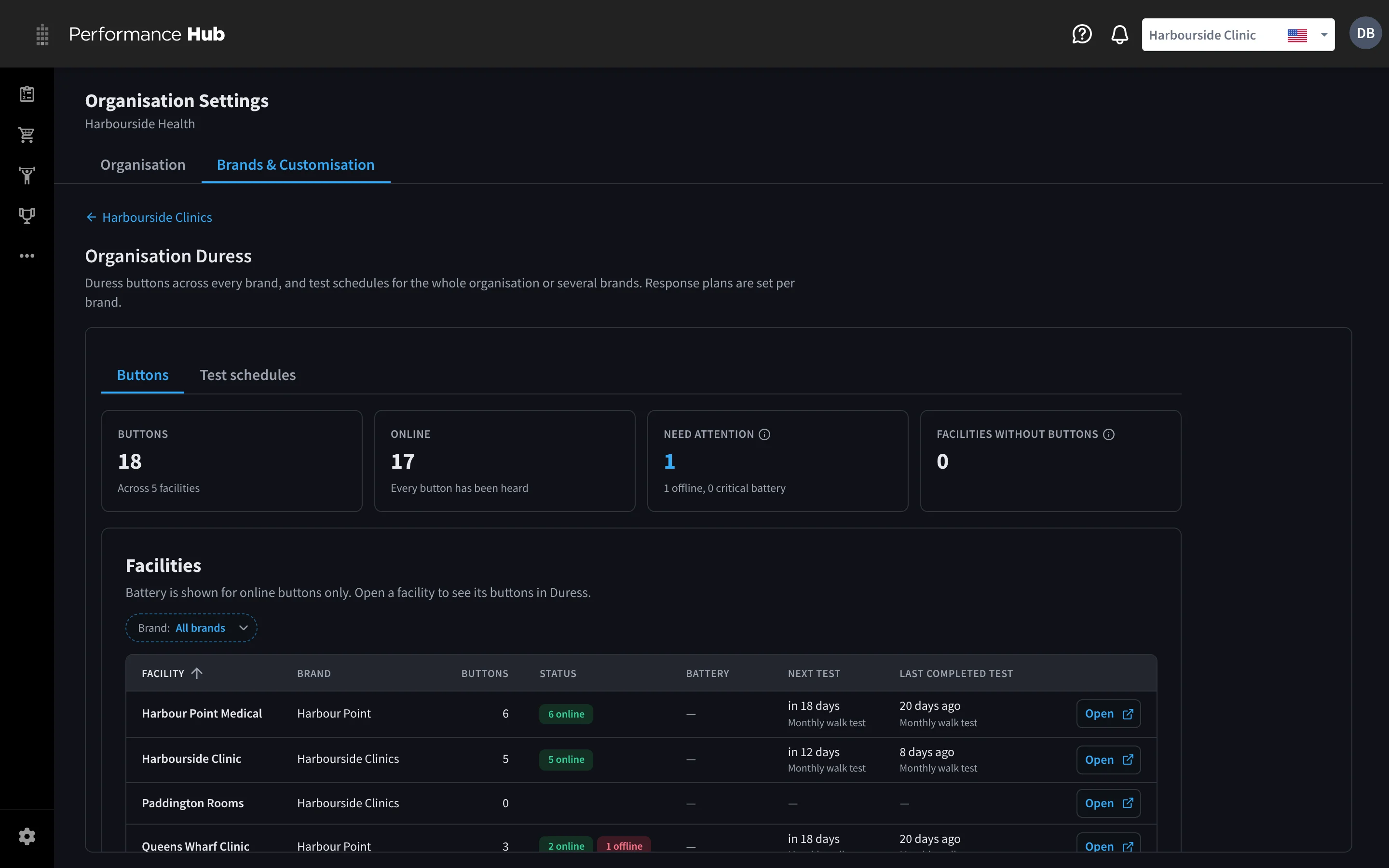
Organisation Duress view across every brand and site
Oversee every wireless, wearable, and hard-wired button across your entire portfolio from Organisation Duress. Spot total online buttons, buttons that need attention, facilities without buttons, and each site's next scheduled and last completed test, while letting individual sites adjust or skip a shared test window without affecting other locations.
Your Agent & custom roles with separation of duties
Separate day-to-day alarm response from plan and schedule administration using ready-made role templates or custom roles, so front-line staff can respond to alarms without being able to change who gets alerted. Ask your Agent in plain English to check button health, list untested buttons, summarise incidents, or help find a misplaced wearable button, with explicit user confirmation required before acting on an alarm or starting a test.
Wireless, Wearable & Hard-Wired Duress Buttons · Indoor & Outdoor Receivers · Continuous Supervision
Wireless, wearable, and hard-wired duress buttons for every site.
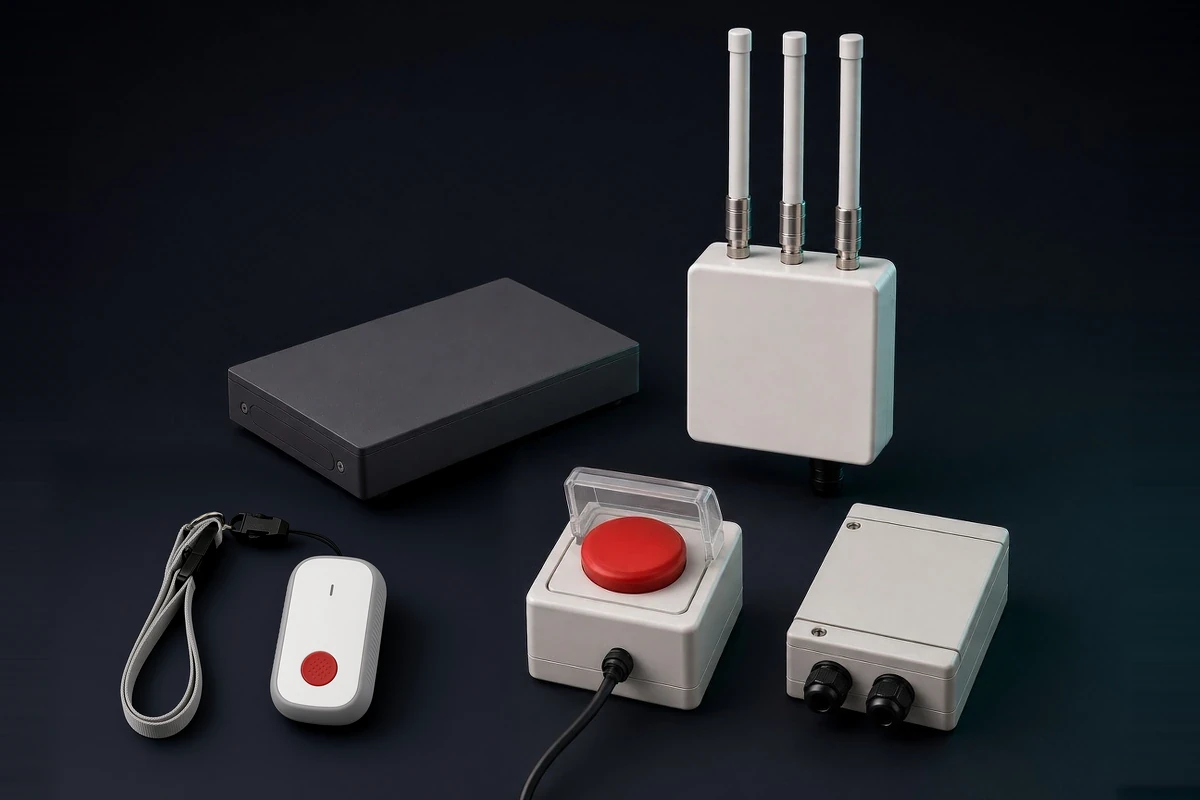
Mount wireless duress buttons under desks, issue wearable duress buttons on a lanyard (rechargeable over USB-C), or connect hard-wired duress buttons directly to your Door & Gate Controllers. Wireless and wearable buttons have no internet connection of their own: every site using wireless buttons needs at least one Display Screen Player, a Door & Gate Controller (Wi-Fi edition), or an indoor or outdoor IoT Gateway. Adding more than one receiver gives your rooms and outdoor areas overlapping coverage.
Connect your way
Duress buttons are available in LoRaWAN, Bluetooth, and hard-wired versions so you can match each site's existing hardware, range, and layout:
LoRaWAN wireless & wearable buttons
Indoor IoT Gateway · Outdoor IoT Gateway Receiver
Works with the Performance Hub Indoor IoT Gateway and Outdoor IoT Gateway Receiver to deliver much wider range and site-wide coverage across multi-room buildings, car parks, yards, and campuses.
Bluetooth wireless & wearable buttons
Display Screen Player · Door & Gate Controller (Wi‑Fi edition only)
Relays presses through Display Screen Players and Door & Gate Controllers (Wi-Fi edition only) already installed in your rooms and corridors, with no separate gateway required.
Hard-wired wall & under-desk buttons
Door & Gate Controller
Connects fixed wired panic buttons and under-counter switches directly to a Door & Gate Controller, triggering the exact same Duress response plan.
From box to verified protection in three steps
Connect your receivers or door controller
Use any paired Display Screen Player or Door & Gate Controller (Wi-Fi edition) for Bluetooth buttons, enable an indoor or Outdoor IoT Gateway Receiver for long-range LoRaWAN coverage, or wire a fixed button into your Door & Gate Controller.
Scan the QR code & assign the room
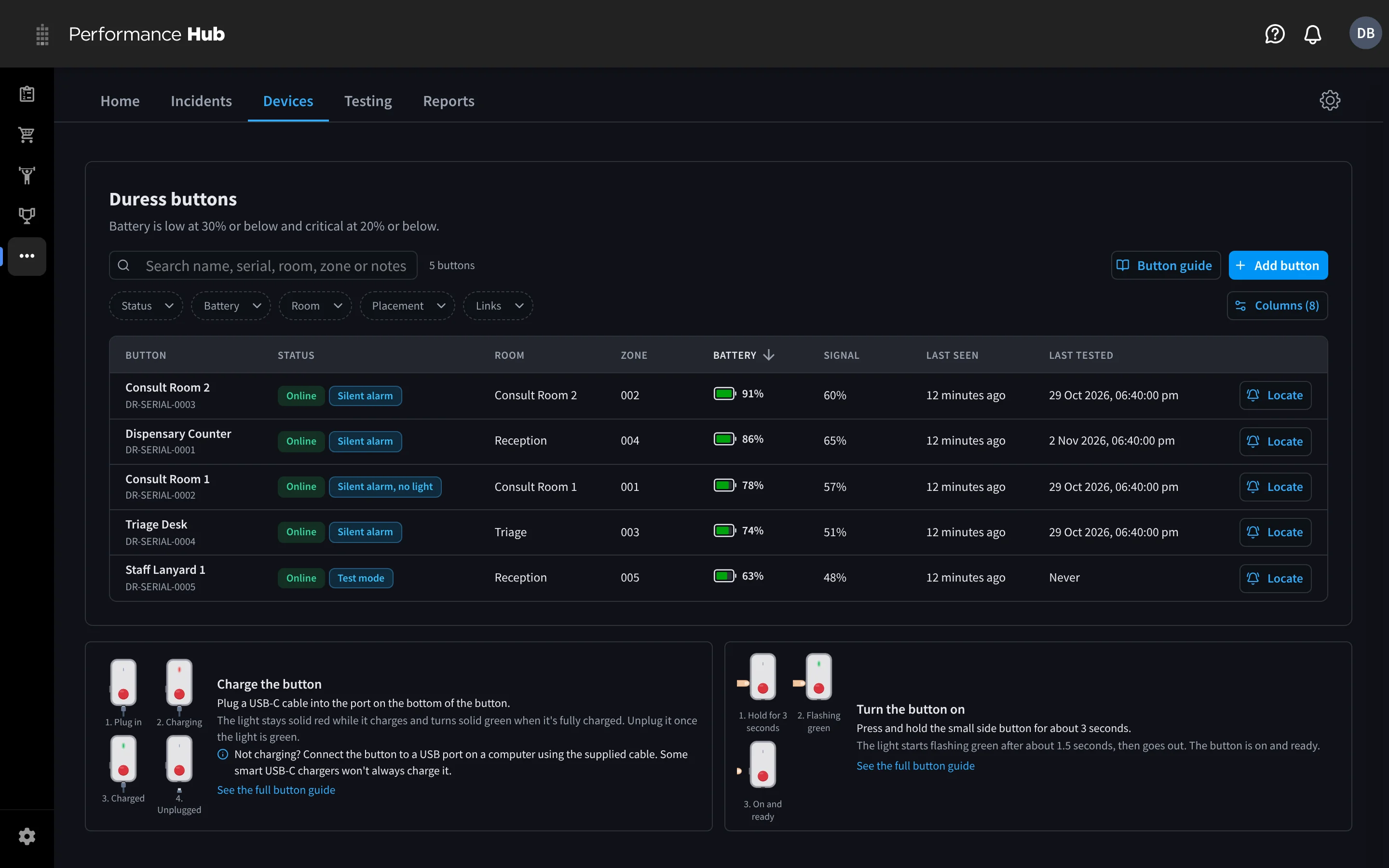
Add each wireless or wearable duress button by scanning its QR code or entering its serial number, assign a clear label and room name such as Dispensary Counter or Consult Room 2, and set its alert behaviour.
Verify with a safe test press
Run a quick test press from where the button will live to confirm your on-site receiver hears it without alarming anyone or calling your monitoring centre, then put the button live.
Configurable per button: audible or silent, with different alert patterns
Every wireless and wearable duress button is configurable to match its environment: choose audible or silent operation with different alert patterns, from prominent on-device confirmation in back-of-house or customer training areas to silent activation at front counters and consultation rooms. Our unbranded buttons feature a tactile red alarm face, a recessed side power button, a top status indicator, and USB-C charging (cable included).
Continuous health supervision & misplaced-button finder
Performance Hub continuously checks every button's online status, battery level, signal strength, and last test date. Know straight away if a battery runs low or if receiver coverage drops at a site, and sound a locator tone to find a misplaced wearable button.
Pausing maintenance notifications never stops a duress alarm
When you are replacing a screen or recharging a unit, you can temporarily pause device maintenance notifications for that button so your inbox stays quiet. Pressing the button always raises a full duress alarm.
Five hardware components, one unified device list
Mix and match wireless, wearable, and hard-wired duress hardware across your facility:
 Wireless & Wearable Duress Buttons (LoRaWAN or Bluetooth): USB-C rechargeable buttons mounted under desks or worn on a lanyard, configurable for audible or silent operation with different alert patterns.
 Hard-Wired Duress Buttons via Door Controller: Connect fixed wired panic buttons directly to a Door & Gate Controller (which also receives Bluetooth buttons on its Wi-Fi edition).
 Display Screen Player (Bluetooth receiver): Pre-configured signage appliance that also relays nearby Bluetooth wireless and wearable duress buttons by default.
 Indoor IoT Gateway (LoRaWAN receiver): Dedicated indoor gateway providing extended range and multi-room coverage for LoRaWAN wireless and wearable buttons.
 Outdoor IoT Gateway Receiver (LoRaWAN receiver): Weather-ready outdoor gateway delivering wide-area LoRaWAN button coverage across car parks, yards, loading bays, and campus grounds.
Common Questions · Wireless, Wearable & Hard-Wired Duress
Frequently asked questions.
Clear answers on wireless, wearable, and hard-wired duress buttons, on-site receivers, audible or discreet operation, safe walk tests, monitoring centres, and device maintenance.
What hardware is needed on site for duress buttons to work?
Wireless and wearable duress buttons need at least one online Display Screen Player (which relays Bluetooth duress presses by default), a Door & Gate Controller (Wi-Fi edition, for Bluetooth buttons), or an indoor or Outdoor IoT Gateway Receiver (for LoRaWAN buttons) at the facility to pick up presses and pass them to Performance Hub. Adding multiple receivers provides overlapping wireless coverage across rooms and outdoor areas. We also support hard-wired duress buttons wired directly into a Door & Gate Controller.
Can buttons be used by customers and visitors as well as staff?
Yes. Alongside reception desks, consult rooms, and staff lanyards, many sites place fixed wireless or hard-wired duress buttons or provide wearable duress buttons for customers, patients, and visitors, such as members training during unstaffed gym hours, patients in rehab gyms, or students in after-hours campus spaces. Each button is labelled with its room or role so responders know immediately where help is needed.
Can buttons be audible or discreet to suit different rooms?
Yes. Each button can be set to be audible or discreet to suit each room, from back-of-house areas, customer training floors, and loading bays to quiet consultation rooms and front counters. Every press triggers the full response plan, and the person who pressed gets confirmation that help is coming when a responder acknowledges the alarm.
What happens if someone presses a button by mistake?
Accidental presses are easy to stand down and are still recorded in your incident history so your team has a complete log.
Do buttons work off site, or do they track location via GPS?
No. Duress is an on-site facility alarm system, not a GPS lone-worker tracker. Wireless and wearable buttons work within range of your facility's Display Screen Players, Door & Gate Controllers (Wi-Fi edition), or indoor and outdoor IoT Gateways. Responders see the button's configured name and room (for example Dispensary Counter or Consult Room 2), and people are never tracked on a map.
Do walk tests or response drills lock down doors or show alerts on screens?
No. You can run walk tests and response drills without alarming anyone: test alarms never lock down doors, never unlock doors, never show alerts on Display Screens, and never retain CCTV footage.
Will a duress alarm ever appear on public waiting-room or lobby screens?
No. A button only shows an on-screen alert on the specific Display Screens linked to it, and a button with no linked screens shows nothing on any screen. Link only private back-office, nurse-station, or security monitors, never public waiting-room or foyer displays.
Does Performance Hub run its own 24/7 monitoring centre?
No. Performance Hub connects to your own monitoring centre alongside your internal response plan, team chat (Slack, Microsoft Teams, Google Chat), on-call tools (PagerDuty, Opsgenie), and webhooks. Your monitoring centre connection is verified with a test signal before going live, and any configuration changes can be staged and tested before activation so live alarm routing is never interrupted.
Do responders need a Performance Hub login to acknowledge an alarm from their phone?
No. By default, every SMS and email sent to a contact in your response plan carries a personal link that opens the live, phone-first alarm page as that person with no sign-in required, allowing them to acknowledge, post updates, view linked cameras, control doors, and resolve the incident. Links posted to group chats are view only, and facilities that prefer strict sign-in can require a login for every link.
What happens if a receiver goes offline or we pause device notifications during maintenance?
If another player or gateway at the facility is within range, presses continue to flow automatically. You know straight away if receiver coverage drops at a site or when coverage is restored, and pausing device maintenance notifications while replacing a screen or charging a unit never stops a real duress alarm from being sent.
Get Started · Guided Setup Included
Equip every counter, room, and team with connected duress.
Book a 20-minute demo where our team scopes your wireless, wearable, and hard-wired duress buttons, indoor and outdoor receiver coverage, response plans, door and camera actions, and monitoring-centre routing with you, or order hardware for your sites.