Display Screens & Smart Displays
Every screen at every site, live and on-brand.
The Swiss army knife of screens: signage, live Agent apps, offline web apps, and CCTV video walls on one player.
Pair a pre-configured Display Screen Player to any TV or commercial display in minutes. Run crisp promotional media, looping playlists, live Agent-built Smart Displays, offline On-Device Web Apps, and multi-camera CCTV video walls from one cloud console, with timezone-aware scheduling, automated display power, and instant screen takeovers.
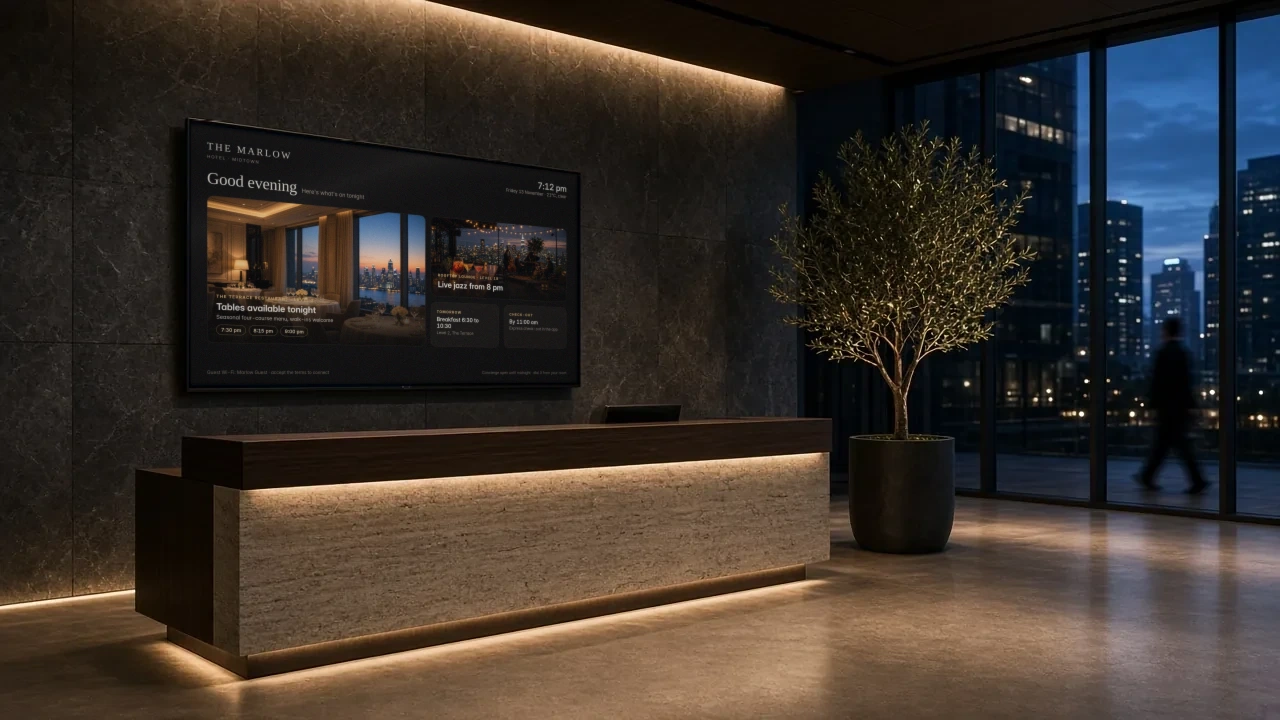
Plug-and-play pairing: Connect the silent, fanless player over HDMI and pair in seconds using the code or QR shown on the TV, with no OS imaging or local servers.
Live Agent apps & camera walls: Show Smart Displays that adapt to real-time site activity, offline-ready web apps, looping playlists, and LAN-streamed multi-camera CCTV grids.
Hands-off daily operation: Screens wake and sleep with your operating hours, adjust brightness from dawn to nightfall, and display your branded Fallback Slate whenever nothing is scheduled.
Platform Capabilities · Unified Signage · Every Physical Space
One signage control plane across every space and location you operate.
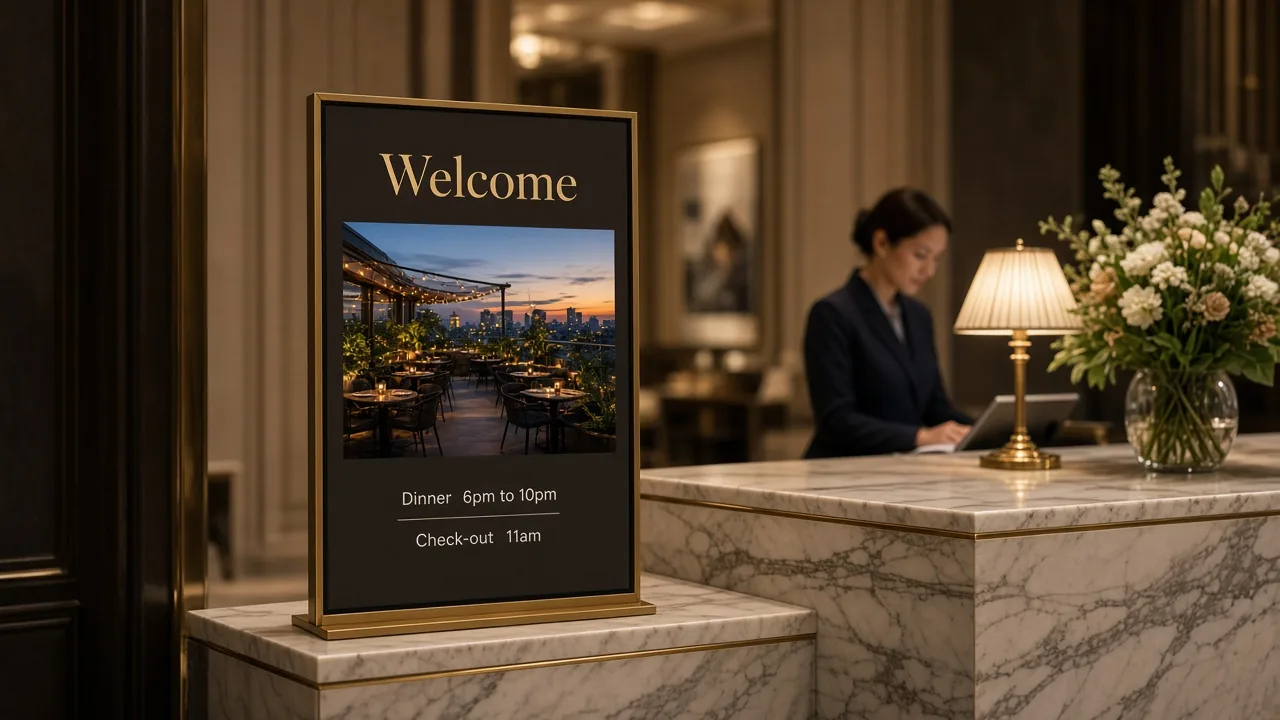
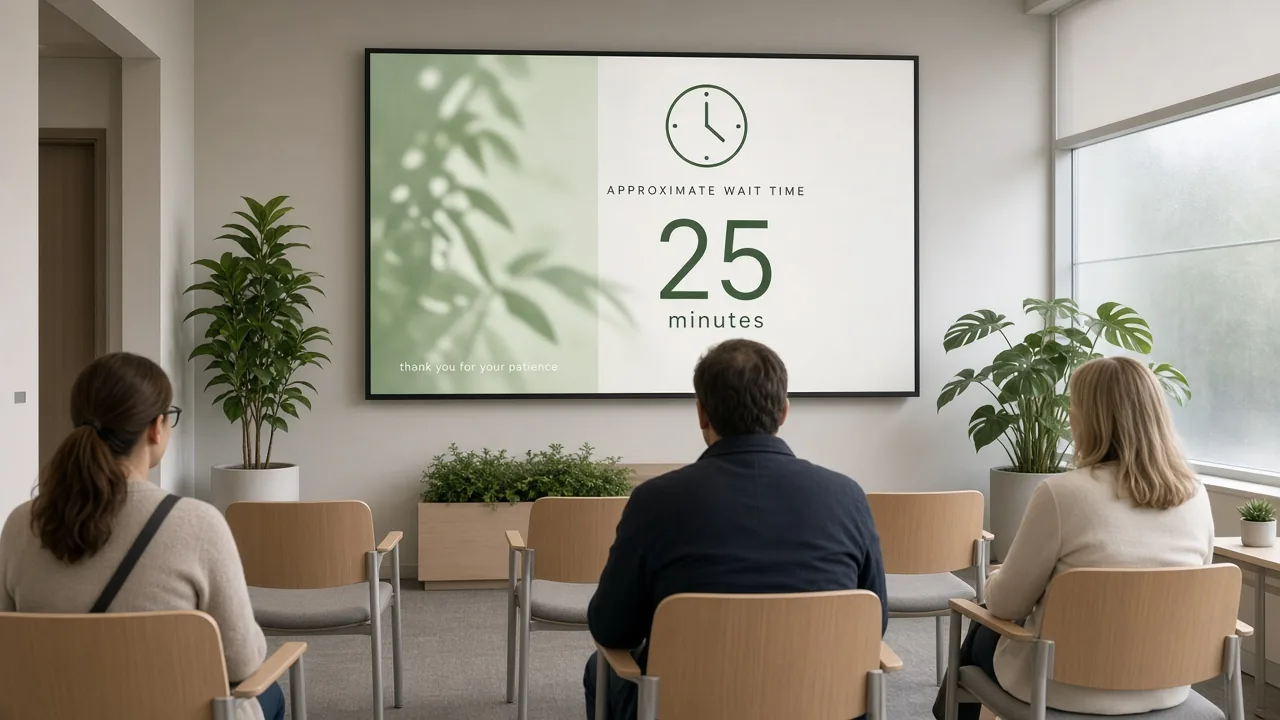
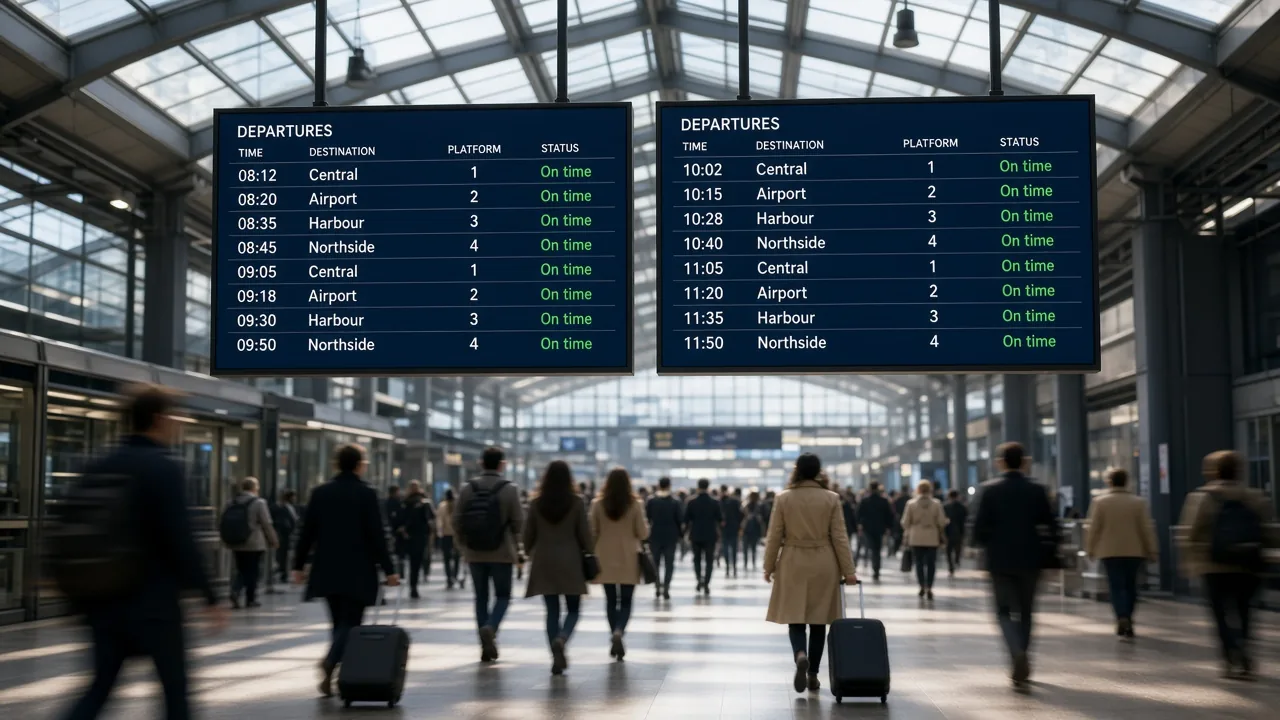
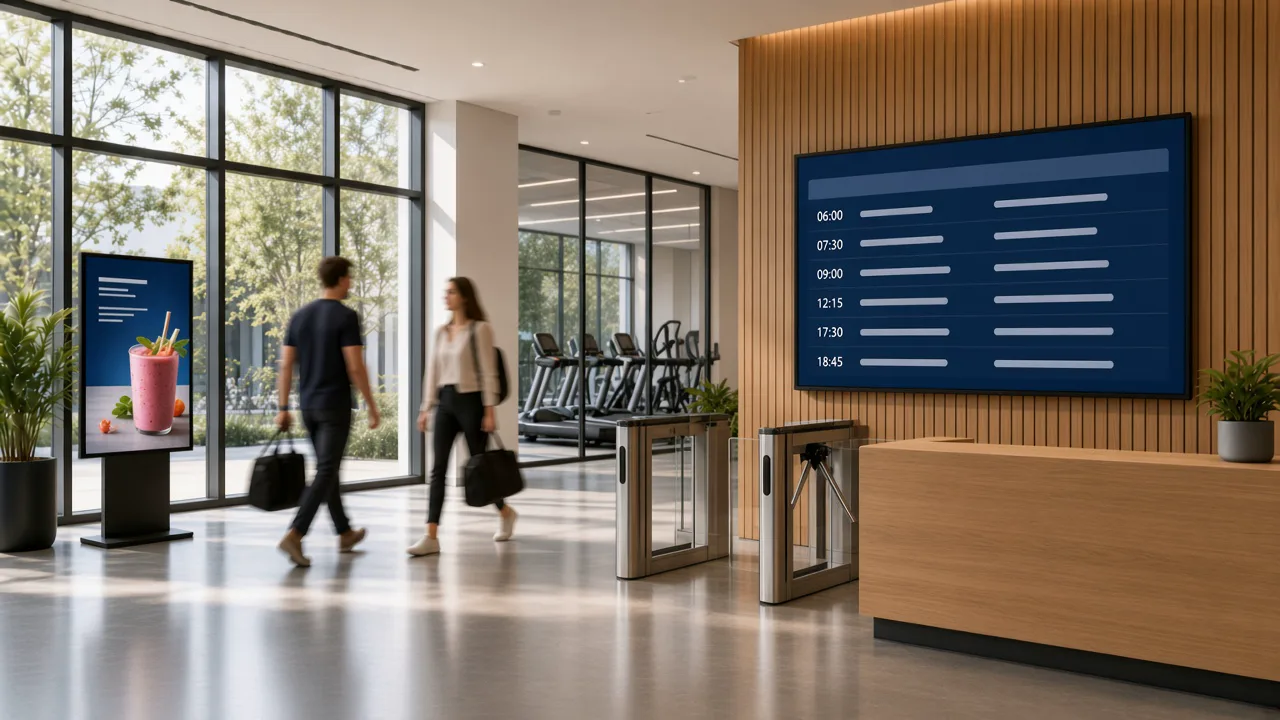
Built into Performance Hub alongside your cameras, doors, audio, duress alarms, and Agent, Display Screens adapts to the zones, audiences, and daily rhythm of every building, from corporate reception lobbies and retail windows to quick-service counters, clinic waiting rooms, transit concourses, and dispatch floors.
6
Content Types in One Library
Images · Video · Web · Offline Apps · Smart Displays · CCTV
Manage high-resolution images and videos, external web pages, offline On-Device Web Apps, live Agent apps, and multi-camera CCTV feeds from one central Library.
3
Schedule Priority Layers
Takeover · Scheduled · Default
Override any screen on demand with a timed Takeover, schedule time-windowed campaigns in each site's local timezone, and fall back cleanly to Default loops or your branded Fallback Slate.
5
Publishing Scopes
Screen · Group · Facility · Brand · Organisation
Target a single display, a room group such as Reception or Counter, an entire site, or every screen across a brand or organisation in one publish.
1,500+
Connected Apps via the Agent
1,500+ Connected Apps · Live MCP Tools
Connect your Agent to 1,500+ business tools and your live facility modules over MCP to build Smart Displays that react automatically to arrivals, queues, calendars, and occupancy.
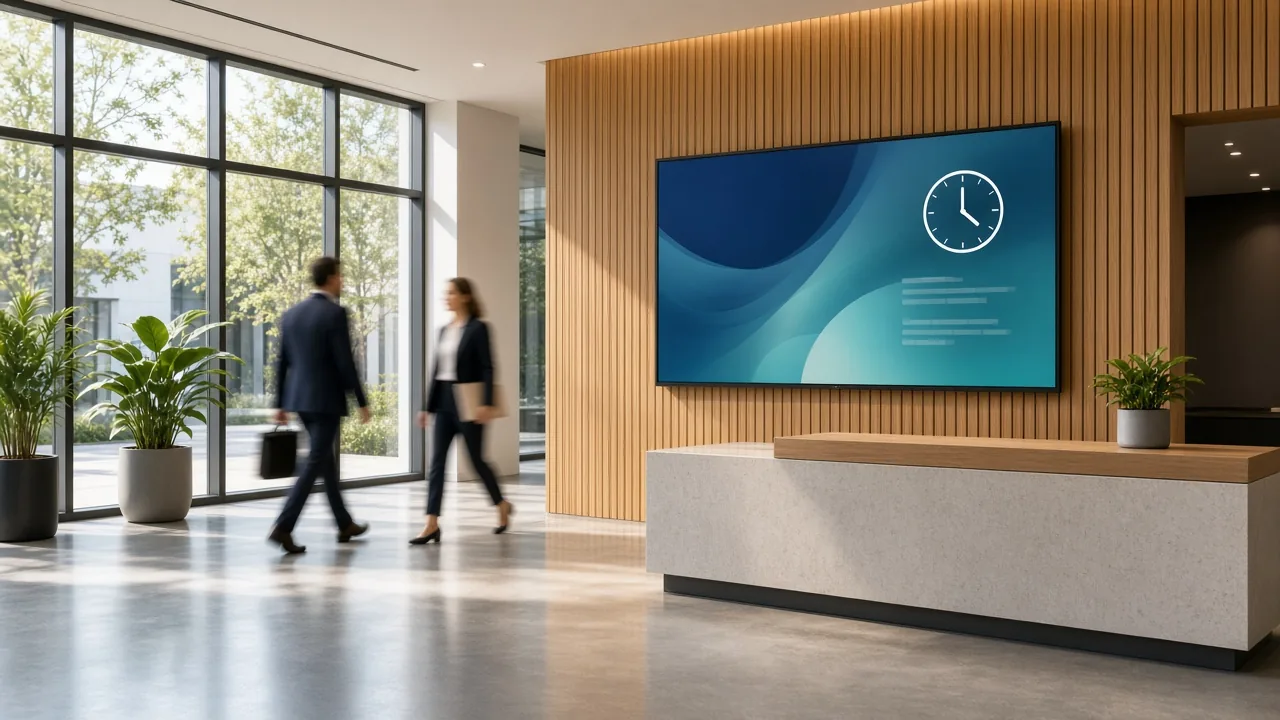
Coordinate reception directories, meeting-room corridors, and floor-wide communications.
- Reception & lift lobbies: Welcome arriving visitors at the front desk, display building directories and floor guides, and keep corporate reception boards aligned with your brand across every regional office.
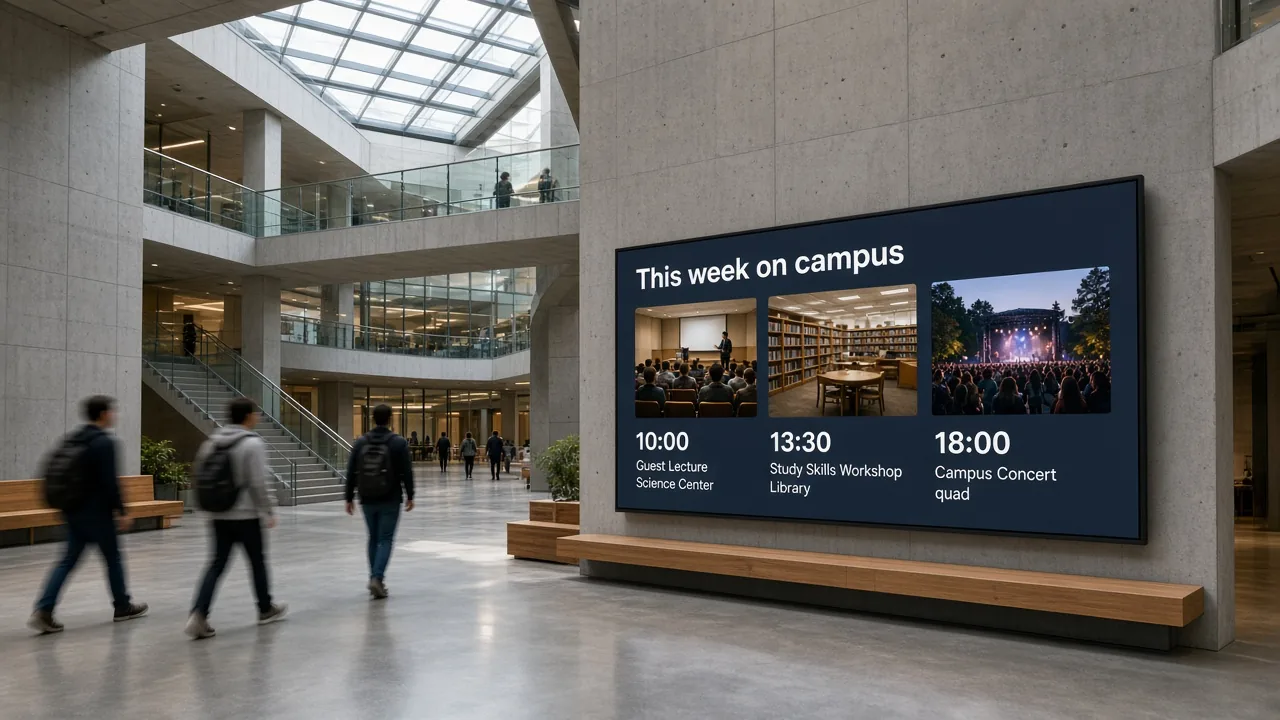
- Floor & department zones: Organise screens by floor, wing, or department so workplace coordinators publish local town-hall reminders, sprint metrics, and team news while leadership broadcasts company-wide updates.
- Breakout areas & executive suites: Share live company KPI dashboards, event calendars, and wireless presentation screens in town-hall commons, boardrooms, and staff cafés.
1,500+ Connected Apps · Any HDMI TV or Display · Casting & Audio · Open Standards
Works with the screens, casting, and business software you already run.
Plug into any HDMI TV, monitor, or commercial display, including Samsung, LG, and Sony screens, mirror laptops and phones over Apple AirPlay, drive local Sonos audio, run standard HTML5, CSS, and JavaScript web apps, and connect 1,500+ connected apps (calendars, spreadsheets, POS, CRM, and team chat) to your screens over MCP.
 Samsung
 LG
 Sony
 AirPlay (Apple)
 Sonos
 HTML5
 CSS
 JavaScript
 Hermes
 Model Context Protocol (MCP)
 Google Calendar
 Outlook
 Google Sheets
 Microsoft Excel
 Notion
 Airtable
 Square
 Shopify
 HubSpot
 Salesforce
 Slack
 Microsoft Teams
 Calendly
 Canva
Product Tour · Library · Preview · Playlists & Schedule
Store, preview, and schedule every screen before it goes live.
Organise every asset in one searchable Library, test landscape and portrait layouts in your browser before publishing, build looping playlists with automatic start and end dates, and see how every schedule layer resolves across the week.
Unified Library
One searchable Library with live usage protection.
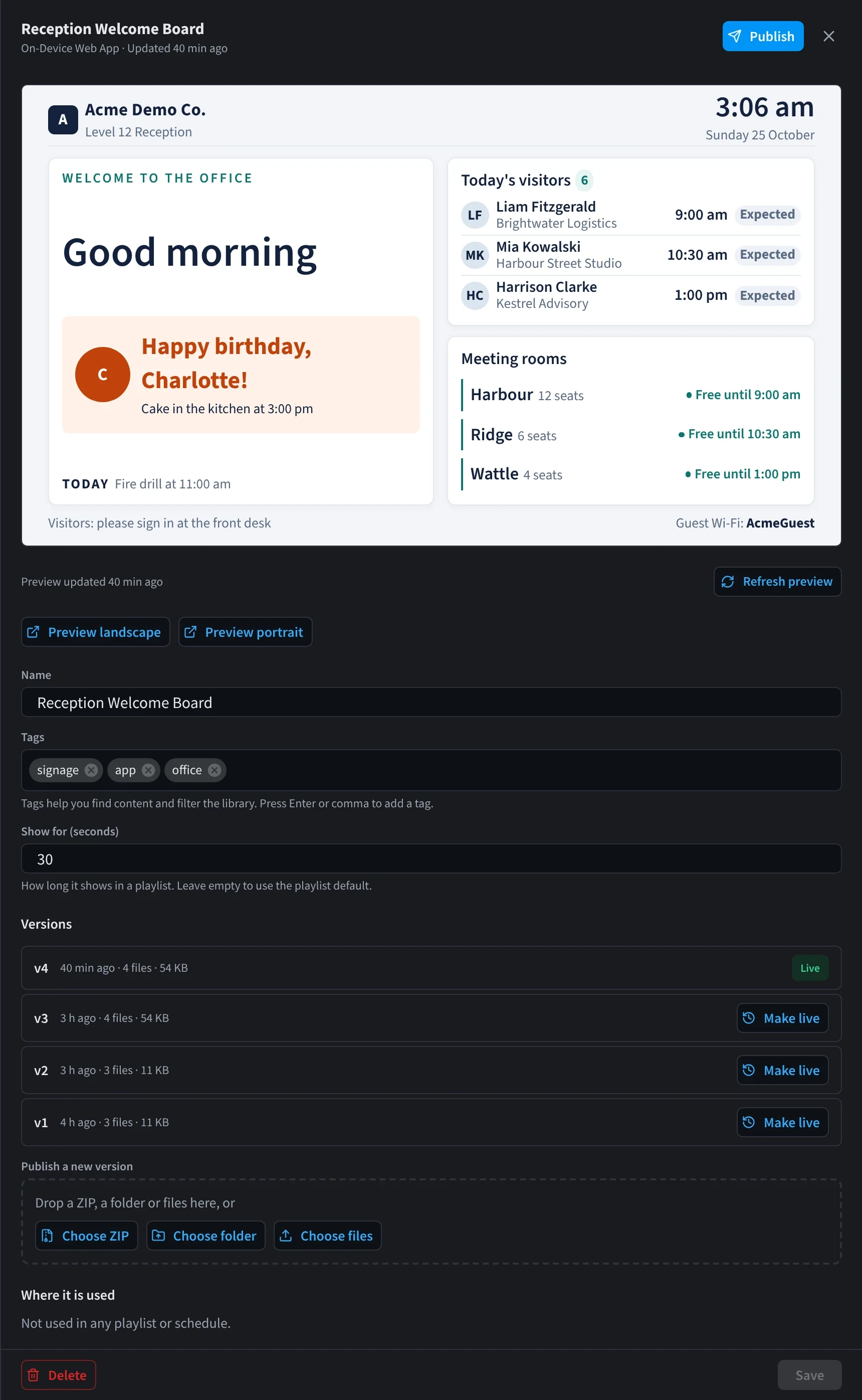
Keep every visual, web dashboard, app, and camera view organised in one searchable Library. Filter in one click by type chip, custom tag, live playback status, or upload health, and check exactly which playlists and schedules use an item before you edit or delete it.
- Usage & deletion guardrails: Every asset currently in a playlist or on a schedule is badged In use, showing its exact Used in count and preventing accidental deletion while live on screen.
- Storage tracking & status filters: Monitor uploaded media storage at a glance and filter by In use or Needs attention to keep large libraries tidy across teams.
- Card and List views: Browse visual thumbnails in Card view or switch to List view to sort by file size, default duration, tags, and last updated timestamp.
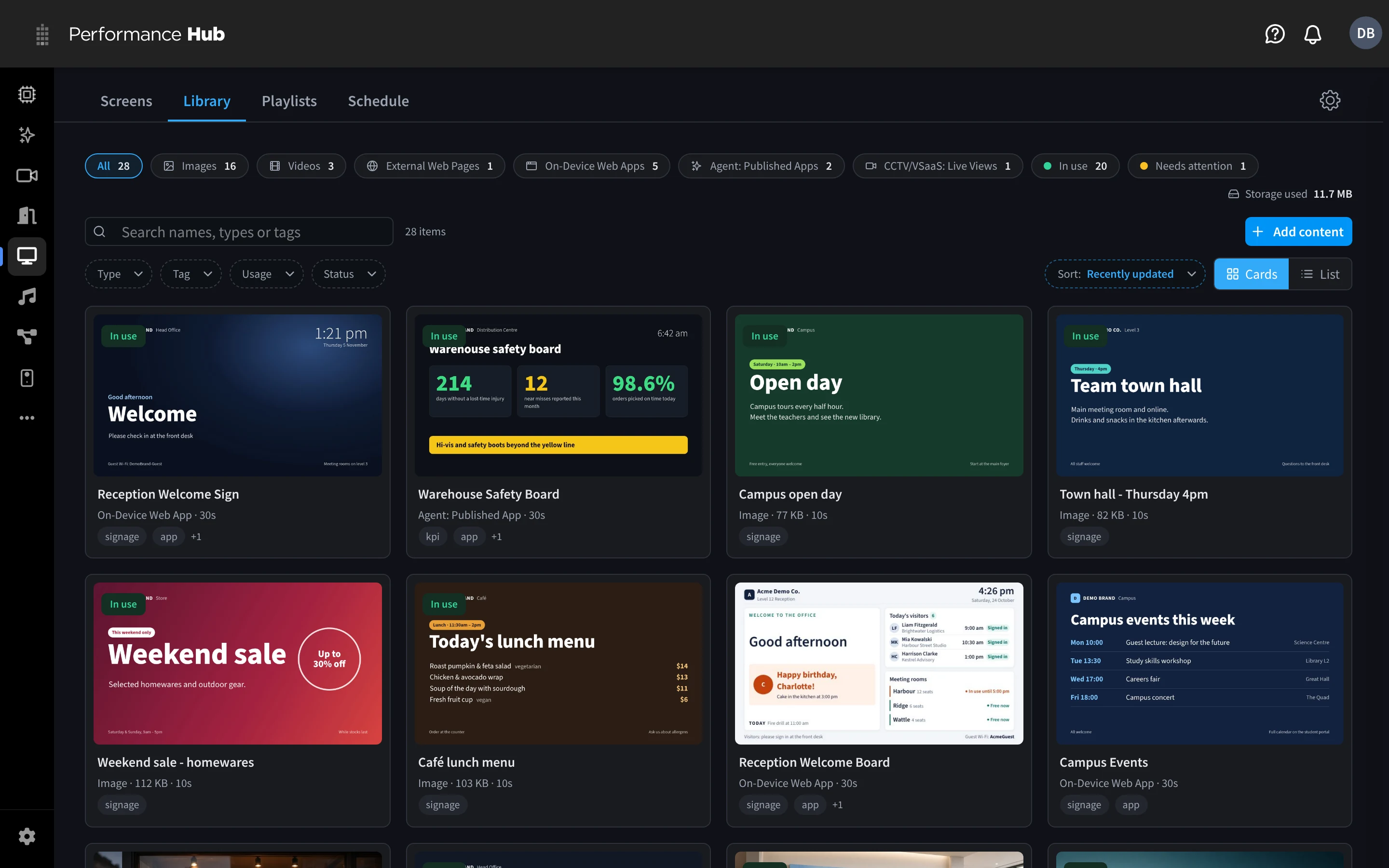
Filter by content type or tag, see which assets are currently In use, and track storage from one view. 
Item Preview & Publish
Inspect landscape and portrait layouts in your browser.
Open any Library item's detail drawer to check how it renders before a single display changes on site. Launch full-frame Preview landscape and Preview portrait windows in your browser to verify contrast, margins, and readability from across a room.
- Refreshable live snapshots: Web pages and apps record when their preview thumbnail was last captured, with a one-click Refresh preview to snapshot the latest state.
- Reusable defaults & tags: Set an item's default display duration and searchable tags once in the Library so every playlist that includes it inherits consistent timing.
- Where it is used: Inspect every playlist, screen, and schedule referencing the item and push updates or publish directly from the drawer.
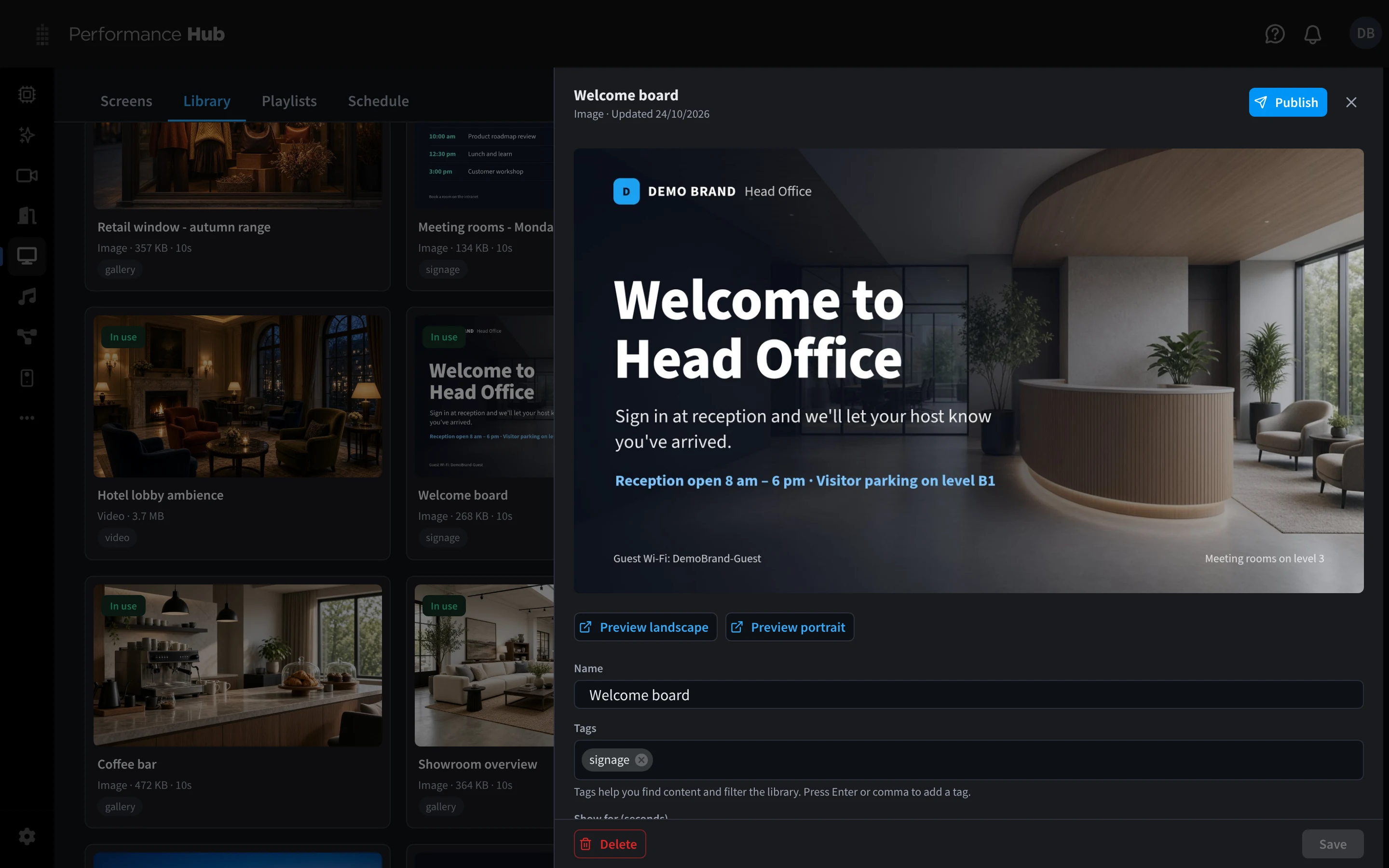
Check every slide or web app in both landscape and portrait orientations before pushing it live. Visual Schedule Calendar
Plan the week on a colour-coded calendar.
Switch between Day, 3 days, Week, Month, and Agenda views to see what is planned across your facility, a screen group, or a single display in the building's local timezone, with keyboard shortcuts and a mini-month navigator for fast jumps.
- Drag-and-drop editing with instant undo: Drag across any day to create a time slot or resize an existing window, choosing whether to update Only Tuesdays or Every Mon–Fri with one-click Undo.
- Time-travel playback preview: Pick any future date and time in the sidebar and click Preview at this time to see the exact item that will appear on screen before a campaign starts.
- Author attribution & edit history: Click any calendar event to see who published it (including changes made by your Agent or an automated workflow) and edit or remove it in place.
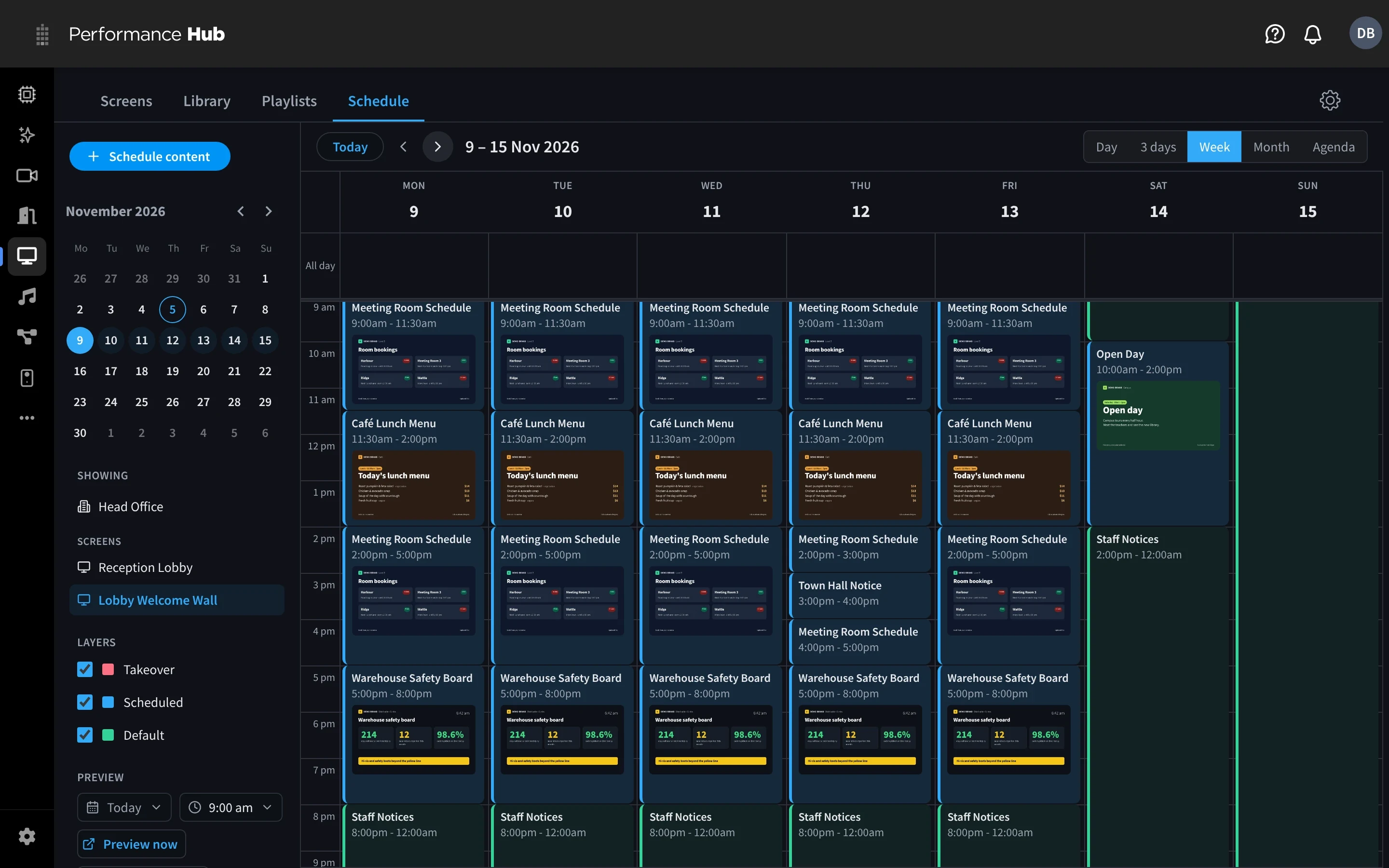
Filter by screen or group, toggle calendar layers, and click any event to inspect or edit its schedule. 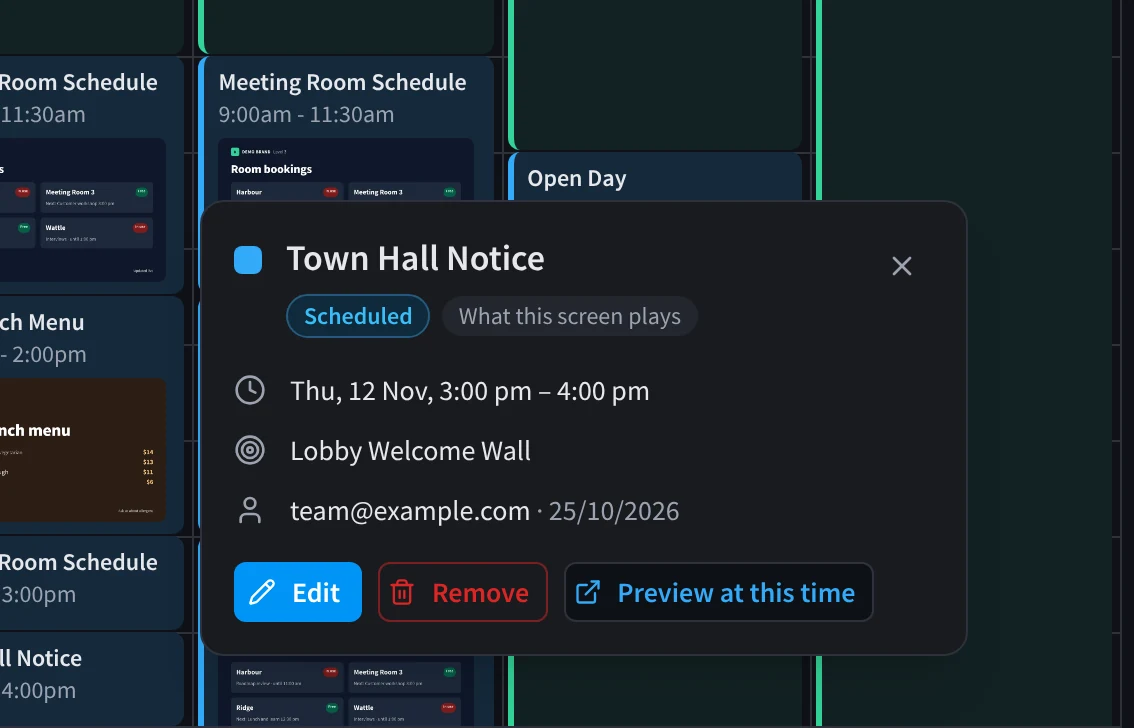
Looping Playlists
Looping playlists with per-item date bounds.
Assemble ordered loops where each item has its own display duration, choose smooth Fade or instant Cut transitions, set Fill the screen or Show it all scaling, and mute or unmute video audio per item. Attach optional From and Until dates to time-limited promotions so they enter and leave the loop automatically, and test the saved rotation in the side-by-side player preview.
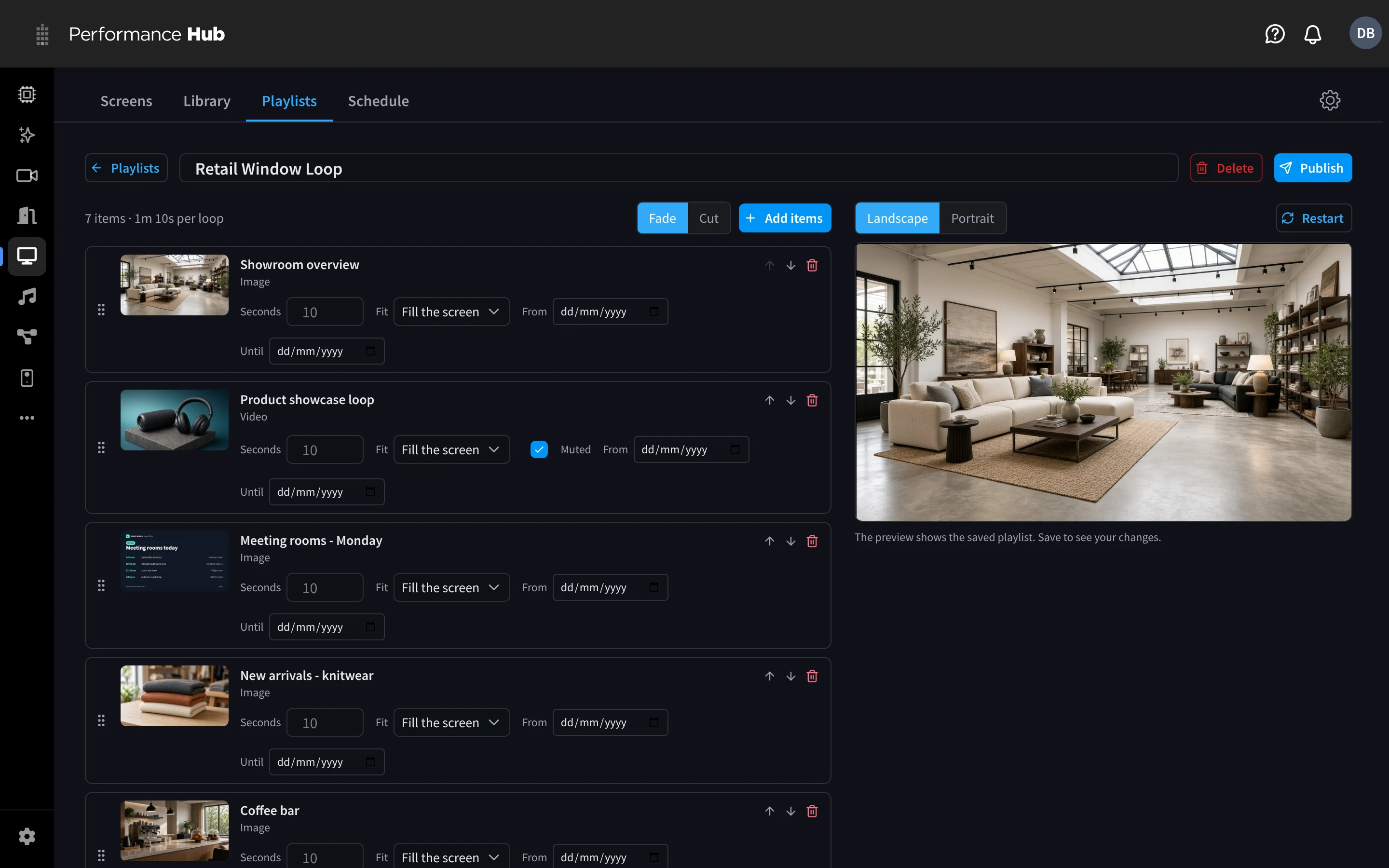
Set per-item timing, smooth transitions, and automatic start/expiry dates with a live landscape and portrait preview. 2-Step Priority Resolution
Deterministic 2-step priority resolution.
A screen can inherit programming from your organisation, brand, facility, and groups while also holding its own schedule. Display Screens resolves what plays in two strict steps:
- Step 1: Layer first. A running Takeover beats anything Scheduled, and an active Scheduled window beats the Default.
- Step 2: Most specific target wins. Within the same layer, Screen beats Group, which beats Facility, Brand, and Organisation (with priority and newest publish breaking ties).
Changes to any published playlist or schedule reach online displays within seconds, with zero manual republishing.
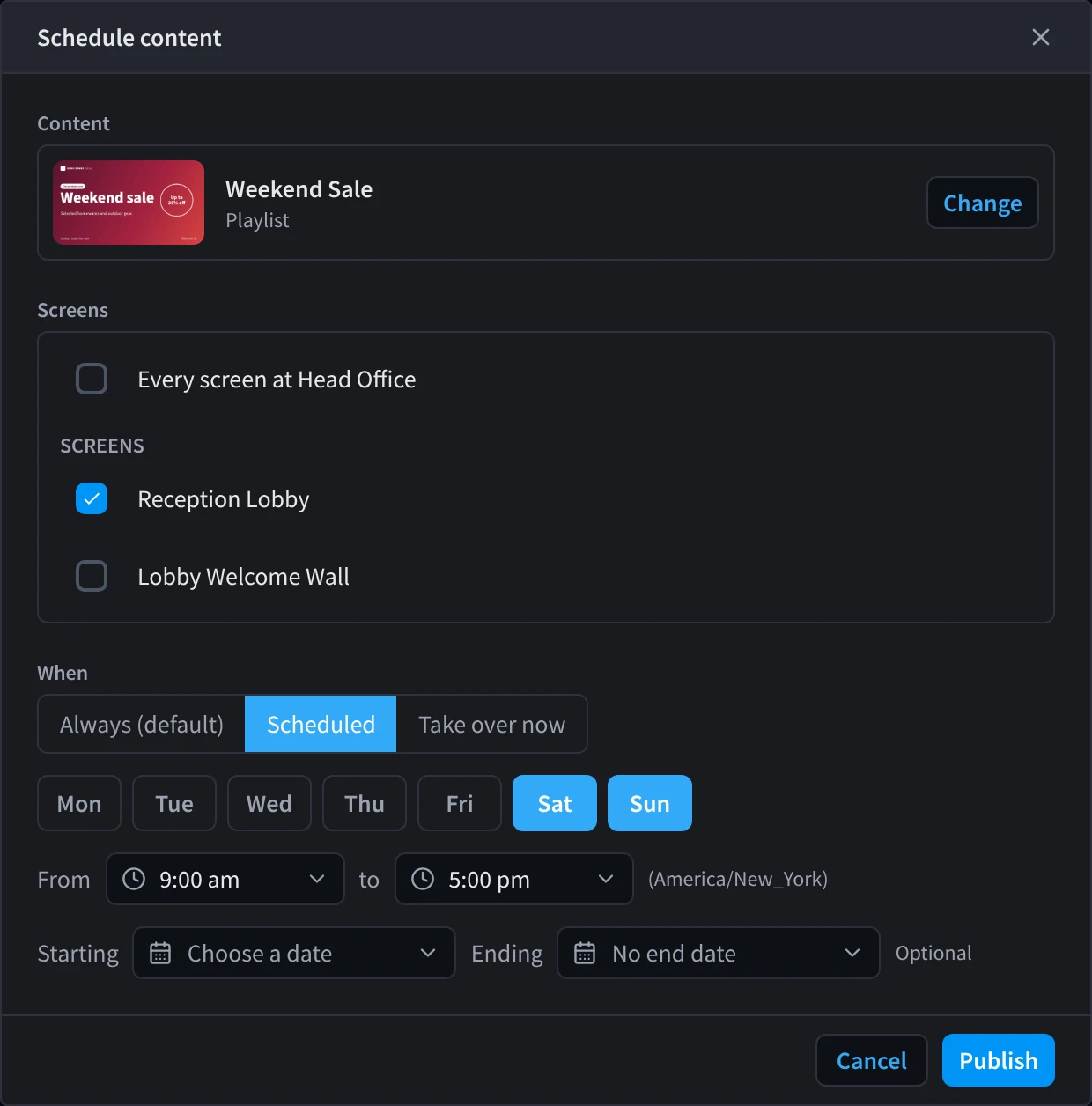
Schedule any playlist or Library item by weekday, time window, and start/end date in the facility's local timezone. Per-Screen Content & Next 24 Hours
Per-screen Content tab & Next 24 hours timeline.
Never guess why a screen is showing a particular slide. Open any display's Content tab to inspect Now playing with its active layer badge, scan a visual Next 24 hours timeline in the facility's timezone, and review Published to this screen to see whether each item was published directly or inherited from a group, facility, brand, or organisation.
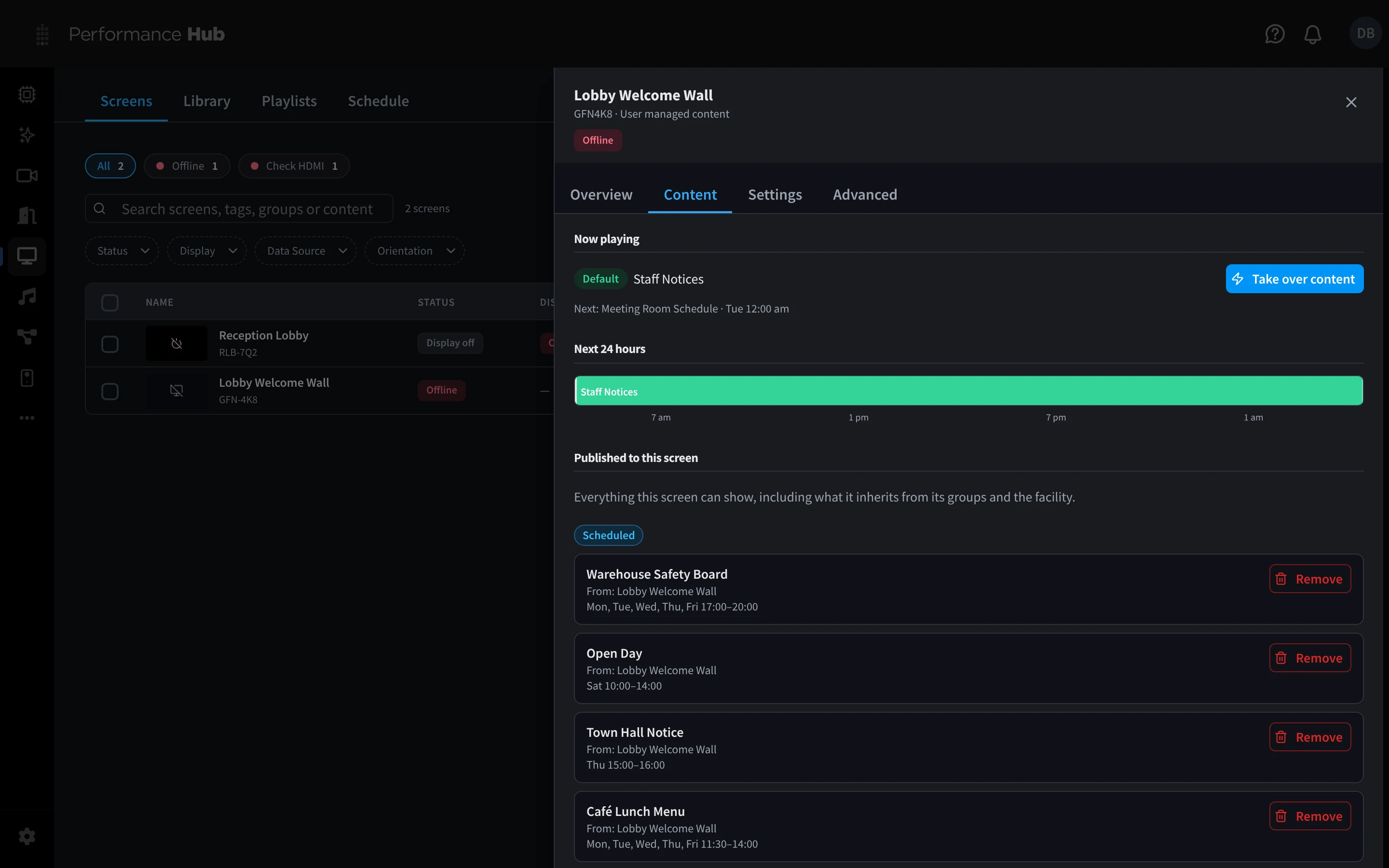
Inspect what is playing right now, preview the next 24 hours, and see every direct or inherited publish on one tab.
Vertically Integrated Platform · Smart Displays · Agent: Published Apps · 1,500+ Connected Apps
Screens that change with what is happening in the room.
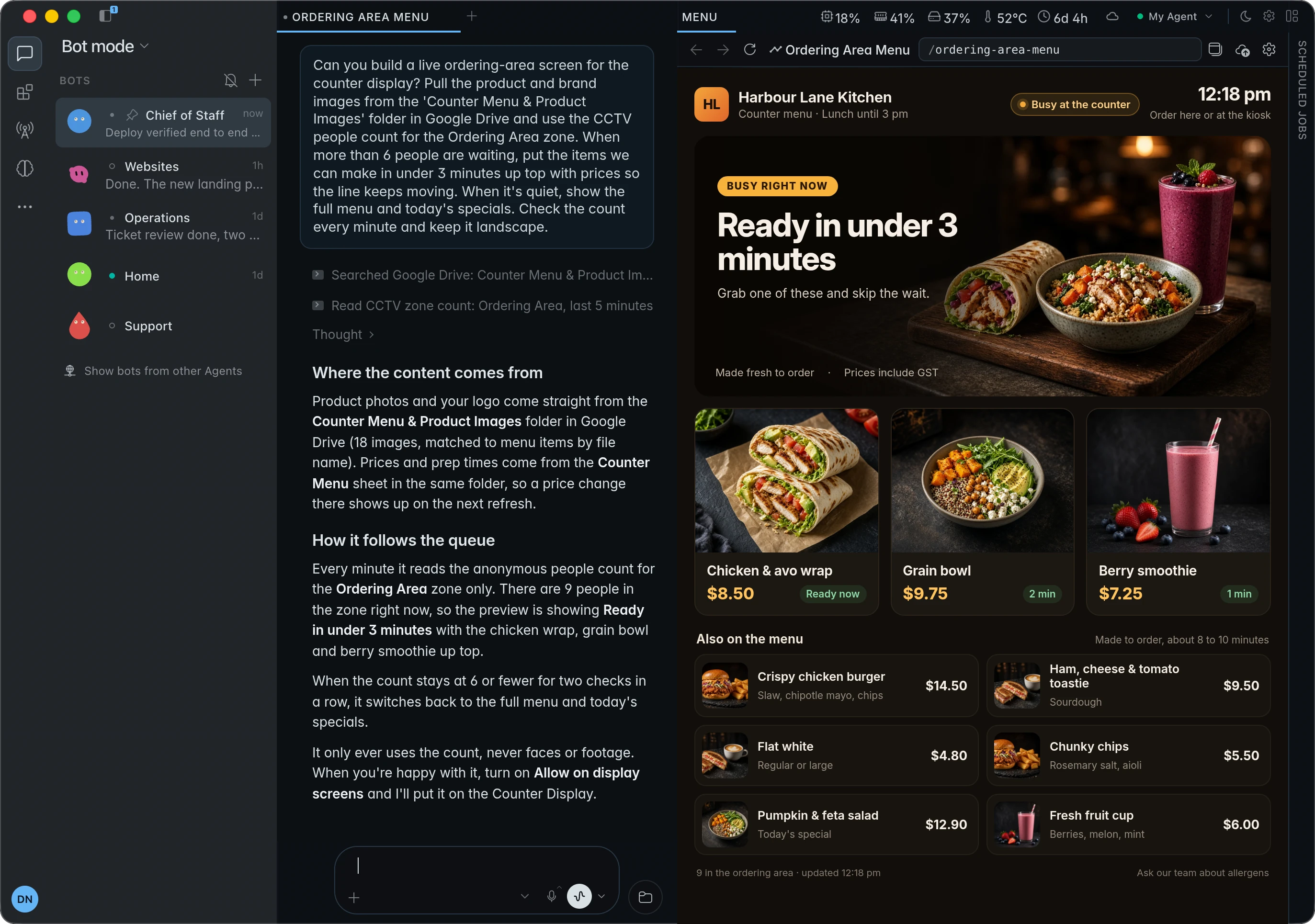
Because Performance Hub is vertically integrated across your building, your screens are wired directly into the same platform that runs your cameras and people counts, doors and gates, Sonos audio, duress alarms, operating hours, and facility schedules. Describe the screen you want in plain English: your facility's Agent (Enterprise Grade Hermes) builds the web application, opens a live preview beside the chat, connects your live Performance Hub modules with 1,500+ connected apps over MCP, and updates the screen automatically on a schedule or the moment something happens on site, without anyone republishing a file.
Vertical Integration · Plain-English Design
Driven by your live facility modules and 1,500+ connected apps.
Unlike standalone signage players that only pull from external web widgets, Smart Displays read live signals from the rest of Performance Hub alongside your business software. Ask your facilities agent to design screen content around people detected in customer zones only using CCTV workflow events over the last five minutes, front-entrance door unlocks, audio zones, and schedules, then preview the live layout beside the chat before putting it on your screens.
- Native facility signals: React to live CCTV / VSaaS and AI Insights & People zone counts, Door & Gate Access arrivals, Audio Control zones, Duress workflows, and facility operating hours on the same platform.
- Customer zones & five-minute context: Scope camera-driven screen changes to public or customer-facing access zones using anonymous aggregate activity over the last five minutes.
- Kept current & self-healing: Your facilities agent updates the screen on a schedule during opening hours or when a site workflow fires, with automatic Health checks & auto-repair keeping the live app running.
Two ways an app reaches your screens
| Capability | Smart Display (Agent: Published App) | Offline-Resilient (On-Device Web App) |
|---|---|---|
| Who builds it | Your facilities agent in conversation | You, your developers, or any Agent connected via MCP |
| Where it runs | Hosted live on your facility's Agent (Physical Agent or Cloud Agent) with its own server side | Downloaded as a self-contained web bundle to each player's local storage |
| Adapts to live site events | Yes: updates automatically from door unlocks, check-ins, room bookings, anonymous camera counts, and 1,500+ Connected Apps | No: plays the same local files until you publish a new version |
| If internet or Agent drops | Screens skip to the next scheduled item until the connection returns | Keeps playing offline directly from the player's local storage |
| Versioning & rollback | Managed live by your facilities agent with automatic Health checks & auto-repair | Numbered version history in the Library with instant one-click rollback to any earlier version |
9 Real-World Smart Display & Web App Blueprints
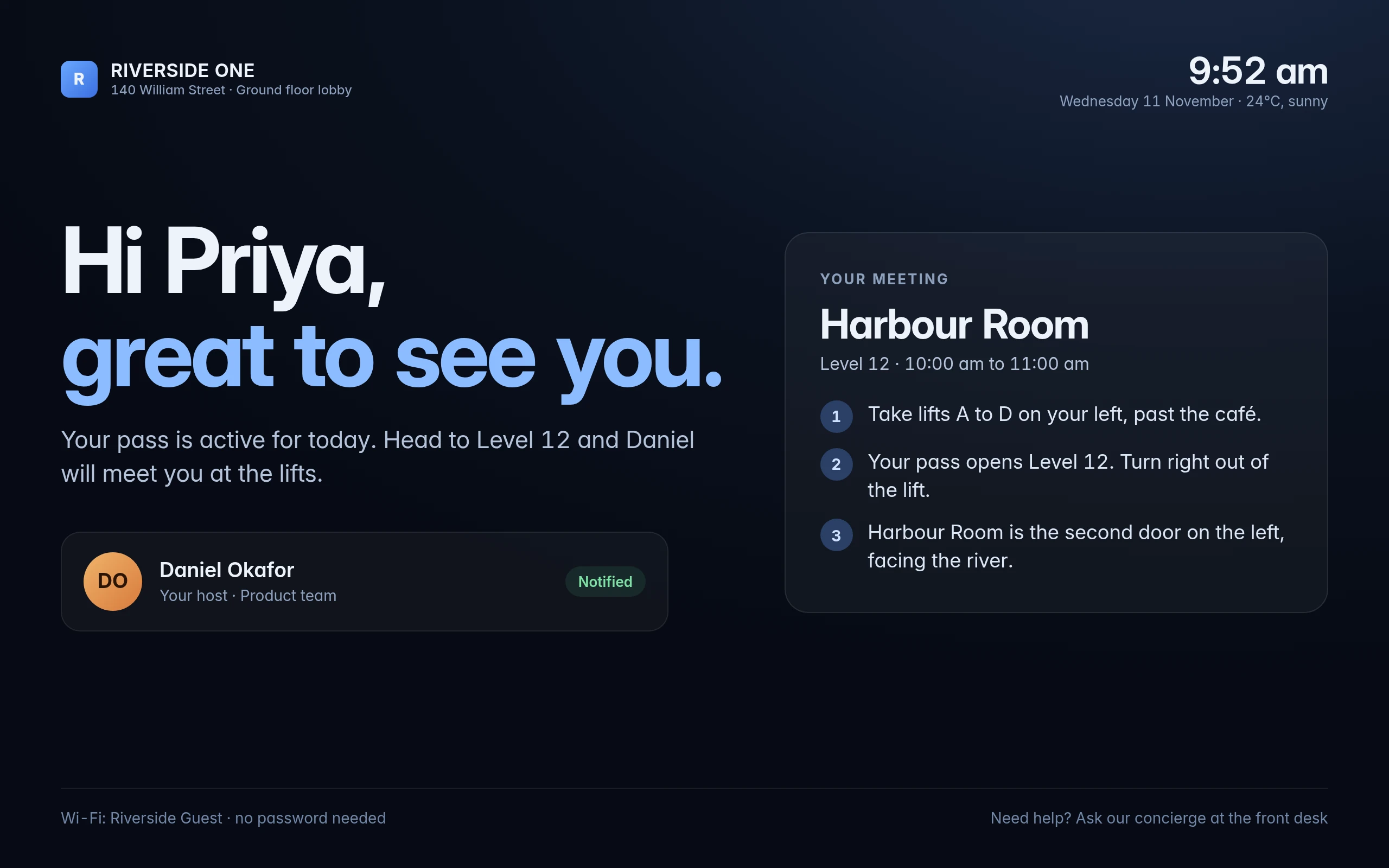
Office & property lobby visitor welcome
Event-driven door trigger. Wired to Door & Gate Access and reception's daily guest list over MCP. When a visitor pass unlocks the front entrance, an event workflow prompts your facilities agent to match the arrival, display a personalised greeting ("Hi Priya, great to see you") with host, room, and lift directions, and revert to the default welcome a minute later with zero background polling in between.
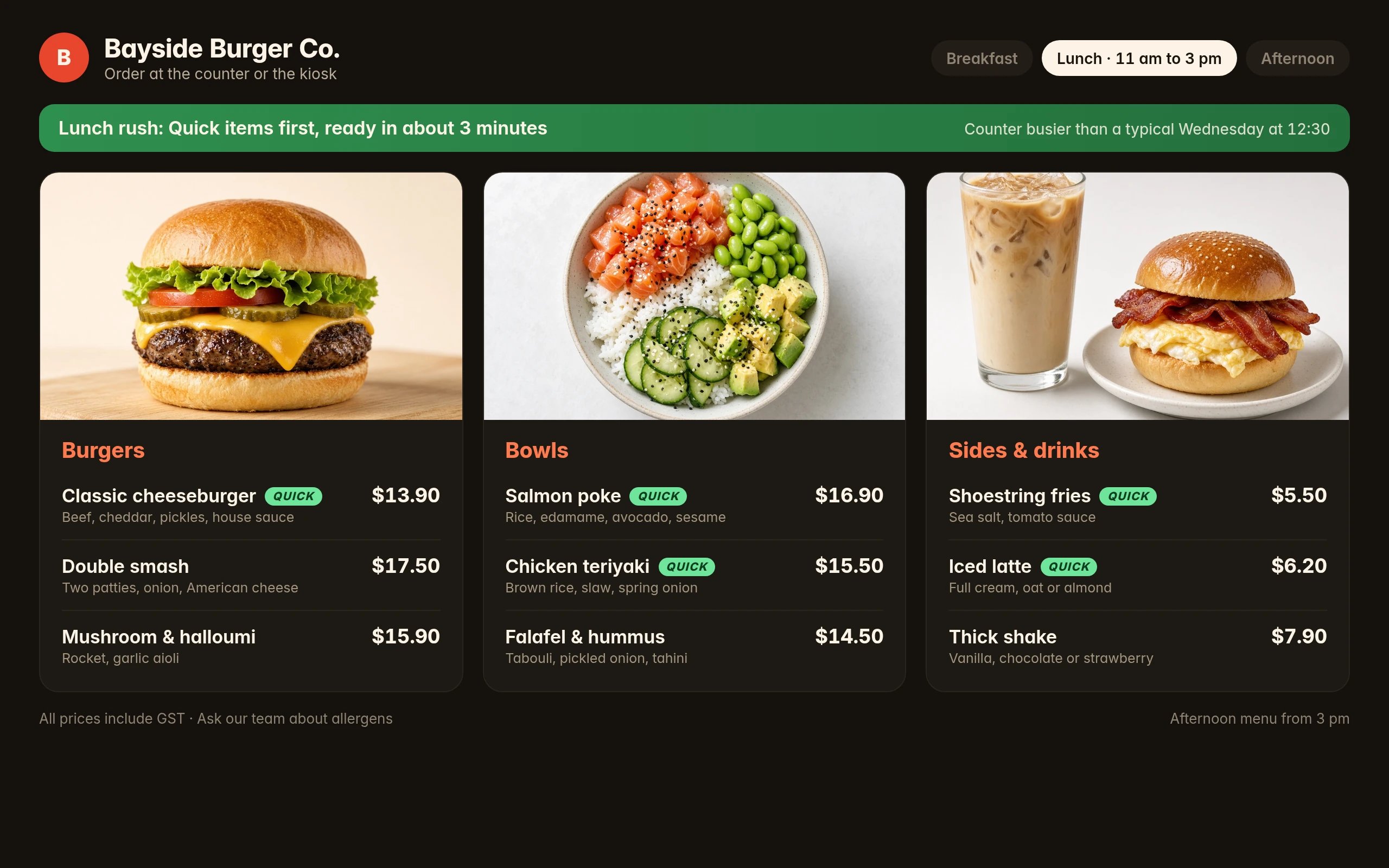
Quick-service menu board that reacts to the lunch rush
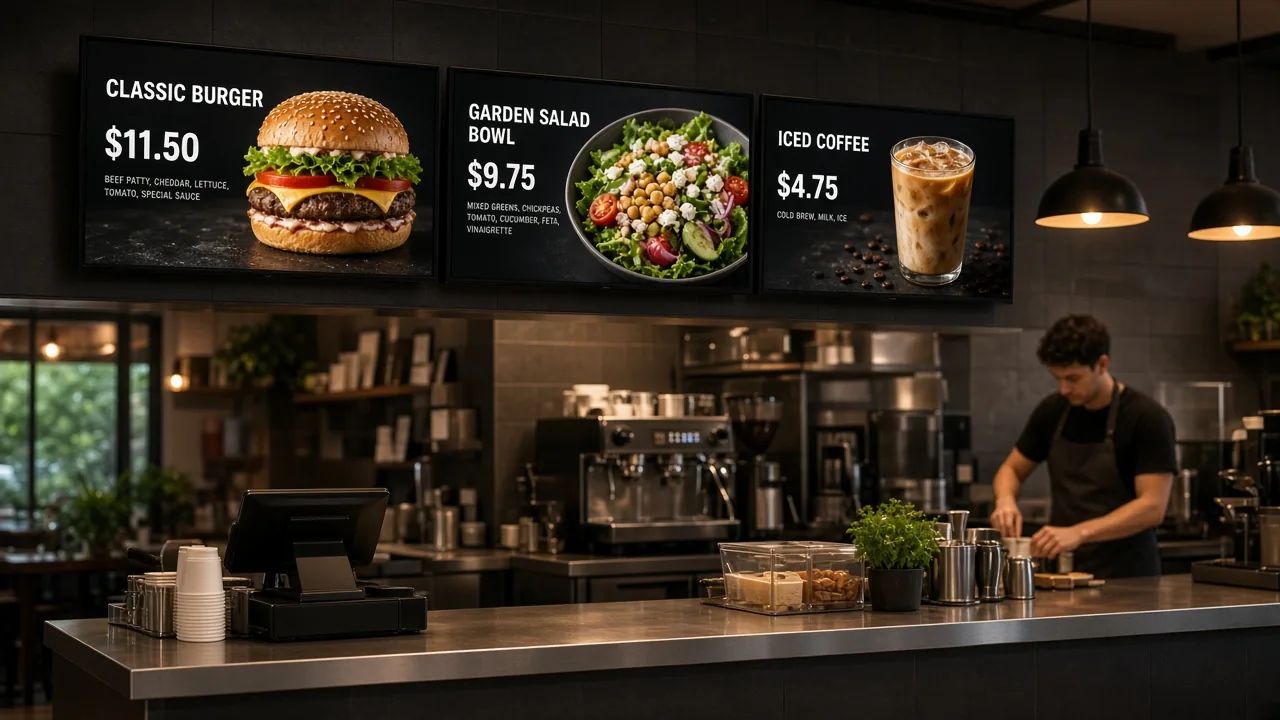
Scheduled 5-minute automation. Joins AI Insights & People counter camera counts with your menu and pricing sheet in Google Drive or Sheets. Every five minutes during service, your facilities agent compares current counter activity against a typical hour and automatically surfaces a Ready in under 3 minutes banner with Quick tags on fast-prep items until the queue clears.
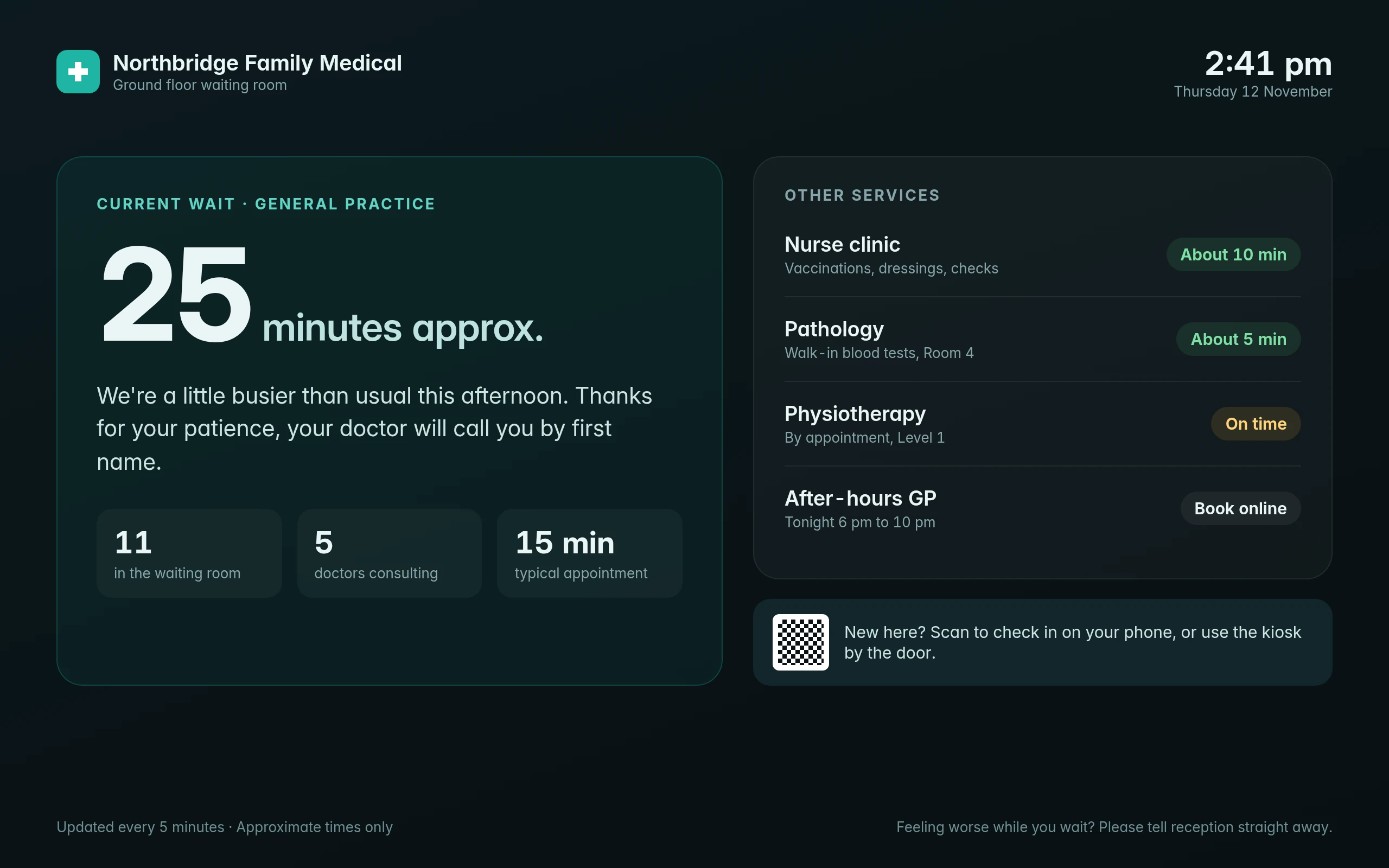
Waiting-room board with live wait times
Live intake & occupancy calculation. Combines anonymous waiting-area camera counts and recent check-ins with your standard appointment length over MCP. Every few minutes during opening hours, your facilities agent recalculates the expected wait across services and updates the board with aggregate totals only (About 25 minutes · About 7 people waiting), never personal or clinical details.
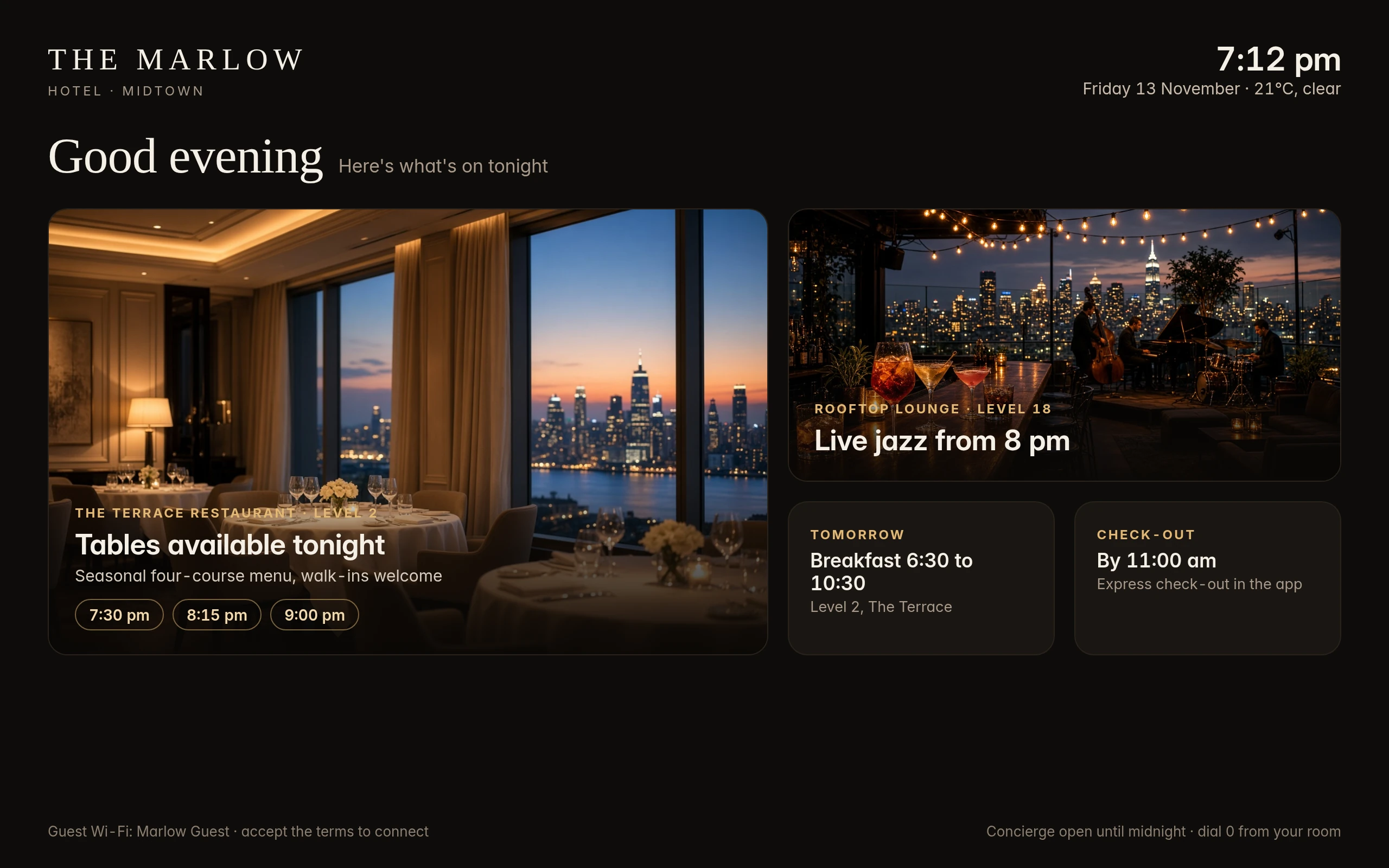
Hotel & venue lobby board that follows the day
Time-of-day & arrival-wave logic. Connects your property event schedule and restaurant availability with anonymous lobby camera counts. The board shifts layout across morning checkout, afternoon arrivals, and evening dining, and promotes express check-in and guest Wi-Fi to the top of the screen whenever camera counts detect a wave of arriving guests.
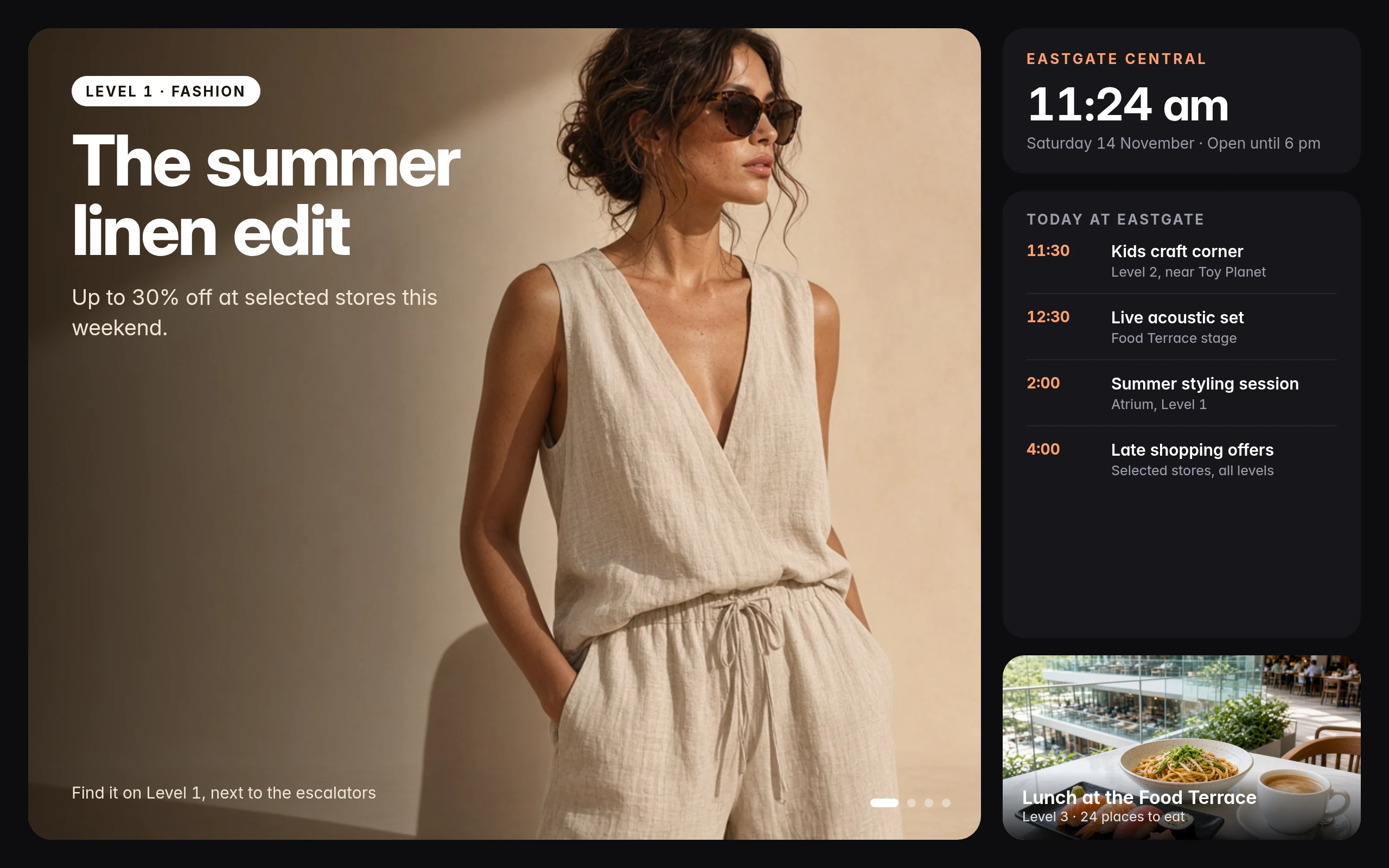
Footfall-responsive shopping-centre atrium signage
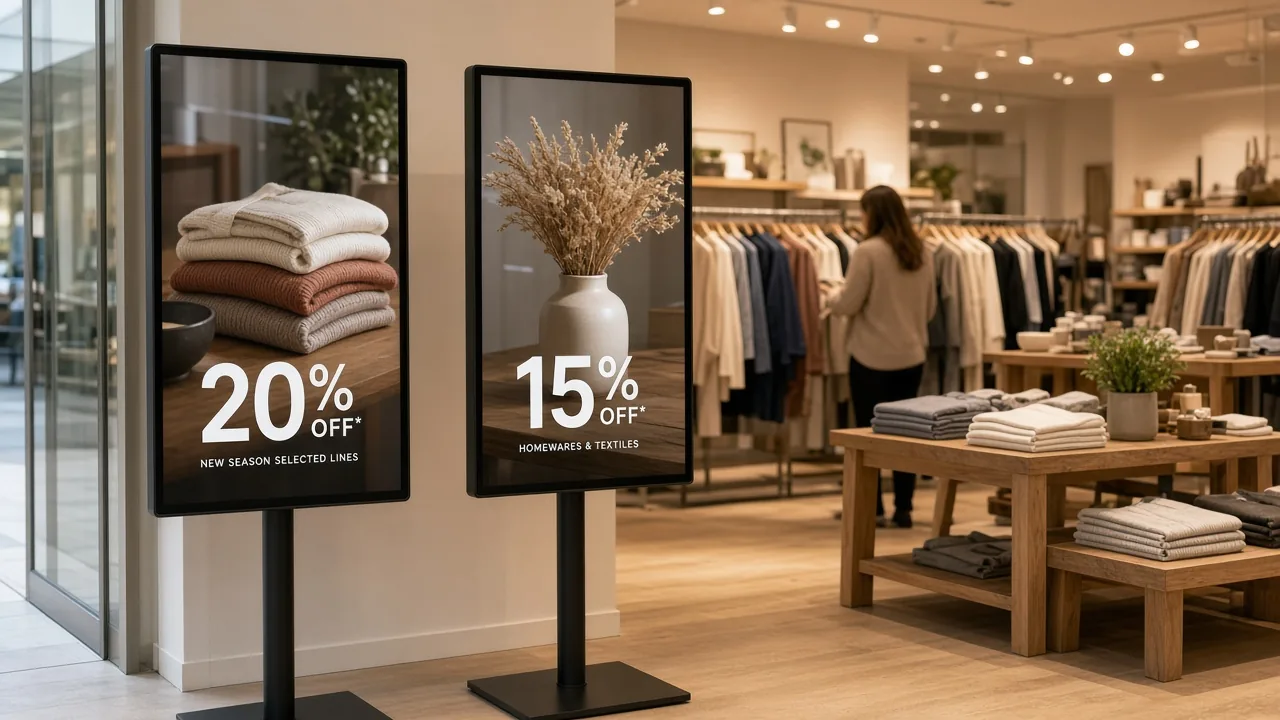
Aggregate audience context. Reads five-minute anonymous aggregate age-band and gender distribution from AI Insights & People alongside the centre's event calendar. Your facilities agent selects the most relevant family, student, or general promotion for the current crowd while displaying only the offer, local clock, and today's events on screen.
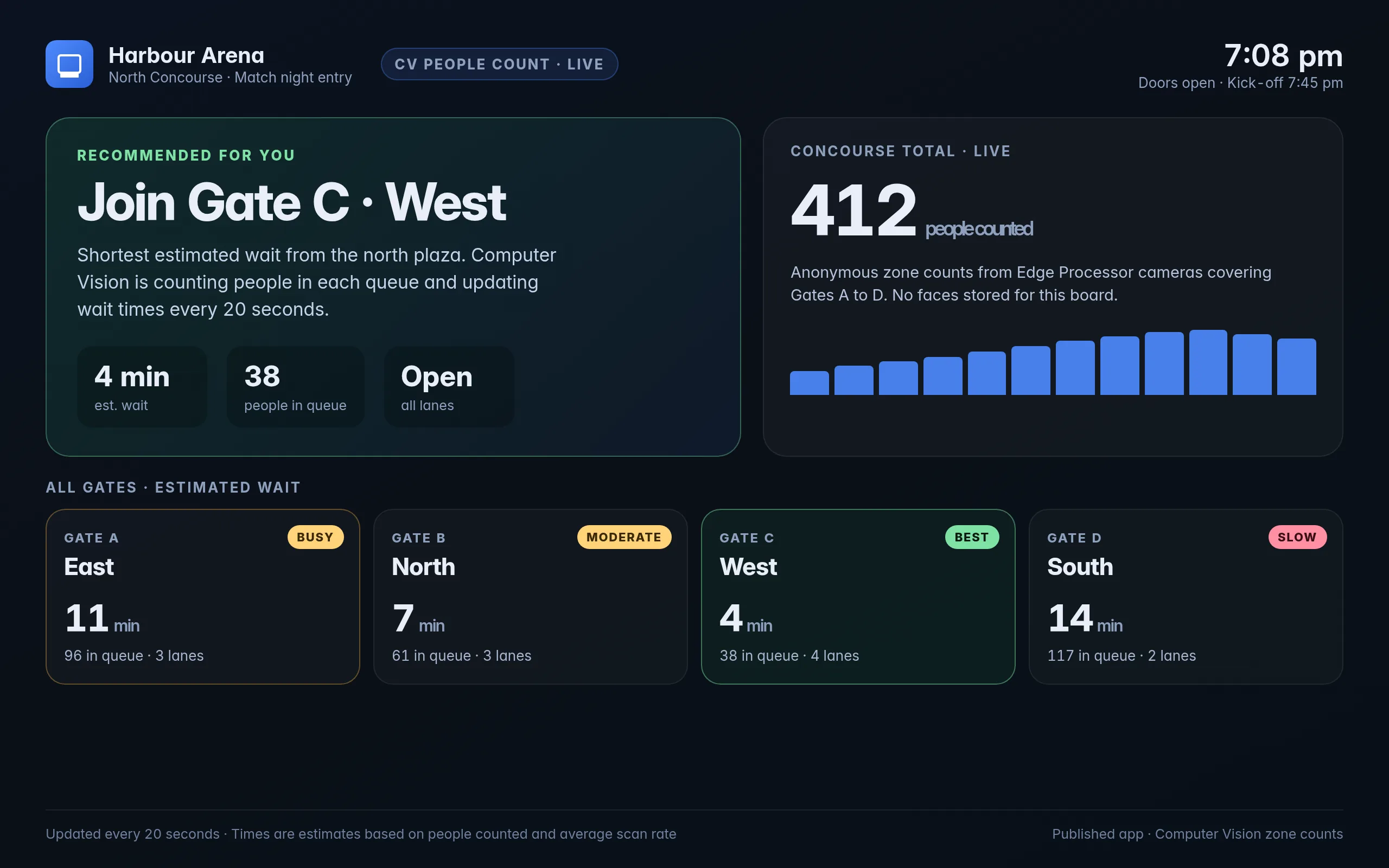
Stadium & venue gate board with live wait times
Vertical Computer Vision integration. Connects directly to your on-site Edge Processor cameras and Computer Vision people counting across concourse gates, zones, and entry lines. As crowds build on match night, the board calculates live queue lengths and estimated wait times per gate and highlights the fastest line to join, using anonymous zone counts only.
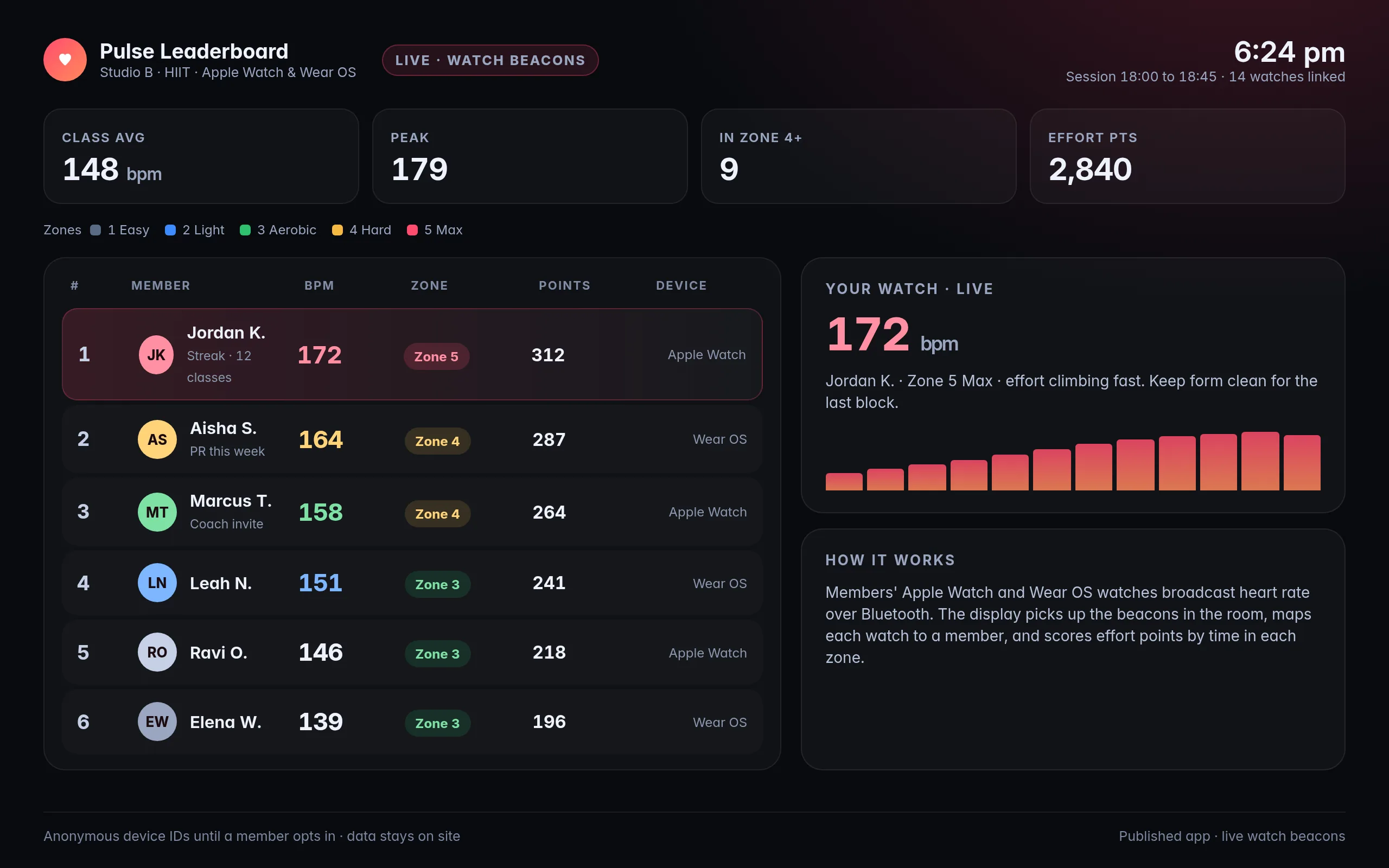
Live watch heart-rate leaderboard & effort board
Real-time IoT watch beacons. Picks up live Bluetooth heart-rate broadcasts from Apple Watch and Android / Wear OS watches in the room with no chest straps to hand out. The display maps each beacon to an opted-in participant, colour-codes live BPM across five heart-rate zones, and ranks effort points in real time to gamify the session.
Live workout class board with exercises & interval timer
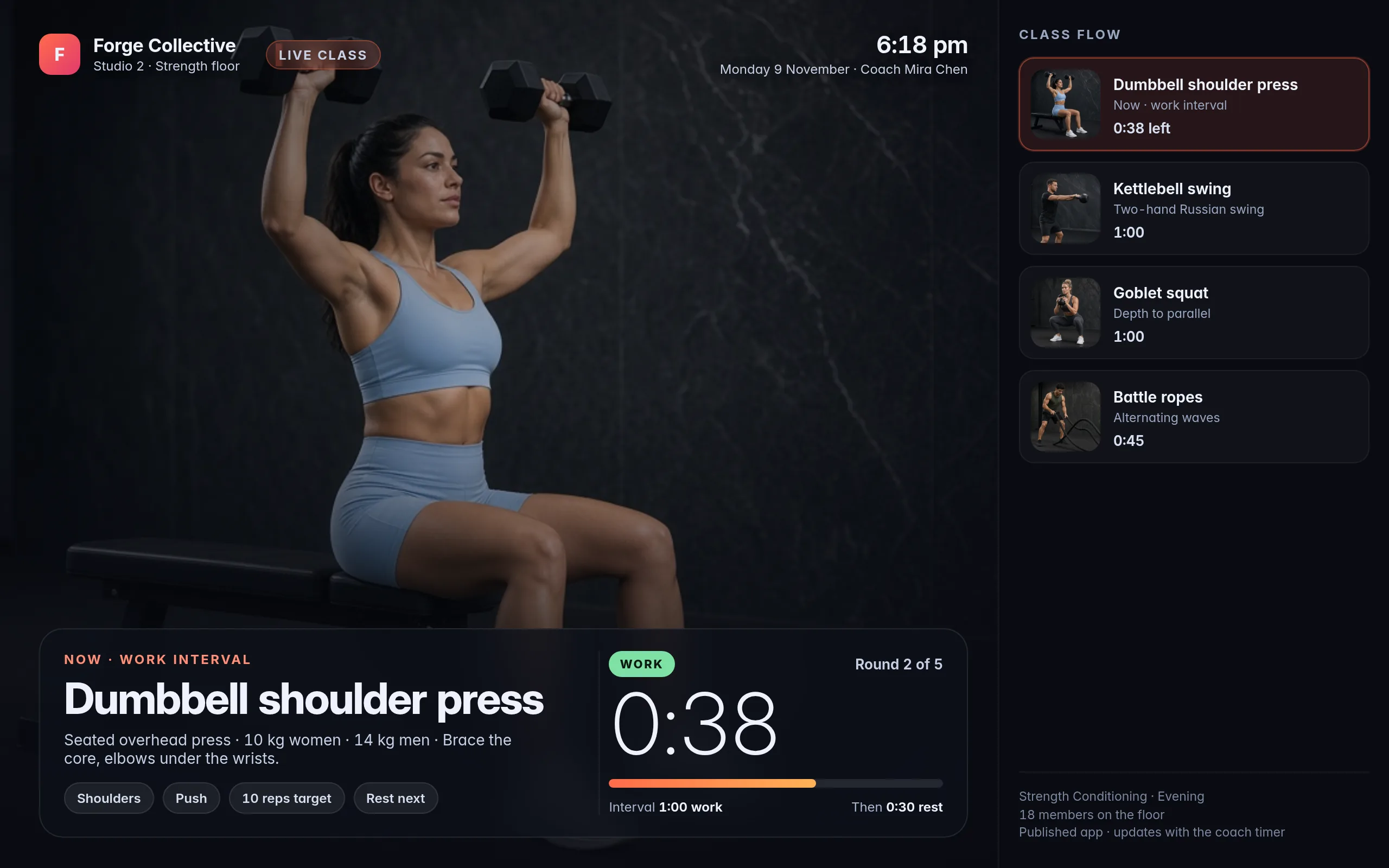
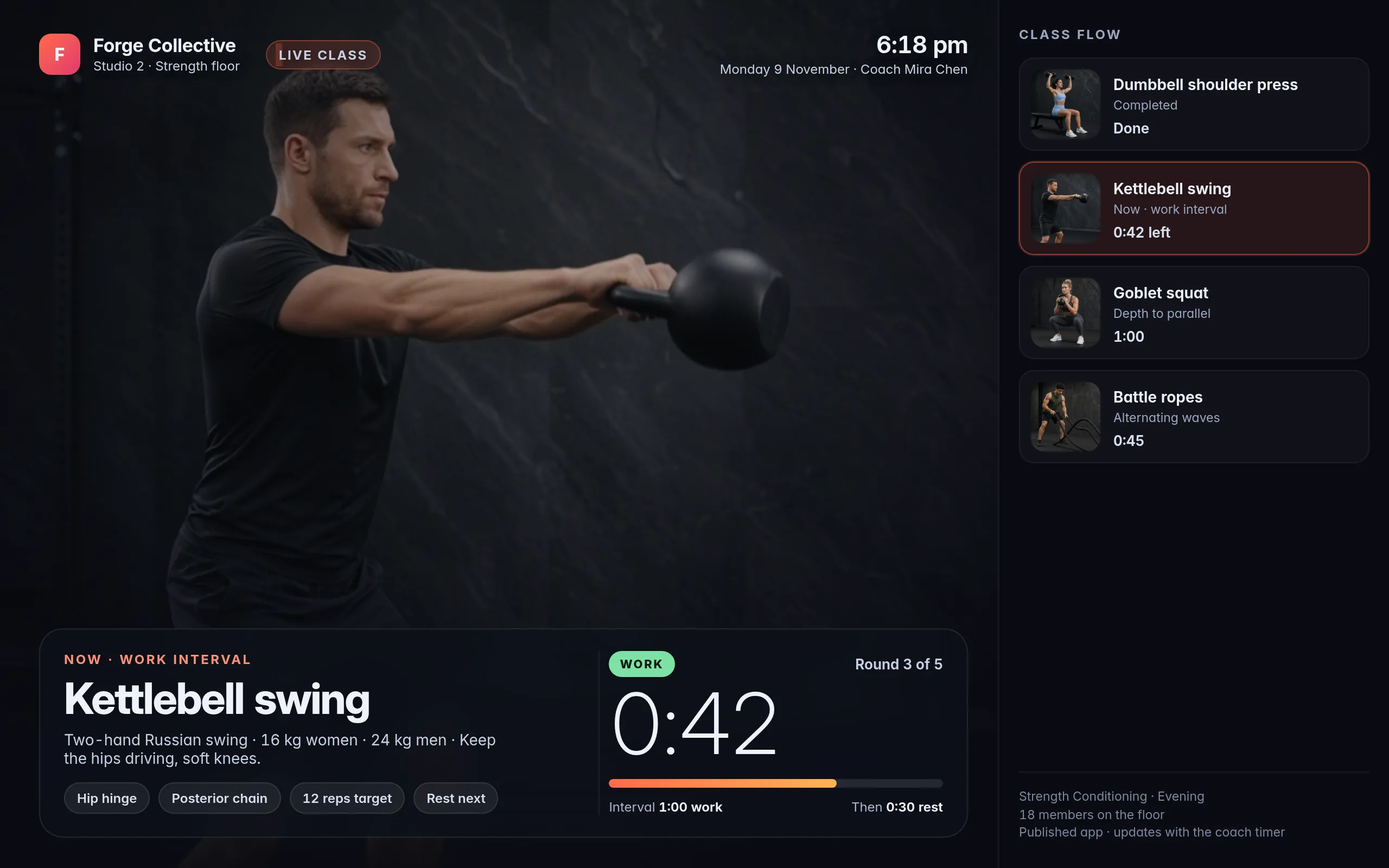
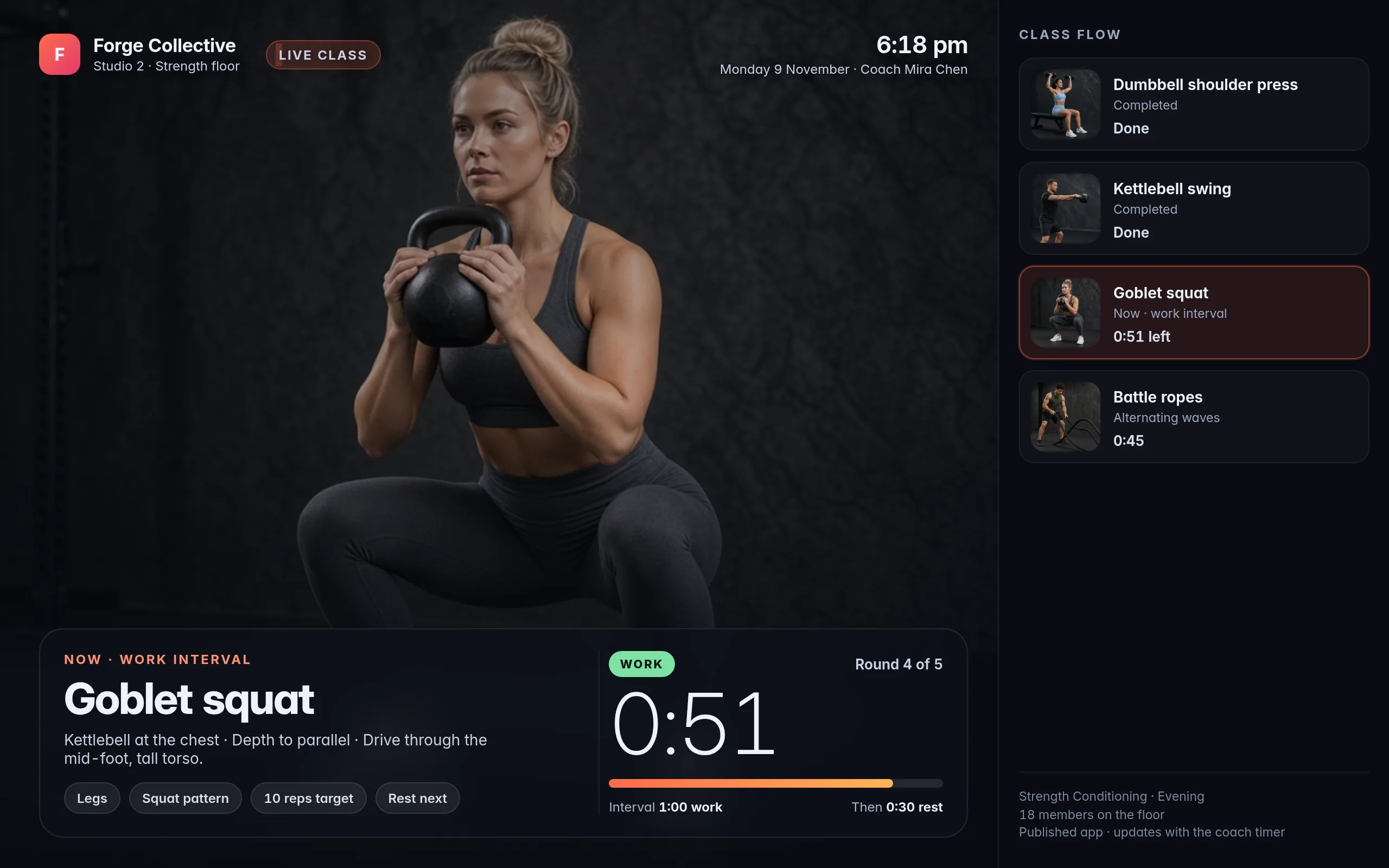
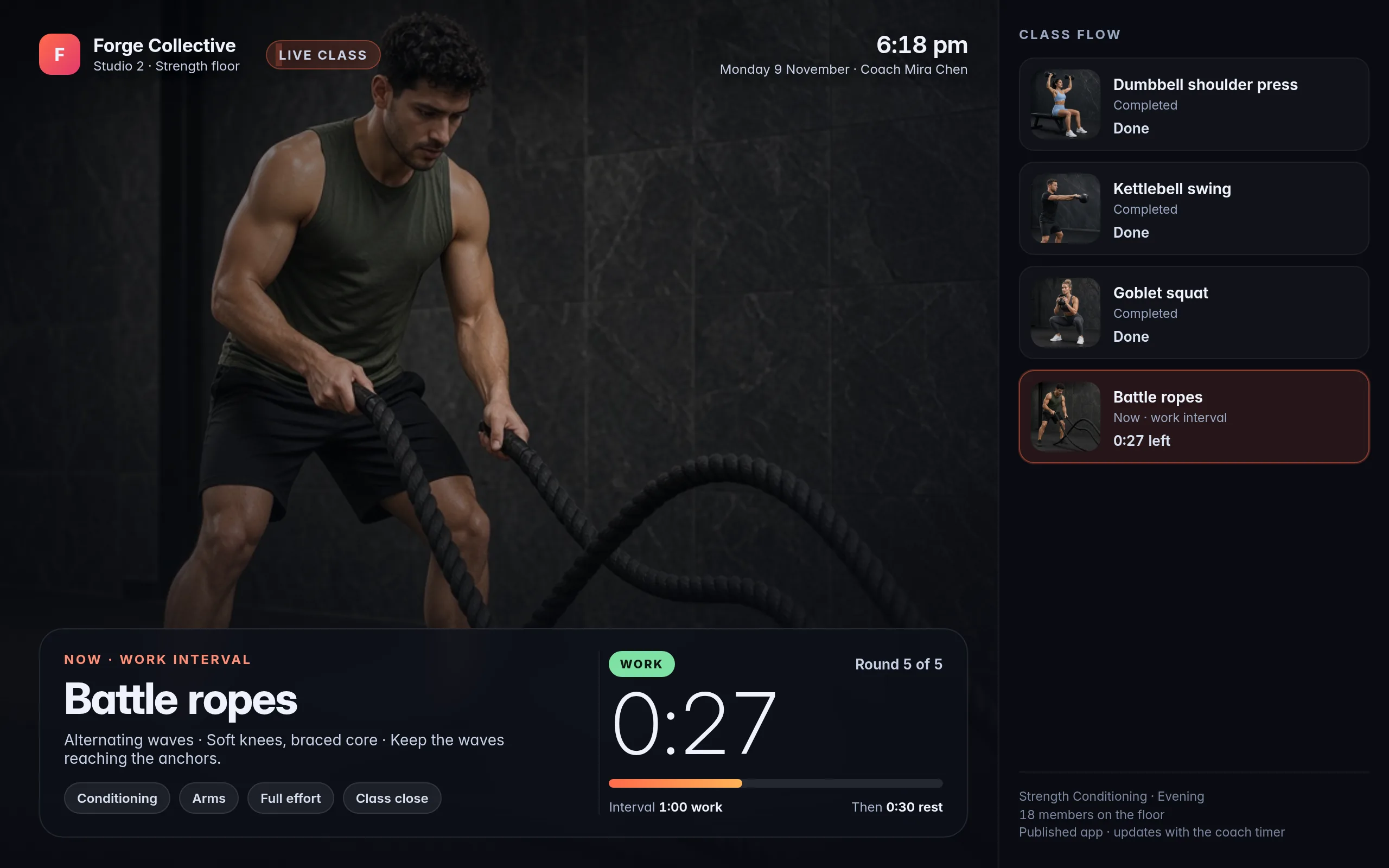
Coach-synced timer & trainer demos. Built in conversation with your facilities agent from your Strength Conditioning programme. Follows the coach's live interval timer across every round, showing a large trainer demo for the active exercise alongside recommended weights, coaching cues, a high-visibility work and rest countdown, and the upcoming class flow sidebar.
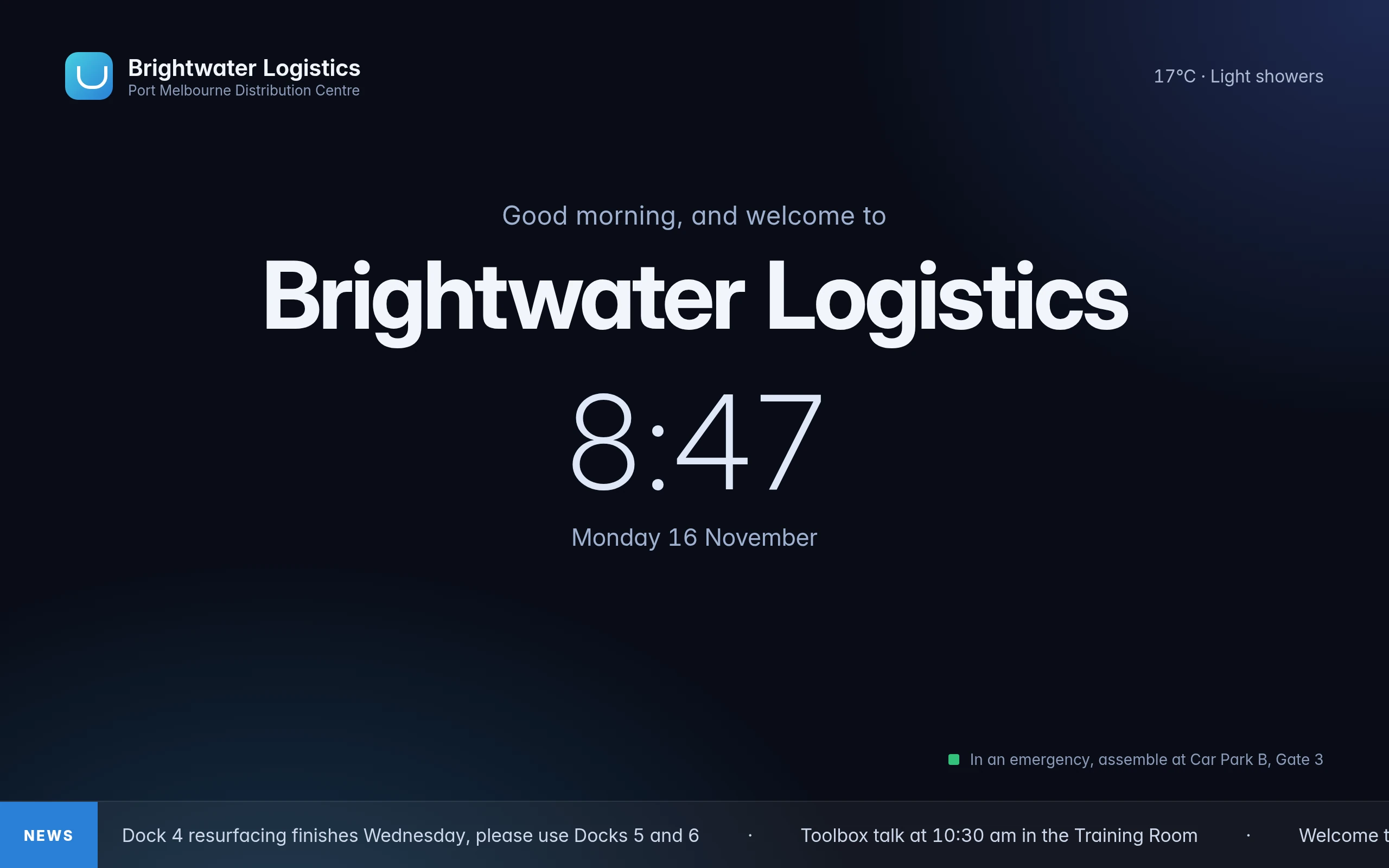
Offline reception welcome sign & emergency instructions
Local player execution. Packaged as a self-contained web app that picks up the screen's timezone, locale, and brand colours automatically and runs from the player's own storage. Optional live headline feeds hide cleanly when offline, while prepared evacuation and muster-point screens render immediately even with zero internet.
Vertically Integrated CCTV / VSaaS · Native Library Content Type · Live Video Walls
Turn any authorised TV into a live multi-camera video wall.
Standalone signage tools stop at slides and web widgets, forcing you to run separate NVR boxes and long HDMI cables whenever you want security cameras on a wall monitor. Because Display Screens is vertically integrated with Performance Hub's own CCTV / VSaaS module on the same platform, your existing security cameras and Shared Live Views are already built in. CCTV/VSaaS: Live View sits alongside images, playlists, and apps as a native content type in the Display Screens Library, streaming live multi-camera grids straight from your on-site Edge Processor over the local network to any authorised TV.
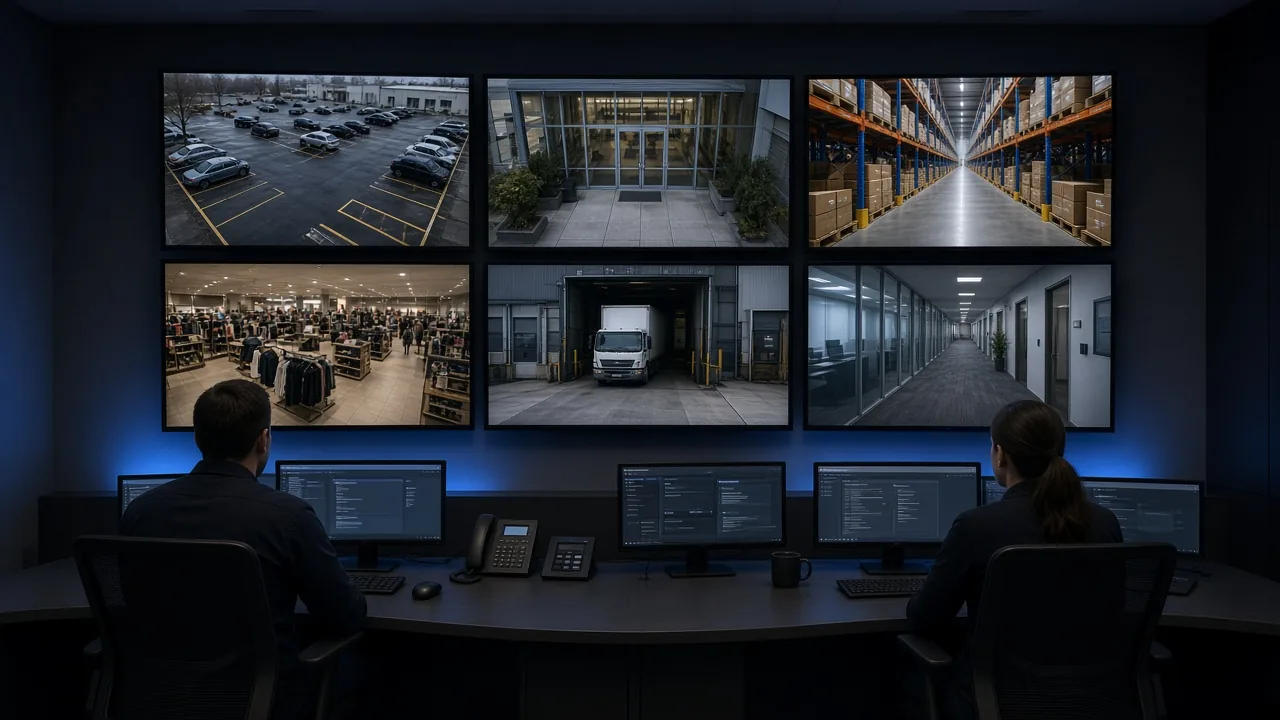
Grid layouts
Flexible multi-camera grid layouts, or reuse a Shared Live View
Arrange any cameras managed in Performance Hub CCTV / VSaaS in the exact order you want them on screen and choose a flexible grid layout that fits each monitor. Verify the live on-screen preview, or select an existing Shared Live View your security team has already configured in CCTV / VSaaS so both modules stay in sync.
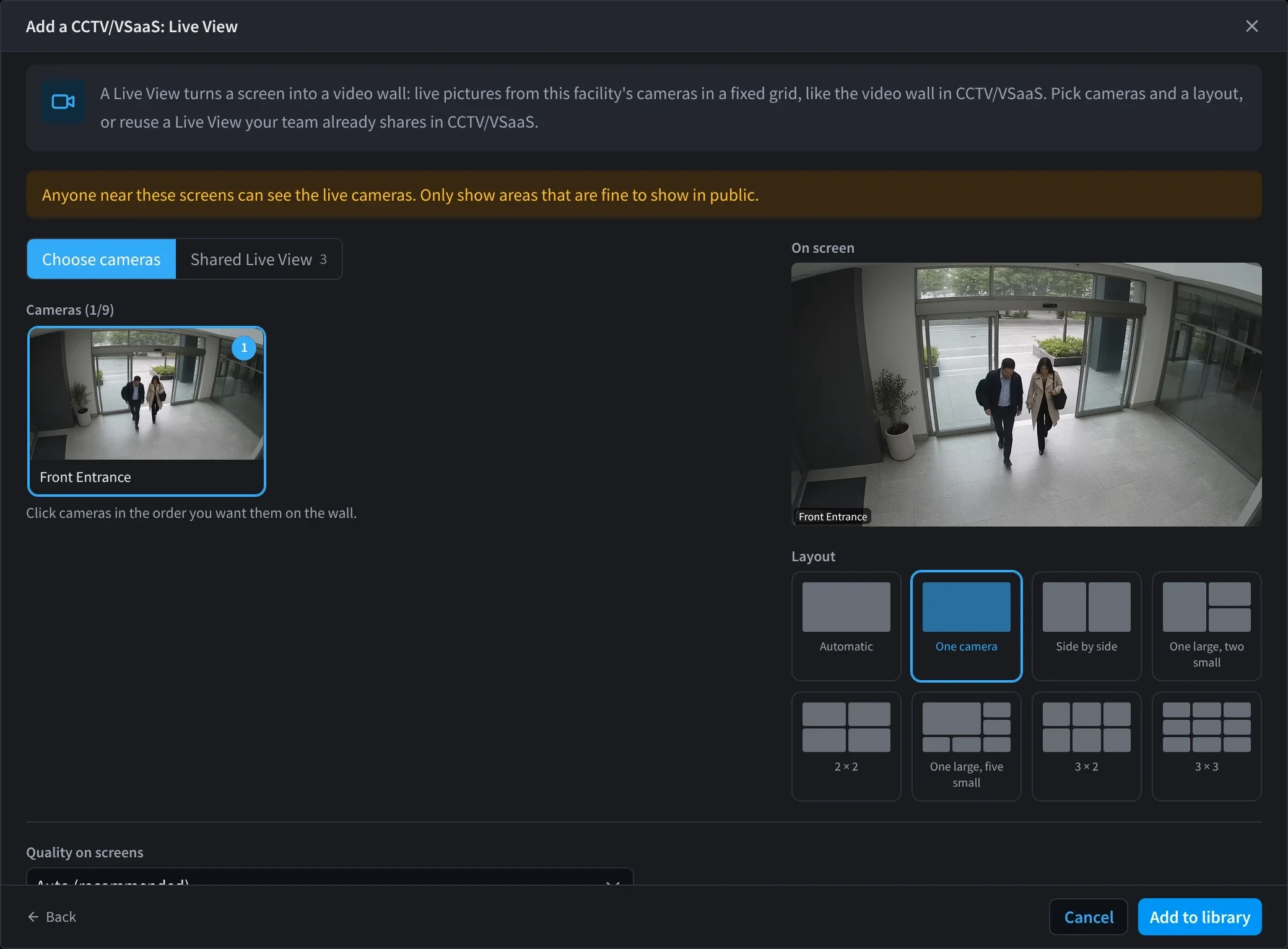
Arrange multi-camera grids across flexible layouts, or reuse a Shared Live View from CCTV / VSaaS. LAN streaming
LAN-first streaming from your Edge Processor
Screens on the same local network as the facility's Edge Processor stream each camera directly over the LAN without round-tripping through the cloud, and automatically adapt stream quality over slower links so playback stays smooth and reliable.
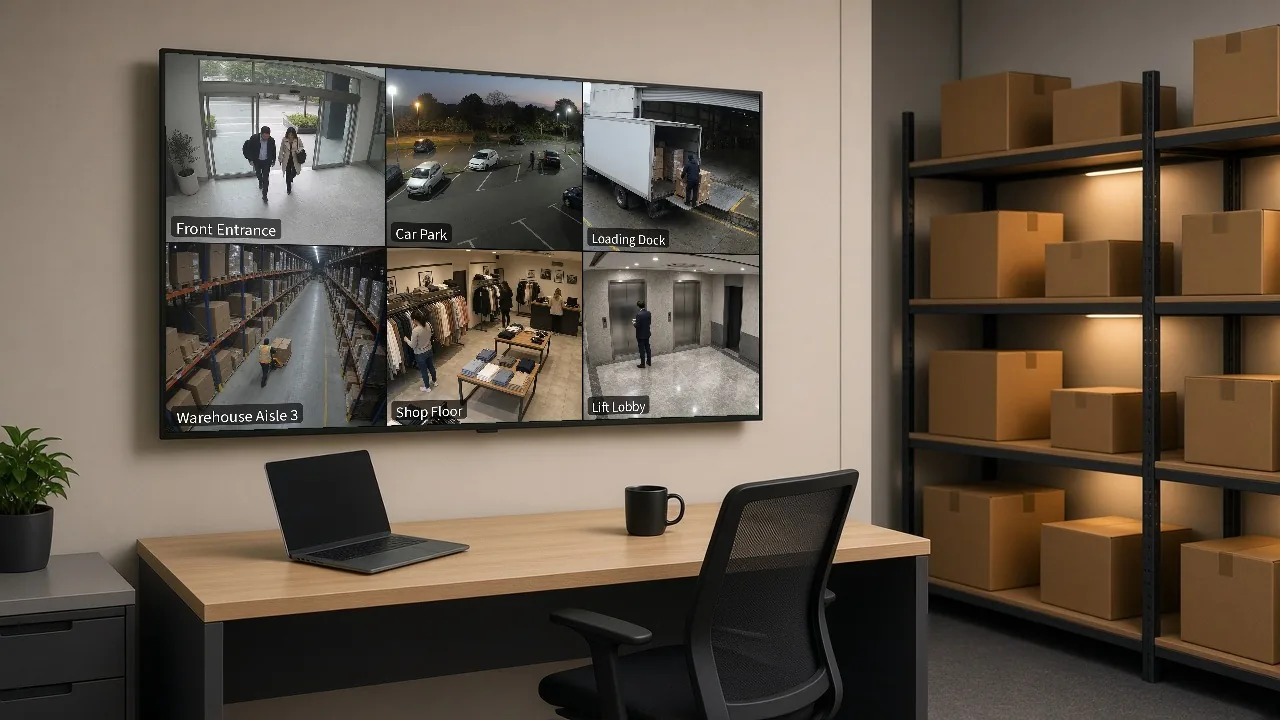
Any authorised TV becomes a 3 × 2 live monitor showing labelled feeds from your facility's Edge Processor. Security monitor
Dedicated security monitor, scheduled night grid, or instant takeover
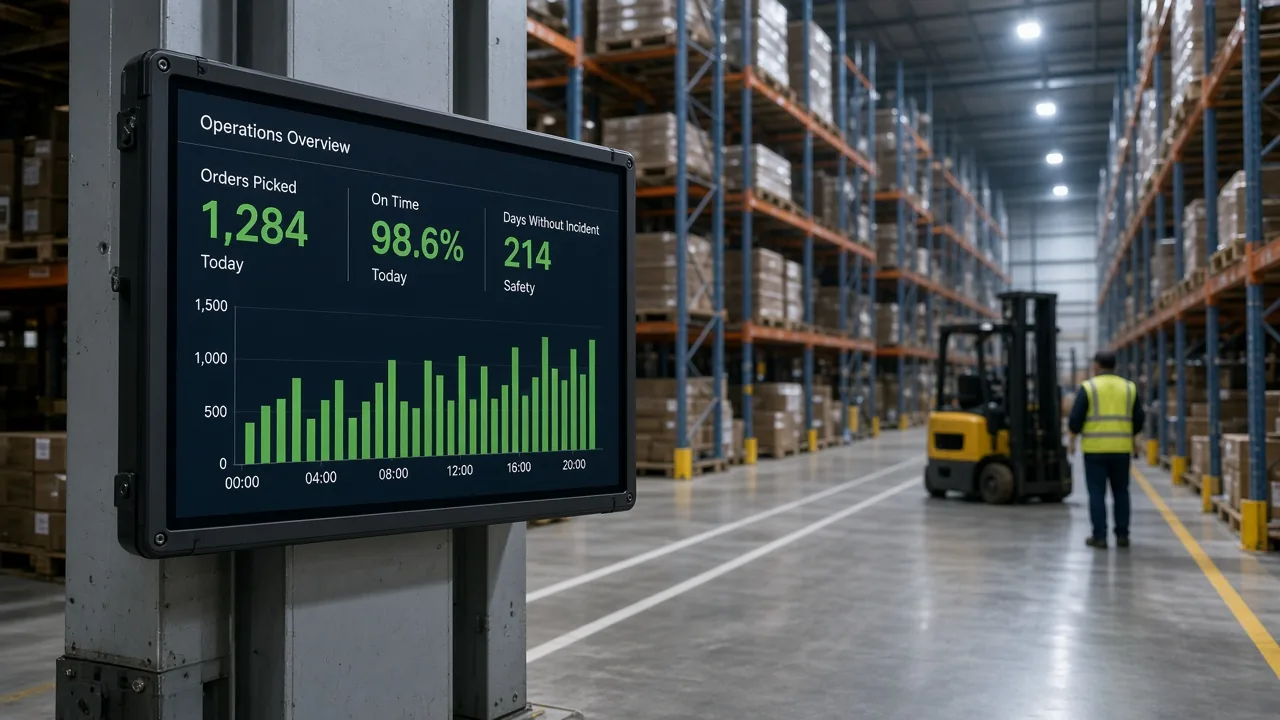
Every camera wall is a first-class Library item badged LIVE. Run a continuous multi-camera grid on a security control room or back-office monitor, schedule entrance and car-park feeds at reception after dark, rotate a loading-dock view inside a warehouse playlist, or launch an instant Takeover when an incident demands immediate eyes on the floor.
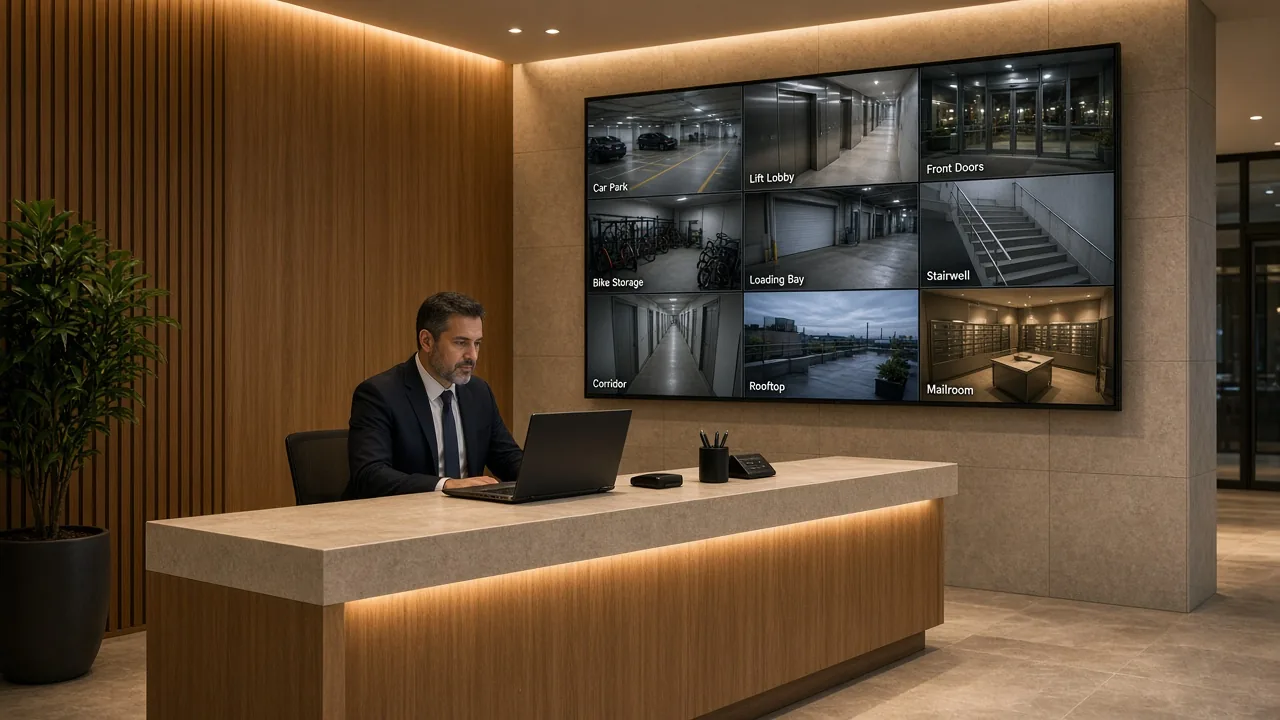
Give reception and concierge teams live visibility over entrances, loading bays, and lift lobbies. Playback & controls
On-screen camera labels, quality controls & resilient playback
Toggle on-screen camera name labels on or off per view, and set Quality on screens to Auto (native camera resolution on the local LAN and automatic step-down elsewhere), Native, or a fixed stream profile. Displays that cannot stream live video automatically refresh a still snapshot every few seconds instead, unavailable cameras are skipped cleanly, and live CCTV on screens is gated by organisation-admin permission.
Vertically Integrated Duress · Public vs. Private Screen Safety Rule
One system from wearable Duress button to private back-office screens.
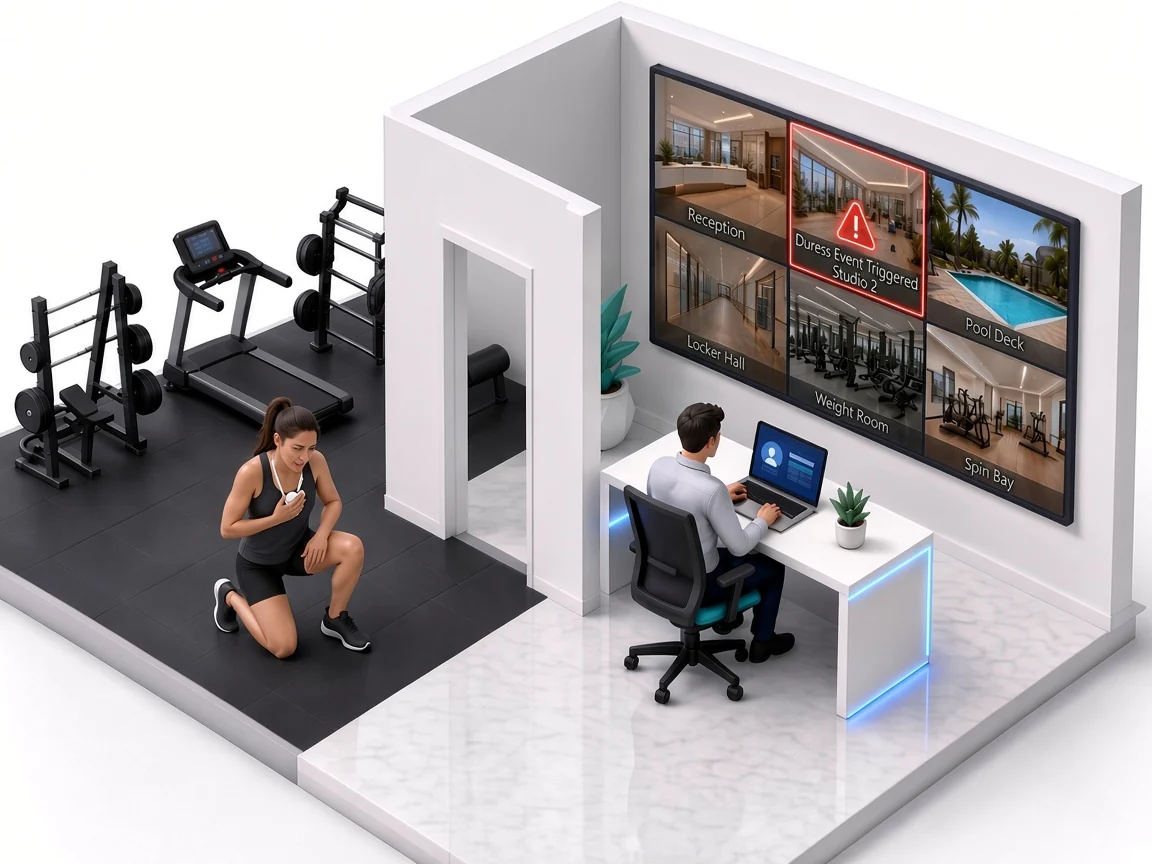
Because Display Screens and wireless Duress run on the same platform, your screens know the difference between a public waiting area and a private security desk, and every player on the wall can double as a wireless duress receiver.
Public vs. private screen safety rule
Wireless Duress alarms are designed to be silent so they never escalate a threat in front of an aggressor. Performance Hub never puts silent duress alerts on public-facing displays. Restrict visual duress takeovers and live incident camera feeds strictly to private back-office or security monitors.
Built-in wireless Duress receiver in every player
Because each Display Screen Player sits on your facility LAN with built-in Bluetooth connectivity, it can relay presses from nearby wireless Duress buttons when Duress alarm monitoring is enabled at your facility, extending silent alarm coverage with zero extra boxes on the wall.
Instant Takeovers · On-Screen Message Overlays · Offline Safety Apps
Interrupt one screen or every site in seconds.
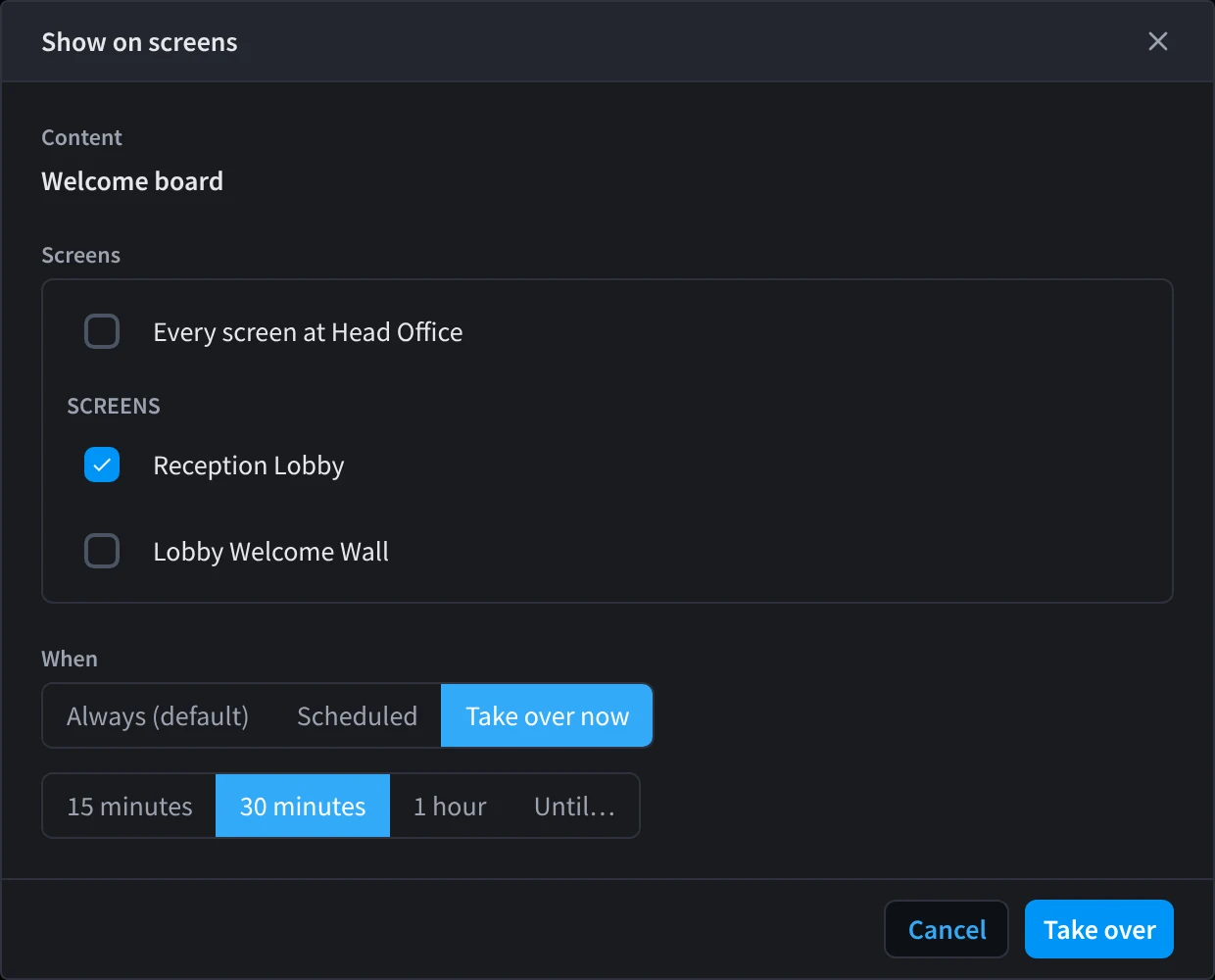
When an urgent notice, operational incident, or site evacuation happens, you cannot wait on a playlist loop. Override scheduled content immediately across any screen, group, facility, brand, or organisation, and let normal programming resume automatically when the event ends.
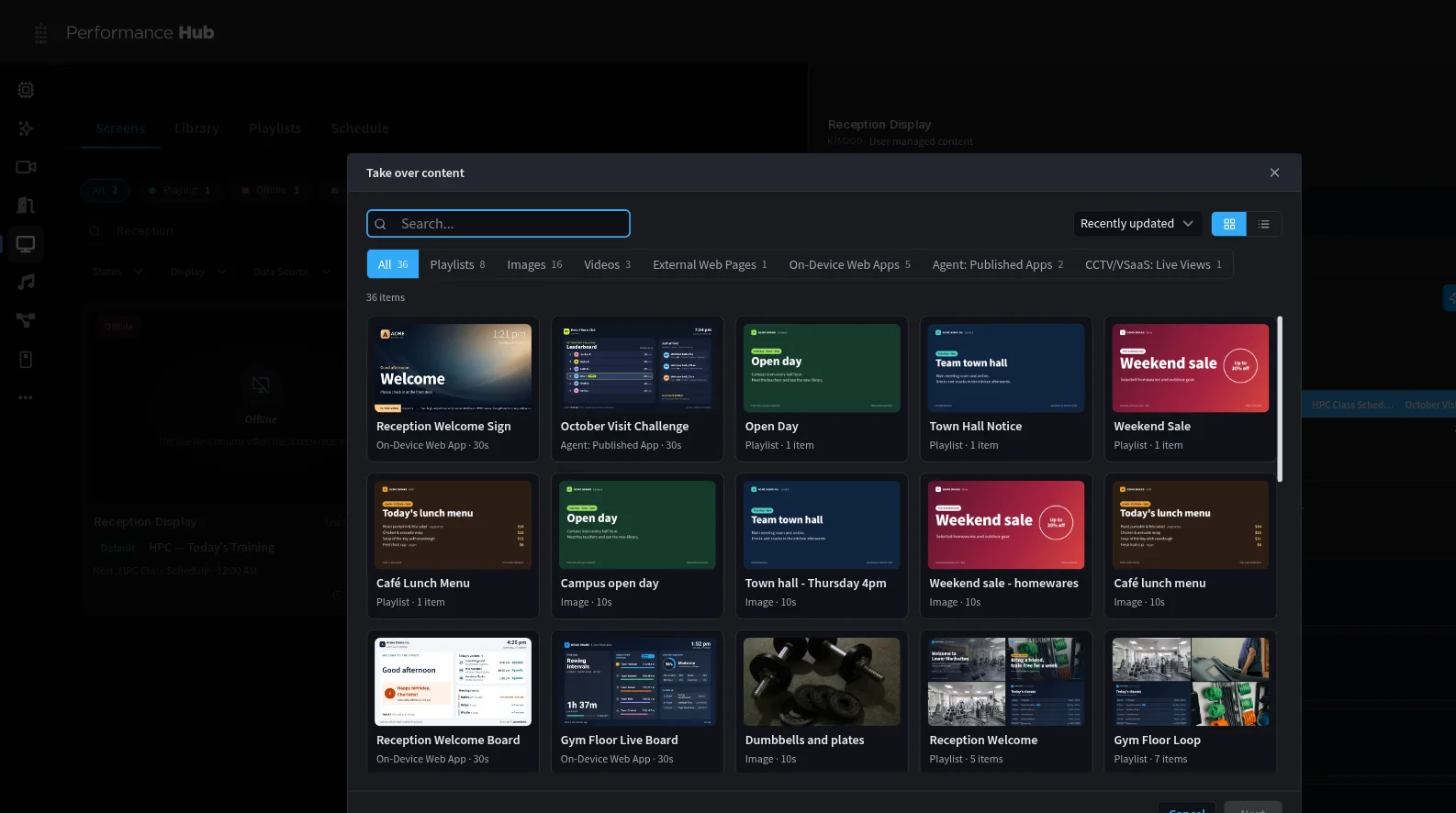
Timed screen takeovers across any scope
Interrupt any screen, group, facility, brand, or organisation on demand with a timed Takeover. Because Takeover is the highest priority layer, targeted screens switch within seconds while a live status banner gives operators one-click Stop and Stop all controls from anywhere in the module. When the takeover window expires, every display returns to its Scheduled or Default programming automatically.
Instant on-screen message overlays
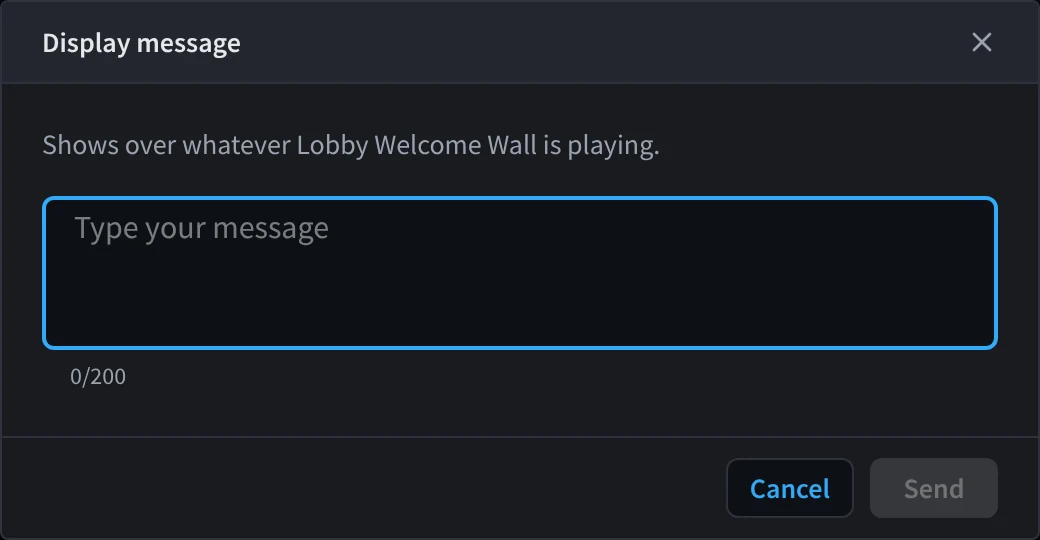
Post a fast front-of-house notice, such as "Lifts out of service until 2 pm, please use the stairs" or "Main car park full, please use Level B2", without replacing the underlying playlist. Broadcast a clean text banner directly over live playback across one display or an entire multi-screen selection in seconds.
Offline-ready emergency instructions
Prepare site-specific evacuation, muster-point, or lockdown instructions as static images or On-Device Web Apps stored locally on each player so they render even if site internet or the Agent is unreachable. Connect workflows to switch screens automatically when an emergency procedure starts and clear them when it ends.
Screens Tab · Live Telemetry · Per-Screen Modes · Bulk Lifecycle
Built to run every screen across your entire fleet.
Know immediately whether every TV across your locations is playing, switched off for the night, or needs attention on its HDMI cable, with live hardware metrics, remote screen snapshots, per-screen Kiosk and AirPlay modes, and bulk lifecycle actions built in.
Fleet list & groups
One searchable list and group structure across every site
Oversee every display across your facilities from a single cloud view. Switch effortlessly between visual live-preview cards and a high-density fleet table, filter by status or orientation, and organise displays into reusable groups and searchable tags that mirror your floor plan.
- At-a-glance status & HDMI chips: Filter immediately by Playing, Provisioning, Display off, Not responding, or Offline, plus an automatic Check HDMI alert whenever a connected TV is unplugged or switched to another input.
- Reusable groups & searchable tags: Group screens by zone such as Reception, Menu Board, or Concourse so any publish reaches new displays added to that group automatically.
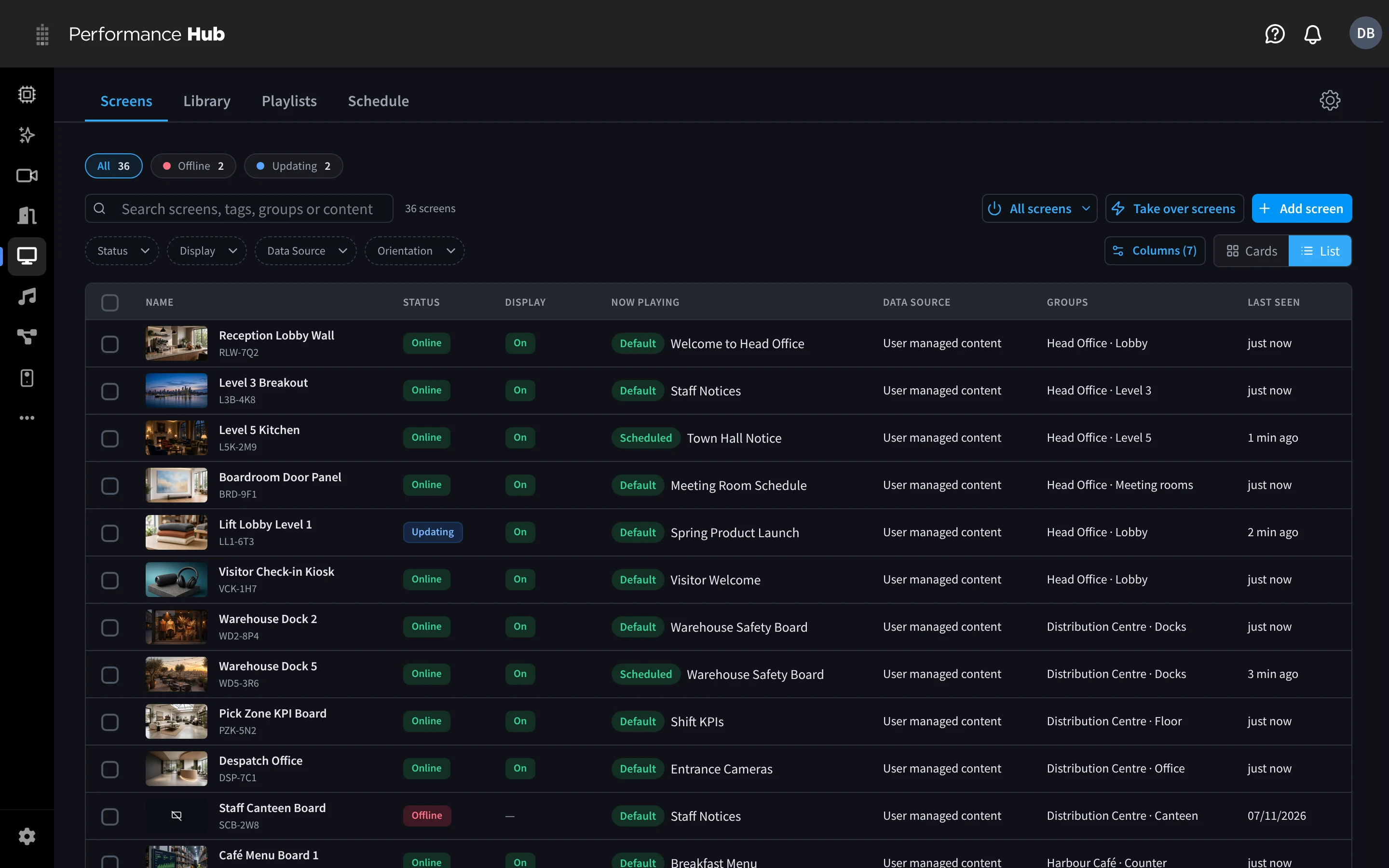
Scan every screen across your sites in List view, filter by status or group, and see active layers and last-seen heartbeats at a glance. Live telemetry & quick actions
Hardware health, live snapshots, and one-click remote controls
Open any screen to inspect real-time player health, refresh a live picture of what is on the TV, and run immediate remote actions without walking the floor.
- One-click quick actions: Trigger Display on, Display off, Reload content, Identify (flashing the screen's name and code on the TV), or Display message straight from the overview panel.
- Player & display telemetry: Monitor live CPU load, memory usage, chassis temperature, uptime, network throughput, and connected TV make, model, serial number, and active resolution.
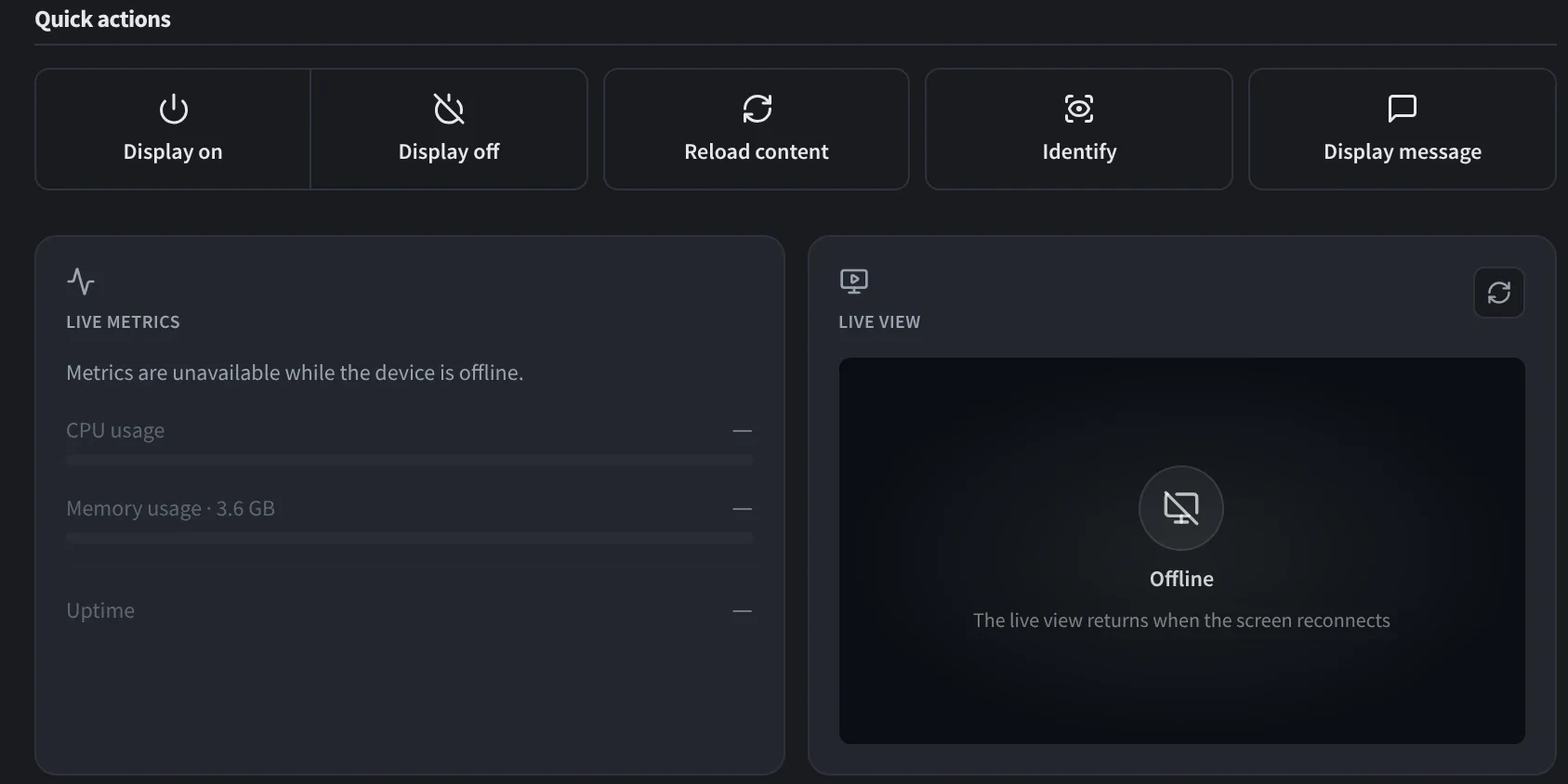
Trigger Display on/off, Reload, Identify, or Display message and inspect live CPU, memory, temperature, and uptime metrics. Per-screen modes & casting
Full-page Kiosk websites, AirPlay casting, and display tuning
Tailor how each individual display behaves to suit the room it sits in, from framing-restricted operational dashboards to meeting-room screen mirroring.
- Full-page website (Kiosk Mode): Switch any screen's Data Source from standard signage to Full-page website (Kiosk Mode) to fill the display with a single live dashboard or external web page that blocks playlist framing.
- Per-screen AirPlay & picture alignment: Enable AirPlay with a custom room name and optional PIN for staff or guest casting, and adjust landscape or portrait orientation, resolution, and underscan remotely.
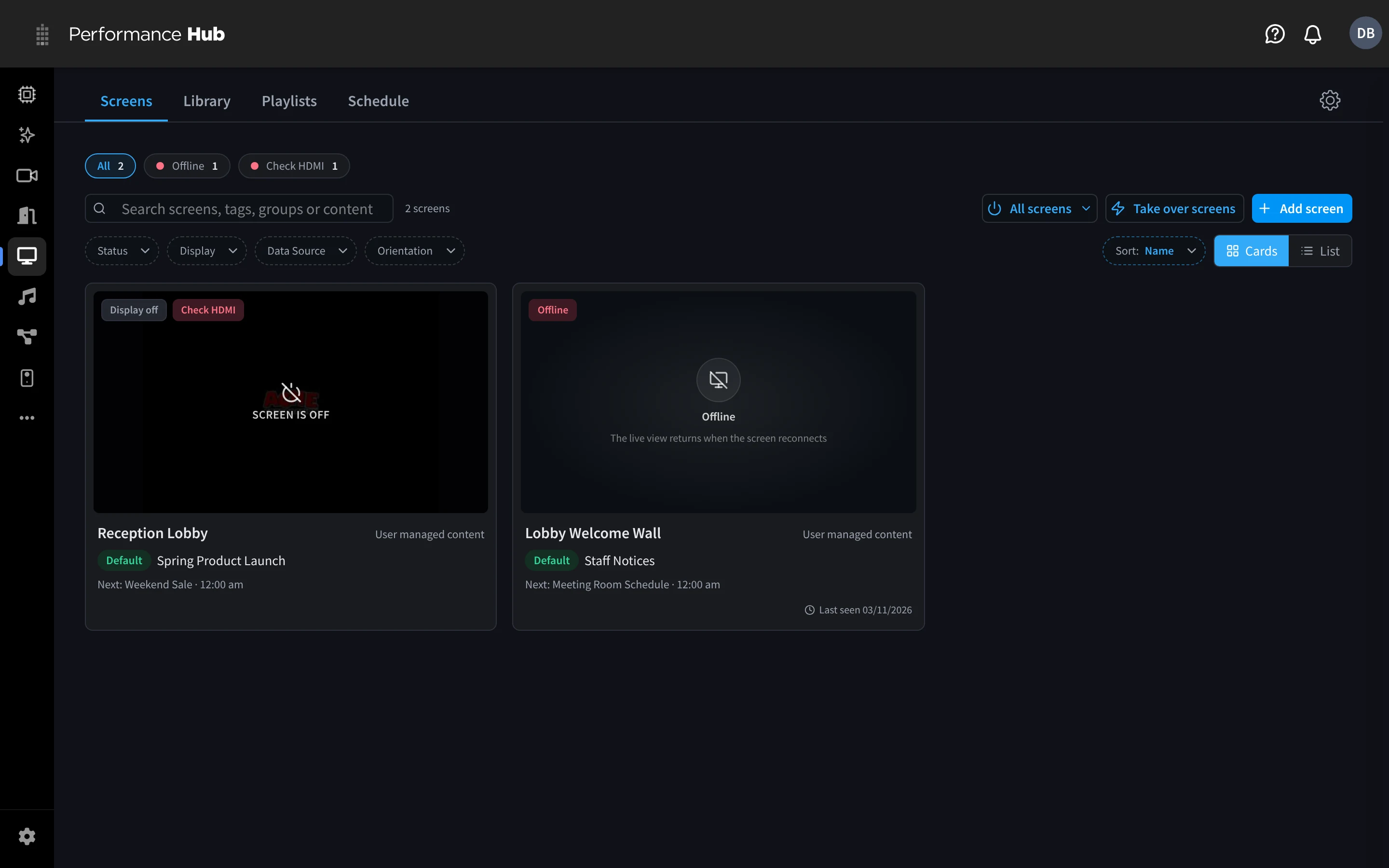
See every screen's live preview, status chip, active Data Source, current layer, and next scheduled item. Bulk actions & lifecycle
Act on dozens of screens at once and manage devices remotely
Select multiple rows across your fleet to execute changes in one step, or manage player networking and facility assignments remotely with zero USB sticks or truck rolls.
- Multi-screen bulk toolbar: Tick any combination of screens in List view to Publish content, Reload playback, flash Identify badges during commissioning, switch displays on or off, or send an overlay message simultaneously.
- Remote device lifecycle: Restart a player, unlock waiting software updates immediately, push new Wi-Fi credentials, Move to another facility in your organisation, or Remove & reset screen back to its pairing code.
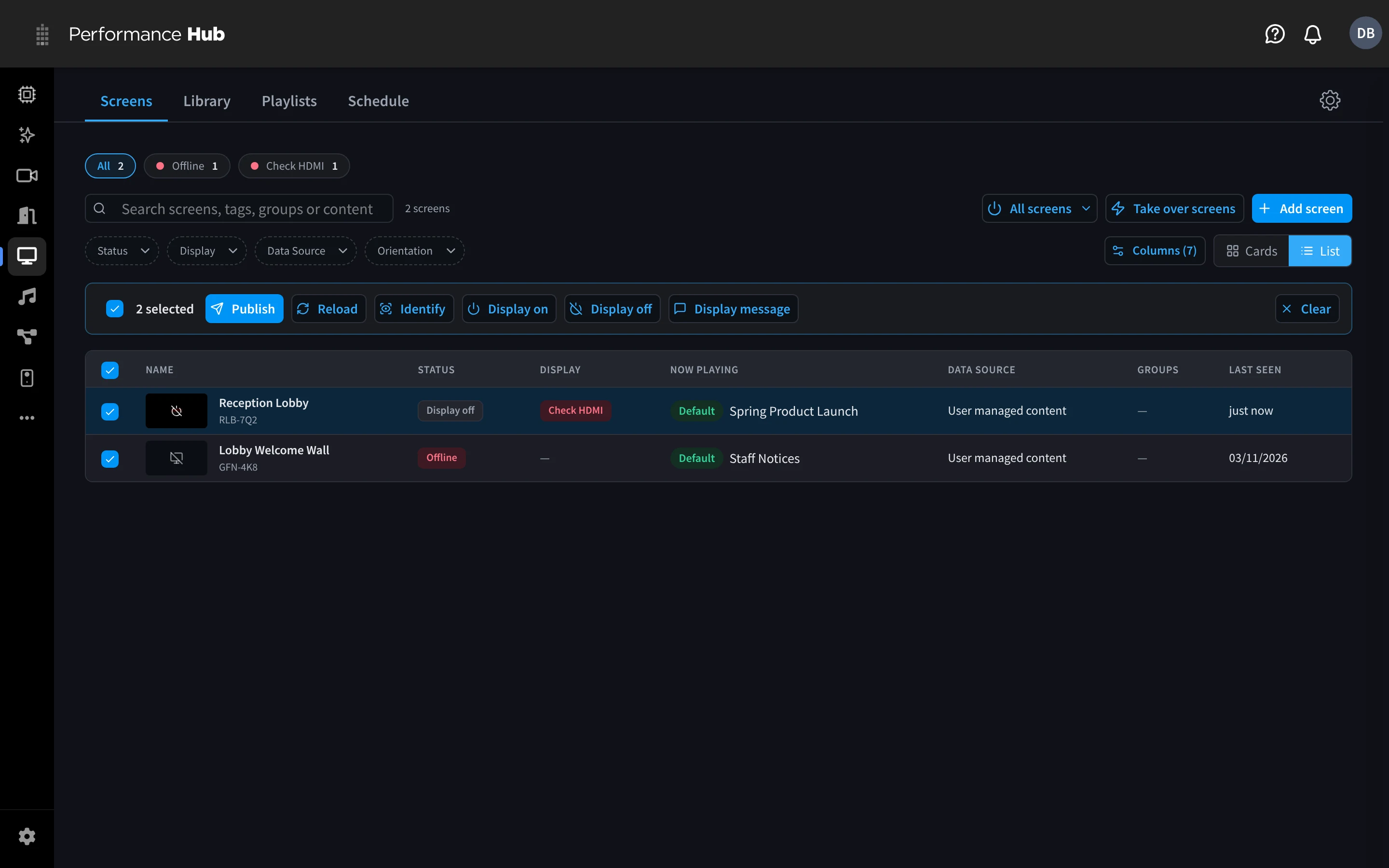
Select multiple screens in List view to publish, reload, identify, or switch displays on and off in bulk.
Enterprise Governance · Scoped Roles & Permissions · Multi-Site Control · Automated Uptime
Local autonomy for sites. Central governance and reliable uptime for brands.
Run one location or hundreds across your Organisation, Brand, Region, and Facility hierarchy with role-scoped permissions, multi-layer privacy gates, confirmed and audited Agent actions, operating-hour power schedules, and offline-resilient fallbacks so every display stays on-brand and never shows a broken page.
Scoped roles, permissions & brand-wide publishing
Grant Display Screens access at the exact level each person needs (a single Facility, a Region, or the entire Organisation) using built-in role templates (Organisation Administrator, Site Manager, Front of House, Screens & Audio, Security, Technology Administrator, Viewer) or custom roles. Local teams manage their own screens, groups, and schedules, while users with organisation-wide Display Screens access can own content at Brand or Organisation level and publish across every location in one step. Organisation administrators also set brand-wide default screen settings and boot screens centrally.
Multi-layer privacy gates for CCTV & public screens
Public screens require strict guardrails:
- CCTV display gate: Allow CCTV on display screens is off by default at every facility, can only be enabled by an organisation administrator who also has CCTV access, and requires explicit confirmation that camera feeds will be visible to anyone near the screen before a live view is added or published.
- Smart Display audience gate: Every Agent: Published App has Allow on display screens turned off by default with a reminder to enable it only for apps that contain no private or confidential information, and its audience cannot exceed the publisher's own access scope.
- Isolated sandbox & replaceable screen keys: Static On-Device Web Apps run inside an isolated browser sandbox with zero access to your Performance Hub session, and administrators can Replace screen key at any time to invalidate a copied screen address.
Agent actions need confirmation and are recorded in audit logs
Every Display Screens capability, including inspecting screen health, capturing a live on-screen screenshot to verify layout, building playlists, publishing schedules, and rolling back On-Device Web Apps, is exposed over the Performance Hub MCP server. Drive your screens from your facility's Agent or connect external MCP clients (Cursor, Hermes, OpenClaw, Glean, Microsoft Copilot Studio, Salesforce Agentforce) under your own roles and permissions. State-changing actions that affect multiple screens, groups, brand/organisation targets, screen Data Sources, device resets, or live CCTV views require explicit user confirmation before executing, and every call is recorded in Audit Logs.
Automatic updates, nightly restarts & Enterprise options
- Updates & nightly player restarts: Online screens pick up published changes within seconds and check for updates on a configurable timer, while automatic overnight software updates and an optional nightly player restart in each facility's timezone keep long-running displays fresh.
- Outbound-only players: Display Screen Players initiate outbound connections to Performance Hub, with zero inbound firewall ports, port forwarding, or static public IPs required.
- Sign-in, Enterprise SSO & On-Premise Inference: Sign in with Google, Microsoft, Slack, Apple, or email with two-factor authentication out of the box. Custom Enterprise SSO (SAML / OIDC) and On-Premise Inference (dedicated Station-class or Rack-scale inference hardware inside your building) are available for enterprise deployments. Talk to sales to scope your organisation.
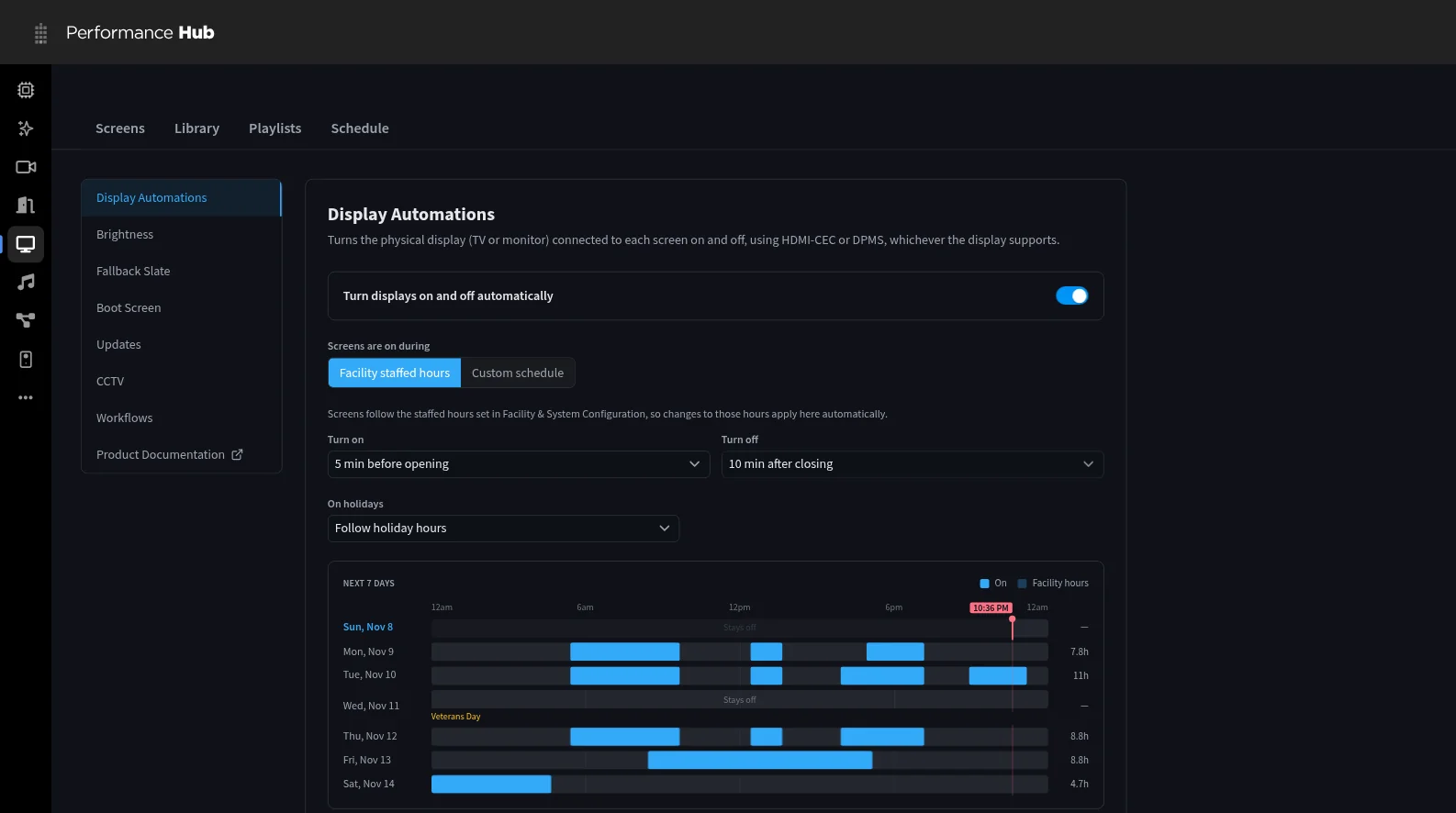
Automated power schedules, day/night brightness & zero broken pages
Display Automations tied to your operating hours
Tie display power directly to your Facility staffed hours and Holiday hours so every screen wakes before opening and powers down after closing automatically, or set a custom per-day schedule with a Next 7 days visual preview chart. While displays sleep in low-power standby, the players stay connected online so screens wake instantaneously when needed.
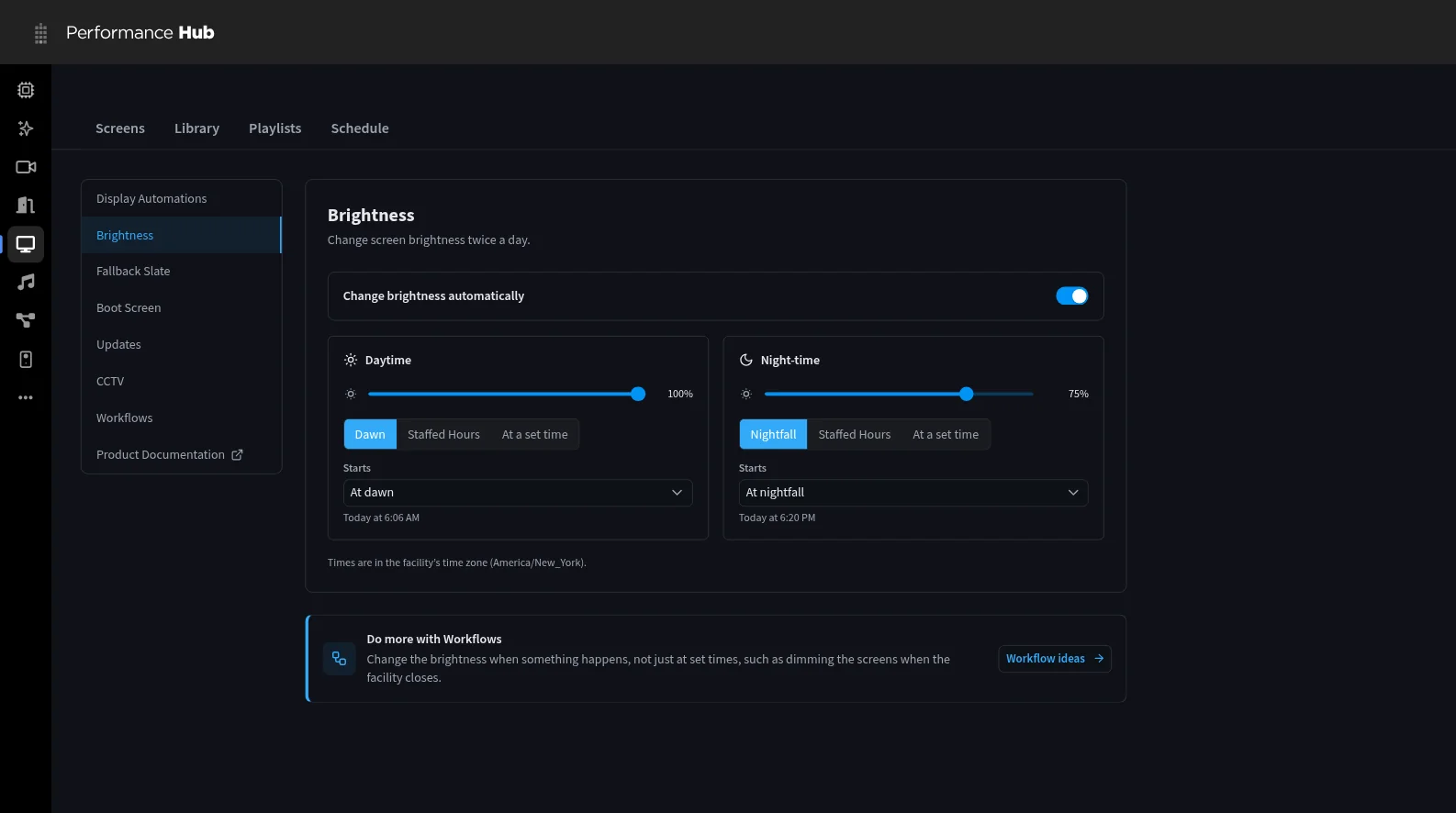
After-hours Check-in power & Dawn/Nightfall Brightness
- Check-in power: At sites with Unstaffed or Extended Hours, enable Check-in power so displays wake immediately when someone checks in outside staffed hours and switch off automatically after the space empties, never burning power in an empty building overnight.
- Automatic Brightness: Schedule daytime and night-time brightness levels across the facility, triggered automatically at Dawn and Nightfall for your site's map location, relative to Staffed Hours, or at set times.
Branded Fallback Slate & Brand Boot Screen
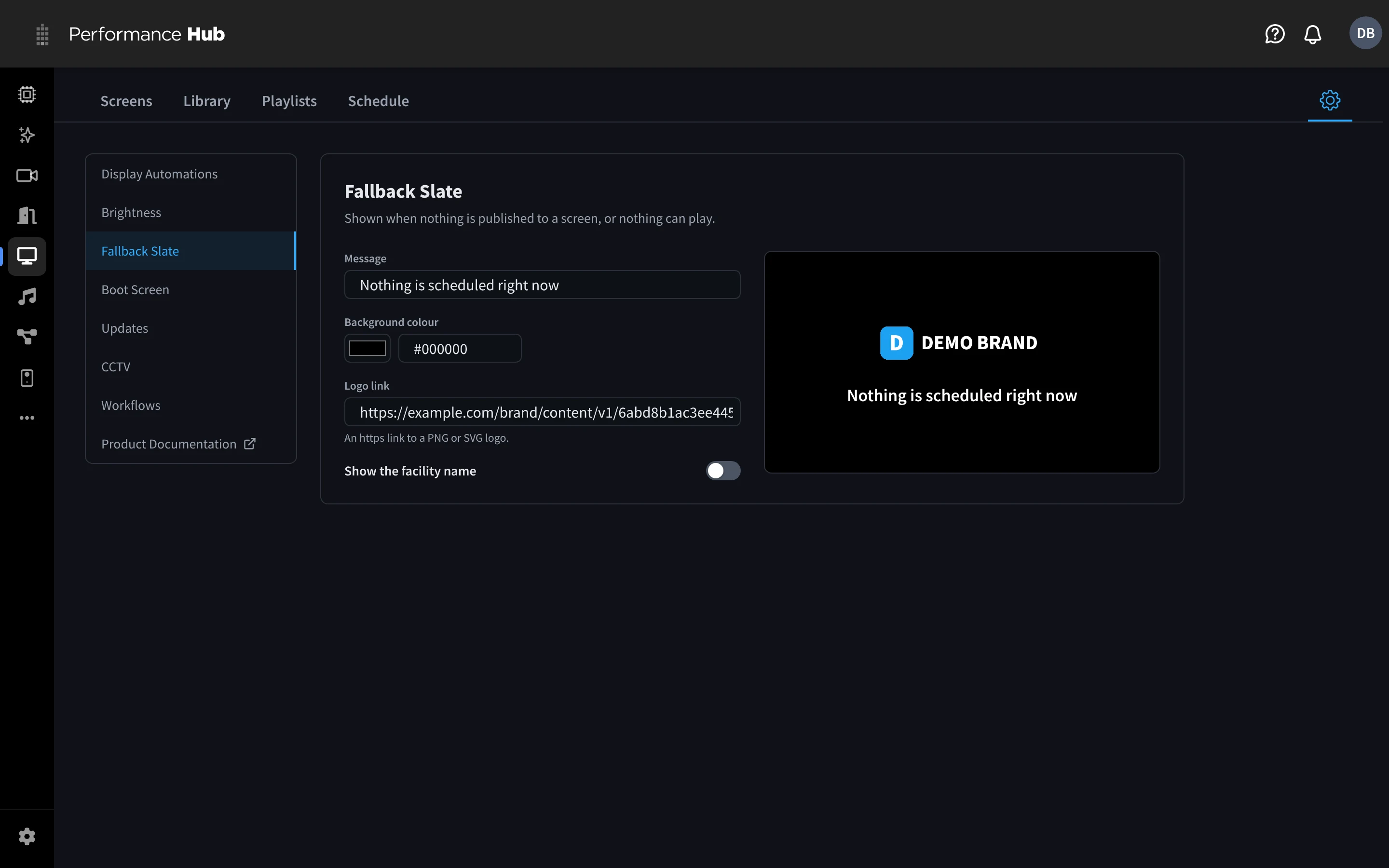
- Fallback Slate: Configure a facility-wide Fallback Slate with a custom welcome message, brand background colour, logo, and optional facility name. Screens display the Fallback Slate automatically whenever nothing is scheduled or when external web pages or live views cannot load.
- Brand Boot Screen: Set a brand-wide Boot Screen with your logo and brand colours centrally so every screen across every location shows a polished, on-brand startup experience from the moment it powers on.
Offline resilience & Needs attention monitoring
- Predictable offline behaviour: On-Device Web Apps and the Fallback Slate work offline directly from local player storage, so screens never show a broken browser error page. External Web Pages and live views (including live Agent: Published Apps and CCTV/VSaaS: Live Views) require network connectivity to their host and are cleanly skipped until connectivity returns.
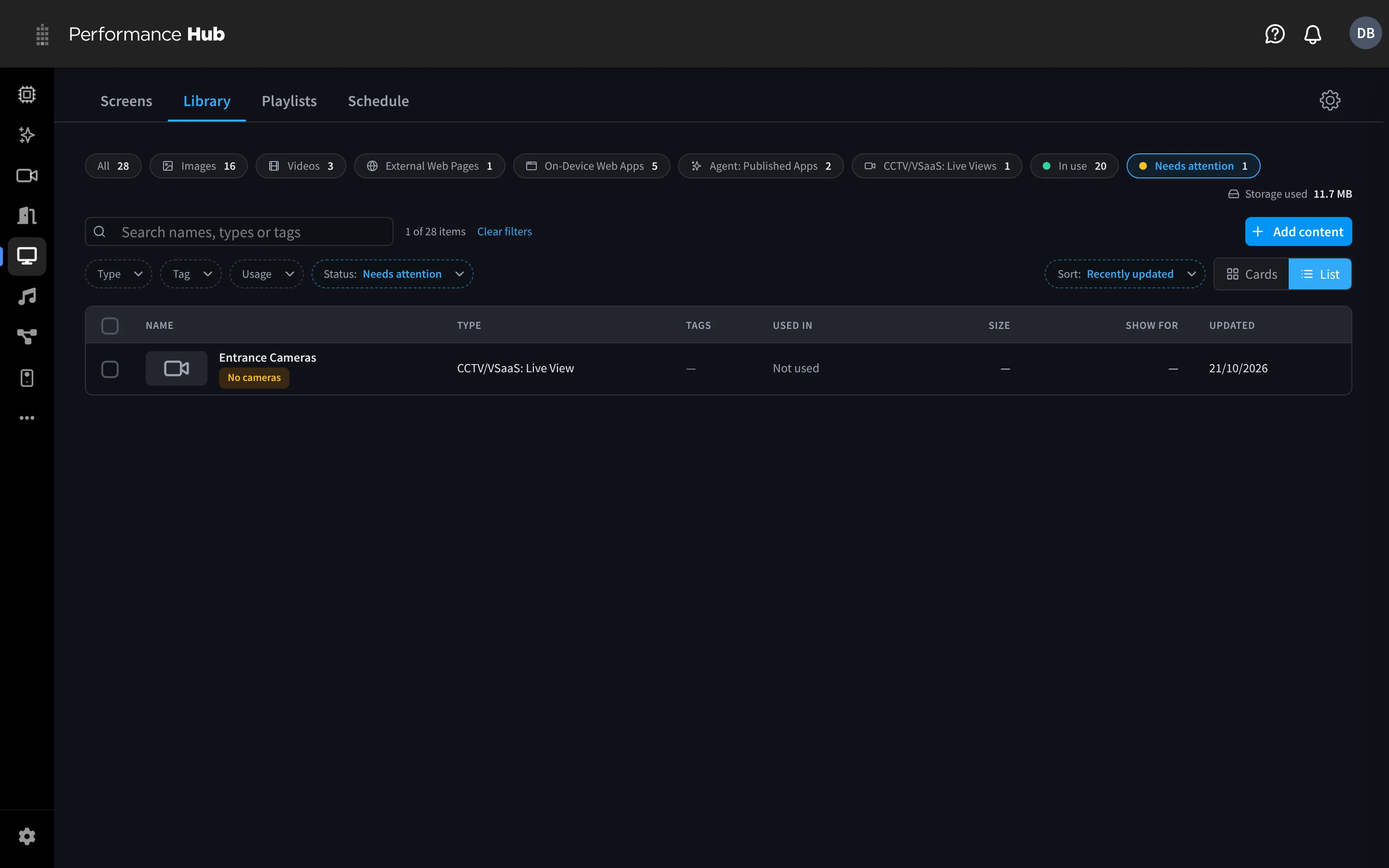
- Proactive upload checks: New uploads are verified and prepared in the background so you can add them to playlists straight away. If a file ever fails processing, the Library flags it under the Needs attention filter chip with the exact failure reason before it can reach a screen.
Turnkey Appliance · Fanless Industrial Design · Live in Minutes
One silent, fanless player behind every display.
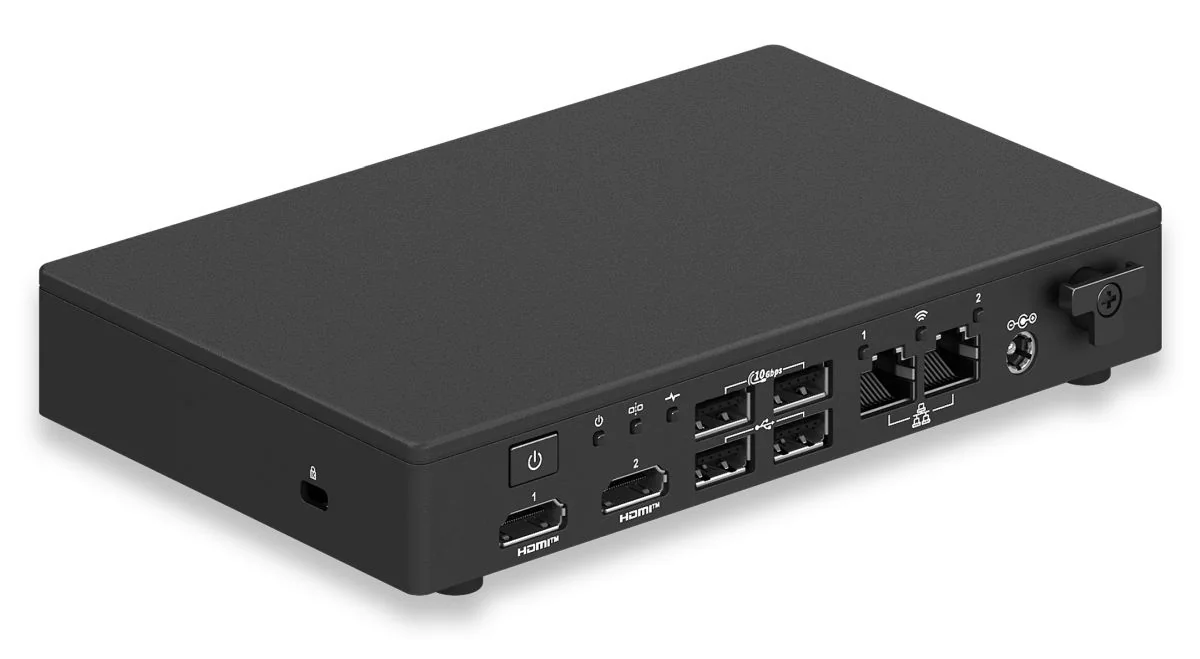
Every screen is driven by a dedicated, solid-state Display Screen Player that arrives pre-configured and ready to mount. There is no operating system to image, no local server to maintain, and no inbound firewall ports to open: plug in HDMI, network, and power, pair in minutes, and manage every player remotely from Display Screens and Device Management.
From a boxed player to a live screen in minutes
Step 1
Pair with a code or QR
Connect the silent, fanless Display Screen Player to your TV or monitor over HDMI and plug into Ethernet or Wi-Fi. Enter the on-screen pairing code or scan the QR code from your phone, name the screen for its location, and flash an on-TV Identify badge to confirm you paired the right display on the floor.
Step 2
Upload media, import links, or ask your Agent
Drag visuals from your desktop, import assets straight from a web link, upload a self-contained web bundle, or ask your Agent in plain English to build a custom screen layout and preview it beside the chat before adding it to your Library.
Step 3
Target your screens and go live in seconds
Choose which displays or room groups should play your content, set it to run continuously, during specific hours of the week, or as an immediate interruption, and watch every online screen update within seconds.
Pre-configured, silent & built for commercial walls
The Display Screen Player is a compact, fanless industrial unit with no moving parts, cooled silently through its metal chassis so it runs reliably in quiet reception lobbies, clinics, dining rooms, and dusty warehouse floors alike. Every box includes the player, a country-matched power adapter, and a flat wall and surface mounting bracket kit (supporting keyhole wall screws, DIN-rail clips, and cable ties) plus a side Kensington lock slot for public areas.
HDMI, Ethernet / Wi-Fi & single-cable PoE option
Connect one commercial display or TV per player over HDMI for crisp landscape and portrait playback, and join your network via Ethernet (recommended) or built-in Wi-Fi. Power the player from its supplied AC power adapter behind the display, or run both network data and power over a single cable using the optional PoE dongle.
Flexible mounting & automatic TV standby control
Mount the player out of sight on the wall behind the TV, on a nearby backing board, or on a comms-cabinet DIN rail with clear passive airflow around the case. The player puts connected TVs into low-power standby and wakes them automatically over HDMI with no extra boxes required, and supports an optional USB HDMI-CEC adapter for displays that prefer native television power commands.
More than signage: Sonos controller, Duress receiver & camera bridge
Because the Display Screen Player sits on your facility LAN with built-in Bluetooth and USB connectivity, it can take on additional site roles with zero extra boxes on the wall:
- Local Sonos controller: Drives your facility's Sonos speakers and saved Sonos Favourites for Audio Control.
 Wireless Duress button receiver: Relays presses from nearby wireless Duress buttons when Duress alarm monitoring is enabled at the facility.
 USB camera restreaming & speed-test node: Shares USB cameras plugged into the player with your Edge Processors for CCTV / VSaaS, and can act as the facility's periodic internet speed-test node.
Common Questions · Display Screens & Smart Displays
Frequently asked questions.
Practical answers on TV compatibility, PoE power, Kiosk Mode, AirPlay casting, Smart Display updates, privacy, and multi-site rollouts.
Do I need special commercial displays, or will standard TVs work?
Any standard TV or commercial monitor with an HDMI input works with Display Screens, mounted in either landscape or portrait orientation. The player automatically matches your display's preferred resolution and includes remote orientation and picture-fit adjustments so content fills the screen cleanly from edge to edge.
How does the player switch TVs on and off automatically?
To put a display to sleep, the player stops its HDMI video signal so the TV enters low-power standby on its own, and wakes the screen by restoring the signal when opening hours begin or someone checks in. For commercial or consumer TVs that prefer direct television power commands, you can attach an optional USB HDMI-CEC adapter so the player sends native standby and wake signals over the HDMI cable.
Can I power the Display Screen Player over Ethernet (PoE)?
Yes. When a player is driving a single HDMI display with no USB accessories attached, you can use the optional PoE dongle to deliver both network data and power over one Ethernet cable from a PoE switch or injector, with no mains outlet needed behind the TV. If you connect USB accessories such as a camera or HDMI-CEC adapter, power the player with the included AC adapter instead.
What happens if an external website refuses to load inside a playlist?
Some external dashboards and ticketing pages block being embedded inside another page. For those sites, you can switch that screen's mode to Full-page website (Kiosk Mode) so the website fills the entire display on its own, or ask your Agent to build a native Smart Display or On-Device Web App that presents the data directly.
Can staff or visiting guests cast a laptop or phone to a meeting-room or lobby screen?
Yes. You can enable AirPlay on any individual screen, give it a clear room name such as Boardroom or Reception Lobby, and optionally require a PIN before a phone, tablet, or laptop on the local network can mirror to the display.
What keeps playing if site internet drops?
On-Device Web Apps are stored locally on each player and keep running without internet, and your branded Fallback Slate appears automatically whenever a screen has nothing else it can play offline. Live items that require network access are skipped cleanly while unreachable, and the player syncs any missed schedule or content changes automatically as soon as connectivity returns.
How do Smart Displays stay current without running continuously?
Your facilities agent updates each Smart Display in one of two ways: on a recurring schedule during the hours your building is open, or in response to a real-time site event such as a visitor pass unlocking a door. Between scheduled runs or site events, the screen continues showing the live app while your Agent does no unnecessary background work.
Do footfall-responsive screens or waiting-room boards identify individuals?
No. Waiting-room boards, stadium gate boards, quick-service queue menus, hotel lobby boards, and shopping-centre promotions read anonymous aggregate counts only and never identify, track, or display personal or health details about anyone near the screen. Where an office reception screen greets an arriving visitor, it is triggered by their Door & Gate Access pass at the entrance, matched against reception's daily guest list, and shows only their first name, host, meeting room, and directions.
Can we move a player to another room or transfer it to a different facility later?
Yes. You can rename a screen and update its groups or orientation at any time if you relocate it within the same building. If you move the player to another site, you can transfer it to another facility in your organisation remotely so it immediately adopts the new building's schedules and operating hours, or reset it back to its pairing screen.
How do we configure hardware and modules for our sites?
You need one pre-configured Display Screen Player per TV or monitor, paired with the Display Screens module at your facility (plus the Agent and CCTV modules where you want live Smart Displays or multi-camera video walls). Use the buttons below to configure your order or book a walkthrough, or talk to sales for multi-site rollouts and enterprise deployments.
Get Started · Guided Setup Included
Put the right content on every screen.
Book a 20-minute demo where our team scopes your screen groups, operating-hour automations, live Smart Displays, and CCTV video walls with you, or order pre-configured Display Screen Players for your sites.